See who's out on a given day
Get a company-wide overview of absences for a single day: who is out, who works remotely, which requests are still pending, and where a team is running low on coverage.
Before you start
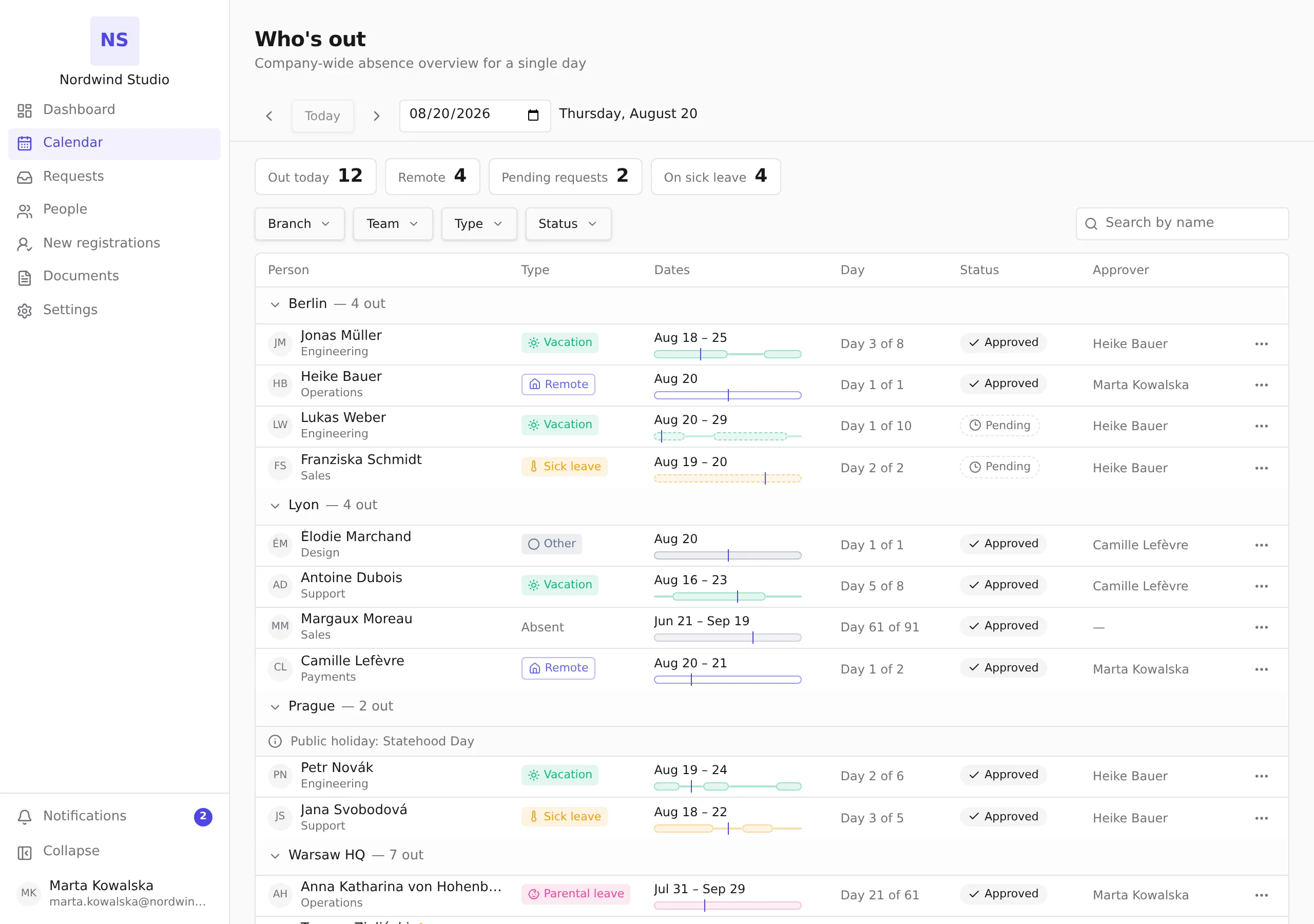
- Open Who’s out from the navigation. What you see depends on your role and the company’s visibility settings: some entries may show only that a person is absent (marked Absent), without the absence type or approver.
- The numbers in the stats row and the rows in the list come from the same data — they always agree.
Read the day view
- Pick the day with the arrow buttons, Today, or the date field. The view always shows one day at a time.
- The stats row summarizes the day: Out today, Remote, Pending requests and On sick leave. People are counted once each, even with two entries on the same day; Pending requests counts requests.
- Entries are grouped by branch. When the day is a public holiday in a branch, that branch shows a Public holiday banner — holidays follow each branch’s own calendar, so a holiday in Prague does not appear for Warsaw.
- A warning triangle next to a person means their team is low on coverage that day (for example “3 of 4 people in the Payments team are out”). Only approved absences count toward this — remote workers and pending requests do not. The warning is advisory; it never blocks anything.
Narrow the list
- Use the Branch, Team, Type and Status filters, or search by name. Filters combine.
- The Status filter distinguishes Approved absences from Pending requests. Without it, the day view shows both.
- Clear filters returns to the full day. An empty result with active filters means nobody matches — an empty day without filters means nobody is out.
On your phone
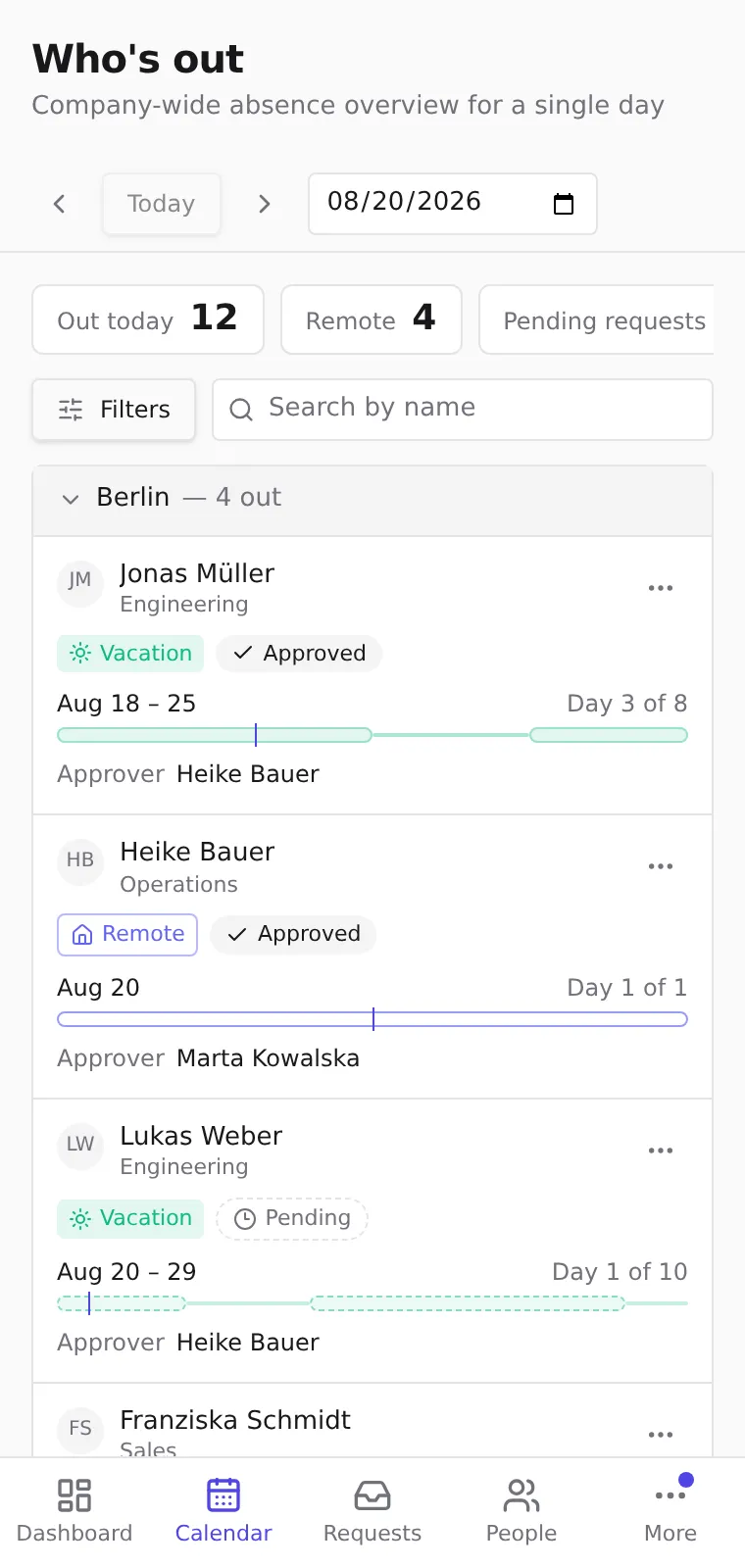
- Each entry appears as a card instead of a table row: the person and their team, the type and status, the dates with a small bar marking where the selected day falls in the absence, and the approver. The ⋯ menu in the card’s corner holds the same actions as on desktop.
- Branch headings stay pinned at the top while you scroll through that branch’s cards.
- The stats row scrolls sideways — swipe it to see all four numbers.
- The filters live behind the Filters button: it opens a panel with the Branch, Team, Type and Status groups and shows how many filters are active. Clear filters and Done close out the panel; searching by name stays on the screen itself.
When something fails to load
- If the stats row fails, the list keeps working — use Try again to reload the stats.
- If the list itself fails, check your connection and use Try again.
Tips
- Every name in the list — the absent person and the approver — is a link to that person’s profile page (Your profile & work with me).