Approve new registrations
Review the people who registered themselves with their work email, place them in the right branch and team, and activate or reject each one.
Before you start
- You need the HR or Admin role. Managers and employees never see the registration queue.
- If your role is scoped to a branch, you can only place people into that branch.
- Self-registration has to be switched on for your company’s email domain first. Ask your Pauzora contact if the queue stays empty although people say they registered.
- Nothing a person registers is visible to them until you activate them — a waiting account sees no colleagues, no calendars and no company data.
Steps
- Open New registrations in the sidebar. On a phone it sits in the More menu.
- The Waiting list shows everyone who registered, the person who waited longest first, with the email they used and the branch and team they proposed themselves. Someone who was unsure shows Not sure where they belong instead of a placement.
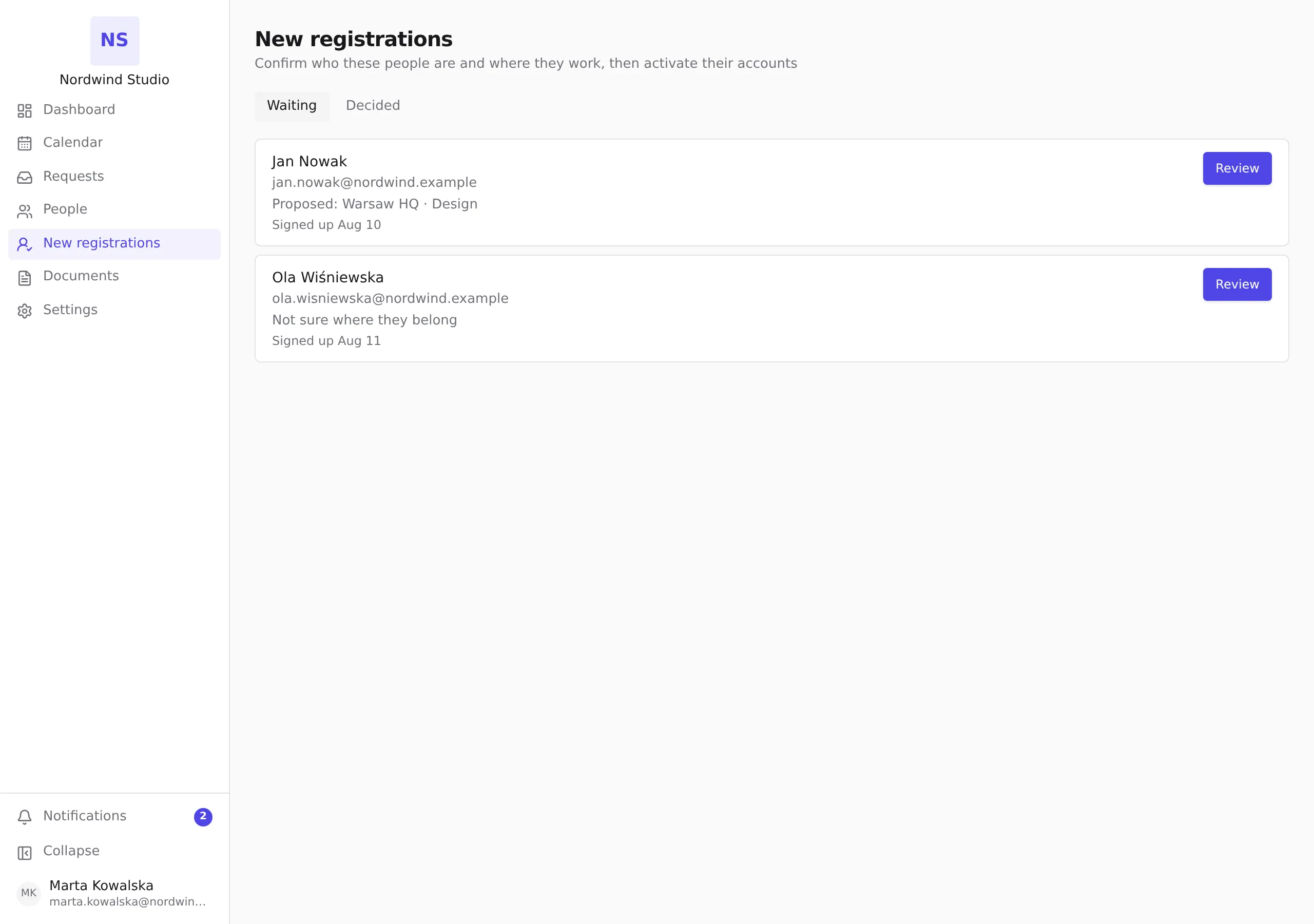
- Choose Review next to the person. The panel that opens shows who they are and what they proposed — the proposal is only a suggestion, and it merely prefills the form. You decide the real placement.
- Fill in the placement and the employment details:
- Branch (required) — it sets the holiday calendar, the time zone and the working week that all this person’s leave is calculated in. It stays required for someone who was not sure: that is exactly what you are here to decide;
- Team (optional) — must be a team of the branch you chose;
- Manager (optional) — who approves this person’s requests;
- Hire date — the first day of employment. Leave accrual starts here, so fill it in as soon as you know it;
- Contract type (optional) — used to match leave policy rules;
- Leave policy (optional) — assign one only if this person needs a different policy than the rules for their branch and contract type already give them.
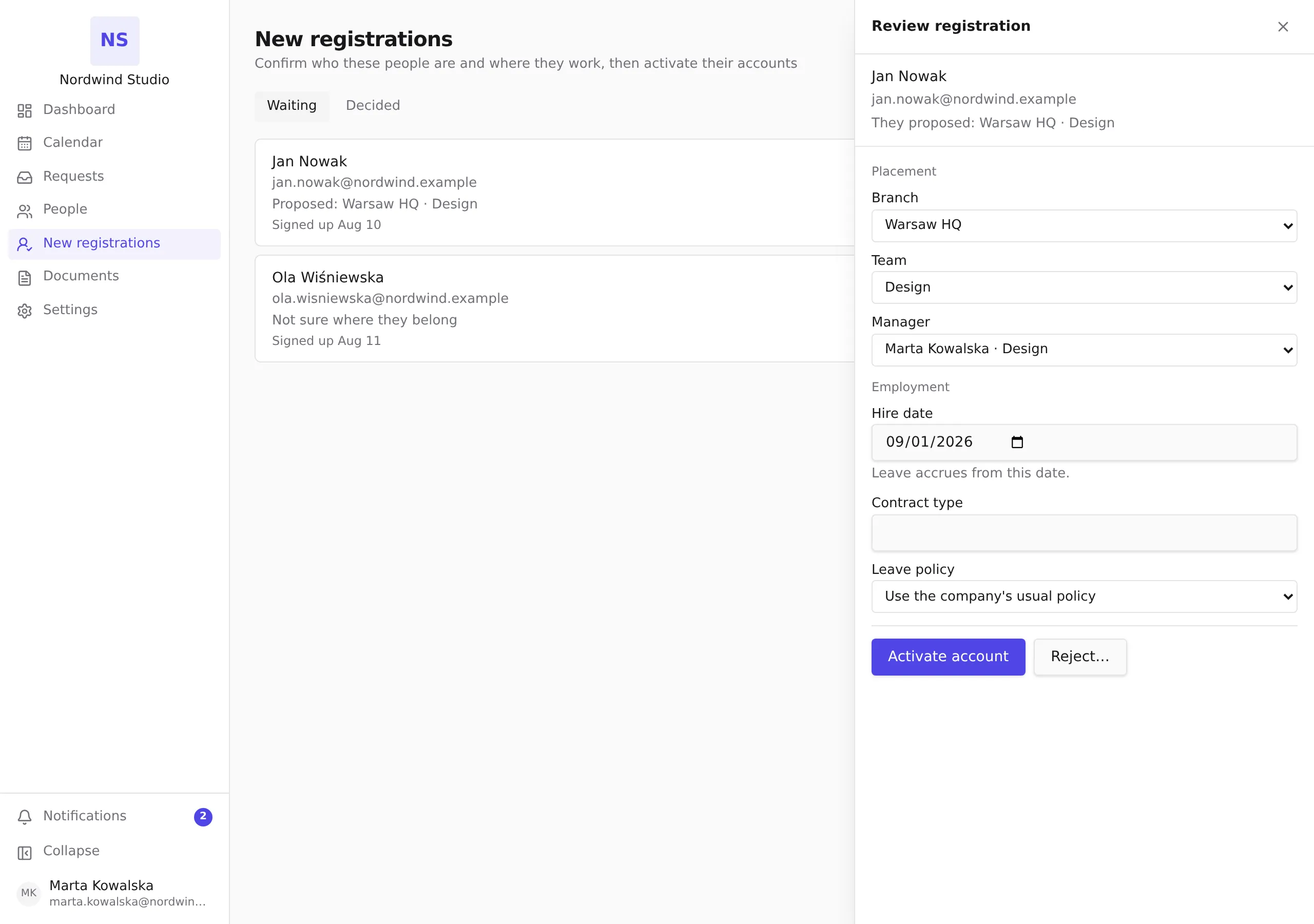
- Choose Activate account. The person becomes a full employee immediately.
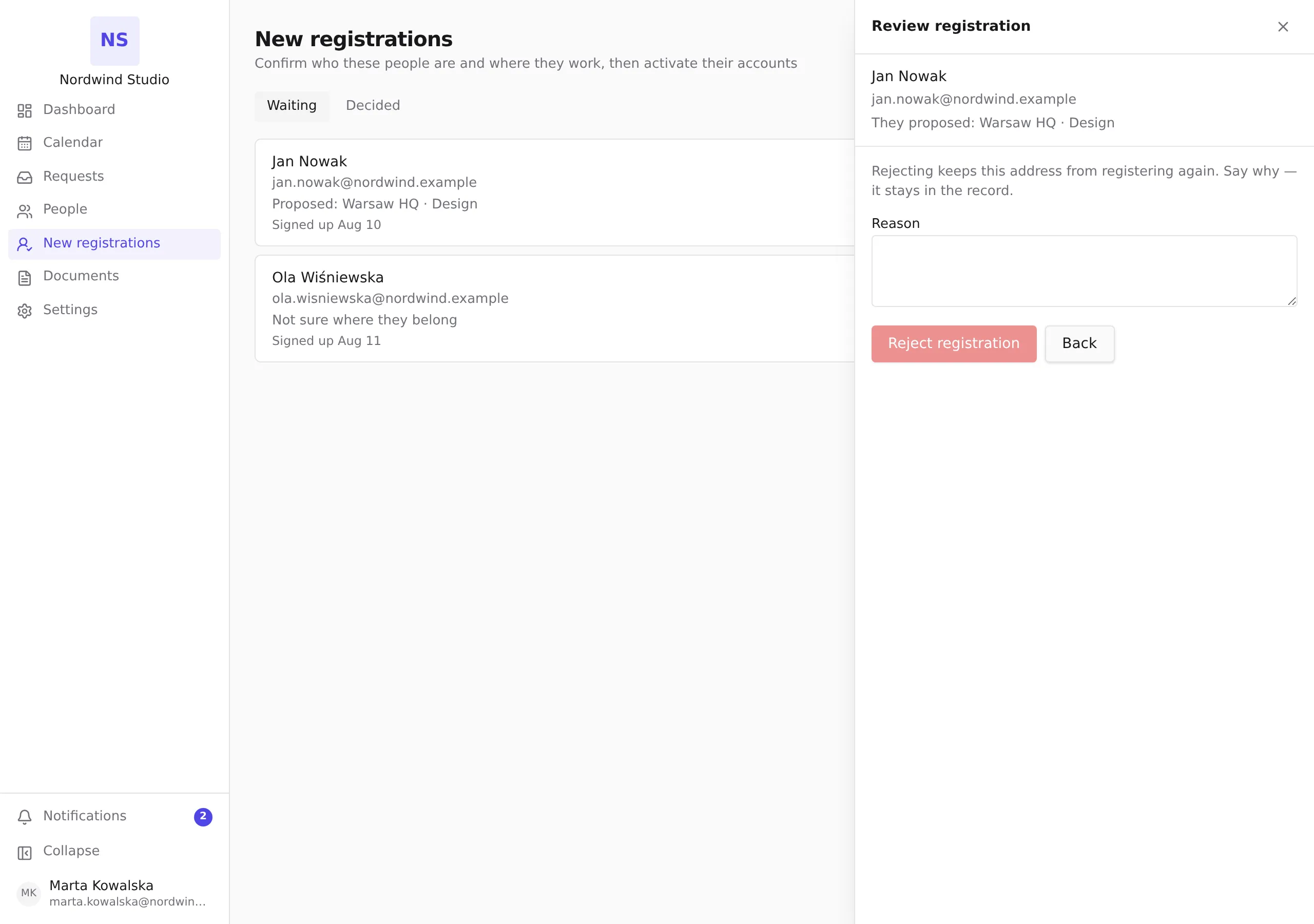
To refuse a registration instead — someone who does not work for you, a duplicate, a person who left before onboarding — choose Reject…, write the Reason and choose Reject registration. The reason is required.
What happens next
- After activation the account opens up: the person sees their dashboard, their team’s calendar and can request time off — usually the first thing they do.
- After rejection the person keeps seeing the waiting screen, and that email address can no longer register with your company. Rejections are never deleted: they stay in New registrations → Decided with who decided, when, and the reason you wrote.
- Both decisions are final: a registration cannot be reopened, and the rejected address cannot register again. If you rejected someone by mistake, ask your Pauzora contact to restore access for that address — adding people directly is not something you can do yourself yet.
If something does not work
- Someone says they registered but is not in the queue — they may not have finished the second step (the profile they fill in after clicking the link in the confirmation email). Ask them to open the link again and complete it.
- You cannot choose a branch — a branch-scoped HR role can only place people into its own branch. Ask an Admin to place people who belong elsewhere.
- The person is already an employee — the account already has a membership; the registration is a duplicate and can be rejected.
- Hire date unknown — activate without it and fill it in later on the person’s page. Leave is not accrued until a hire date exists.
Related
- Create your account — what the employee sees
- Assign roles and scopes
- Browse the employee directory