Start from a policy template
Instead of building a leave policy from scratch, clone a statutory template — and keep your public-holiday calendar filled by cloning each country’s year when it is published.
Before you start
- You need a role that manages policies (HR or Admin).
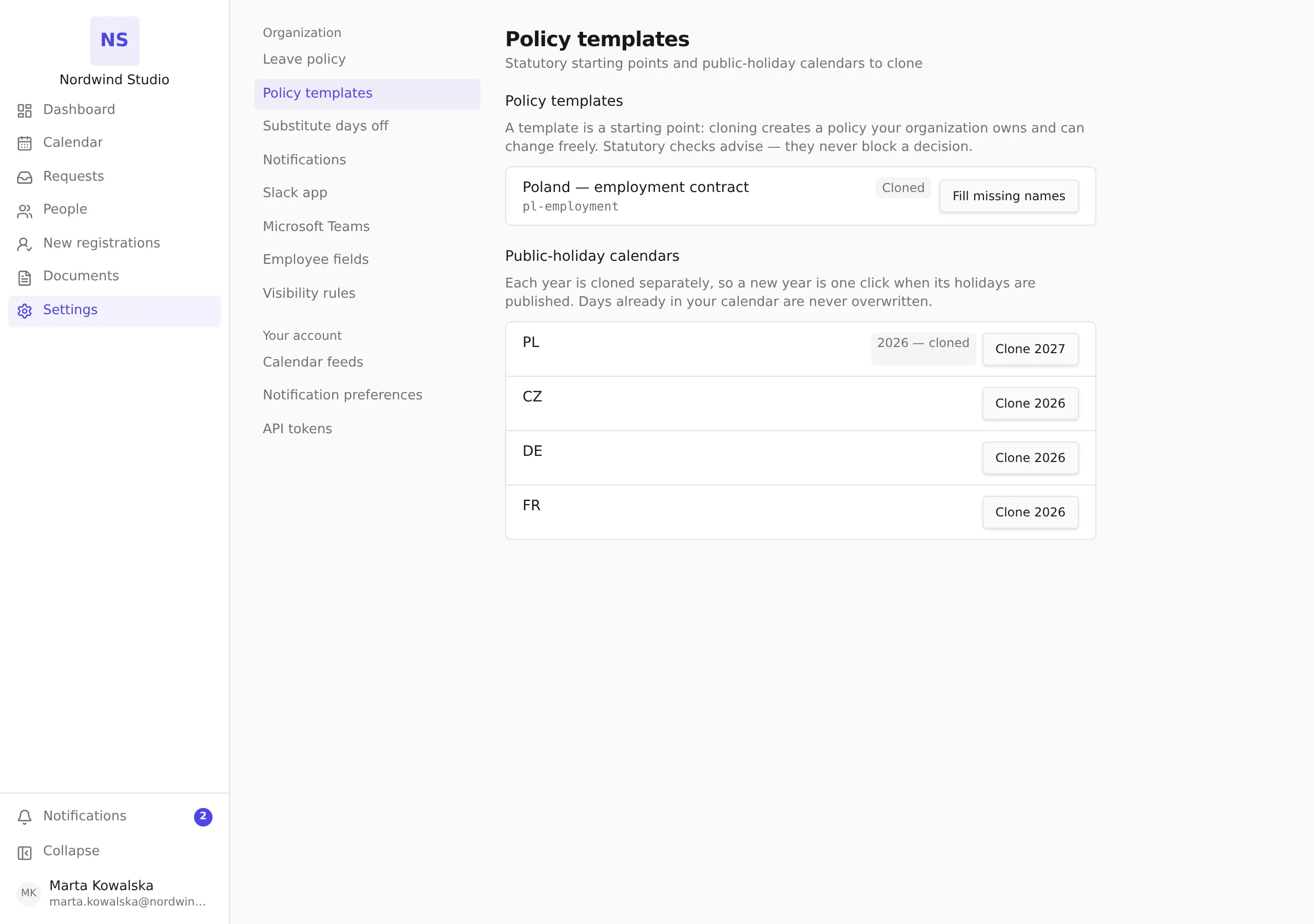
- Open Settings → Policy templates. The screen lists the available templates and, below them, the public-holiday calendars.
Clone a template
Press Clone on a template’s row. The template becomes a policy your organization owns — from that moment it is yours to adjust freely under Settings → Leave policy, like any other policy.
A template is a starting point, not a constraint: statutory checks in the product advise — they warn where your configuration departs from what the law expects, and they never block a decision.
A template you already cloned shows a Cloned badge instead of the button. Cloning is safe to repeat — an already-cloned template is left exactly as it is.
Fill missing names
On a cloned template’s row, Fill missing names copies display names from the template into your policy — only where yours are blank. Names you have written yourself are never overwritten. If nothing is blank, the screen says so and changes nothing.
Clone a holiday year
Under Public-holiday calendars, each country row lists its available years. A year already in your calendar shows as « year » — cloned; press Clone « year » to add one that isn’t.
- Days already present in your calendar are never overwritten — cloning a year only adds what is missing.
- When a new year’s holidays are published, its button appears here: keeping the calendar current is one click per country, once a year.