Browse the employee directory
Find your colleagues, their teams and branches.
Before you start
- No setup needed. Everyone in your organization can open People — what each person’s profile then shows you depends on your role.
Steps
- Open People in the sidebar, or the People tab on a phone.
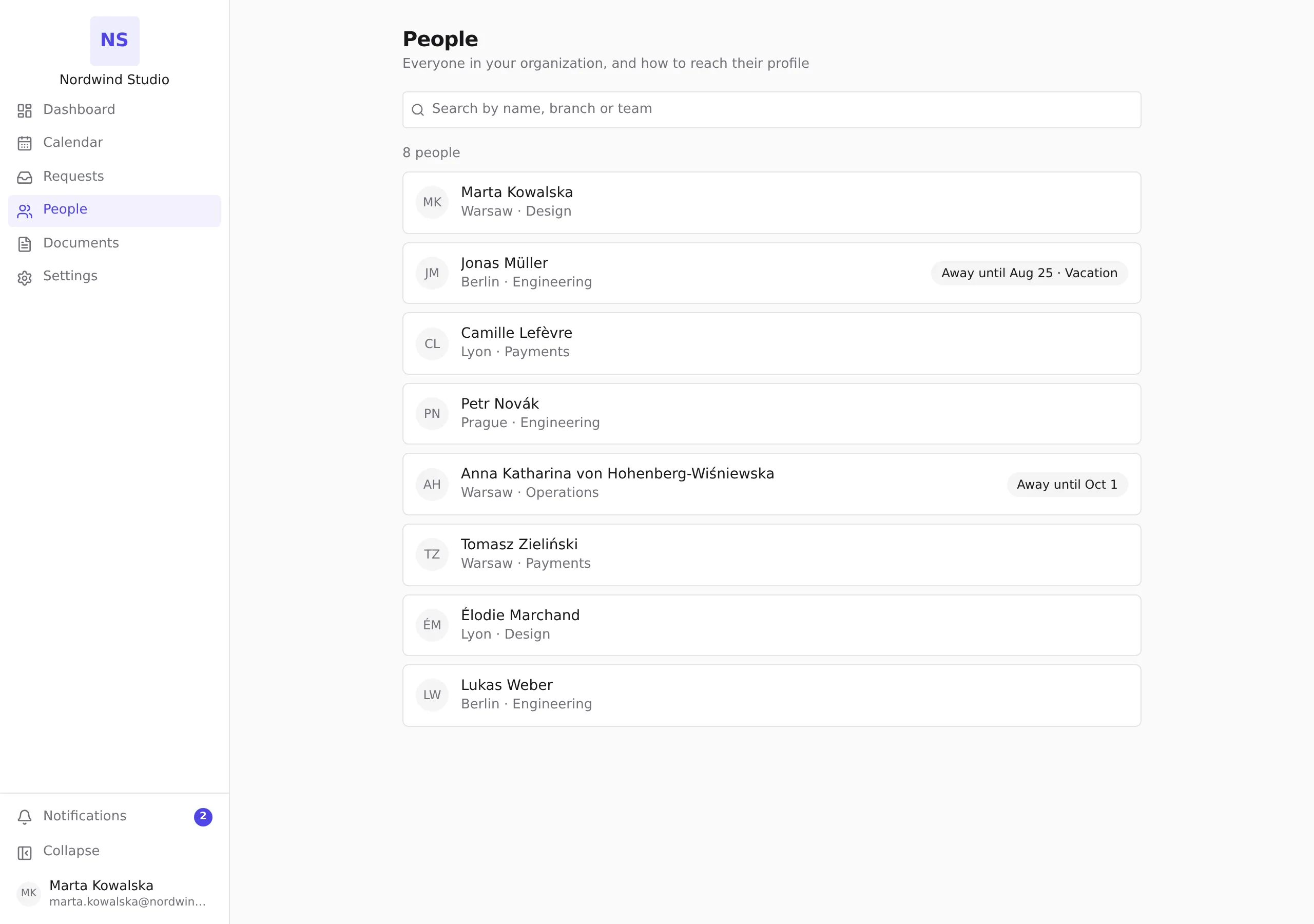
- Type any part of a name, a branch or a team into Search by name, branch or team. The list narrows as you type, and the count above it tells you how many people match.
- Click a person’s name to open their profile — their branch and team, whether they are currently away, and their How to work with me notes.
What you see
- Every row shows the person’s name and their branch and team.
- If someone is currently away, their row says so — Away until the last day of their absence. Whether the row also names the absence type depends on what you are allowed to see; when it does not, the row tells you only that they are away. Nothing on this screen guesses.
- A row with no away marker is not a promise that the person is at work — it only means there is no absence you can see.
- Accents do not have to match: typing
zielinskifinds Tomasz Zieliński, andmullerfinds Jonas Müller. - Searching for two things at once narrows rather than widens —
anna operationsfinds people matching both. - If nothing matches, use Clear search to get the whole list back.
Other ways to reach a profile
Names are links everywhere in Pauzora: clicking a name on a calendar, in an approval timeline or in a coverage note opens the same profile page the directory does.