Set up your company
Create your company’s own Pauzora organization and become its first administrator.
Before you start
- This article is for the person bringing a company to Pauzora — the founder, the office manager, the HR lead. If your company already uses Pauzora and you only need your own account, use Create your account instead.
- You need access to your work mailbox: the signup is confirmed by an email link.
- Have two things in mind before you begin: a short web address for your
organization (it becomes your sign-in address, for example
sunmill.pauzora.com) and the country your first location operates in. Poland and Germany are available today; more follow. - Signing up is opened company by company. If Pauzora shows Signing up isn’t open yet, leave your address on the waiting list and we will write as soon as we can set you up.
Steps
- Open the company signup page — while signups are opened company by company, the way in is the link we send you; once they are open to everyone it is the signup button on pauzora.com. Fill in your Company name and your Work email. This is the address that will administer the organization, so use your own work address rather than a shared mailbox.
- Choose Send me the link. Pauzora confirms with Check your inbox. The same message appears for every address — it is never a hint about who has already signed up.

- Open the email and follow the link. It is personal, and it stays valid for a few days.
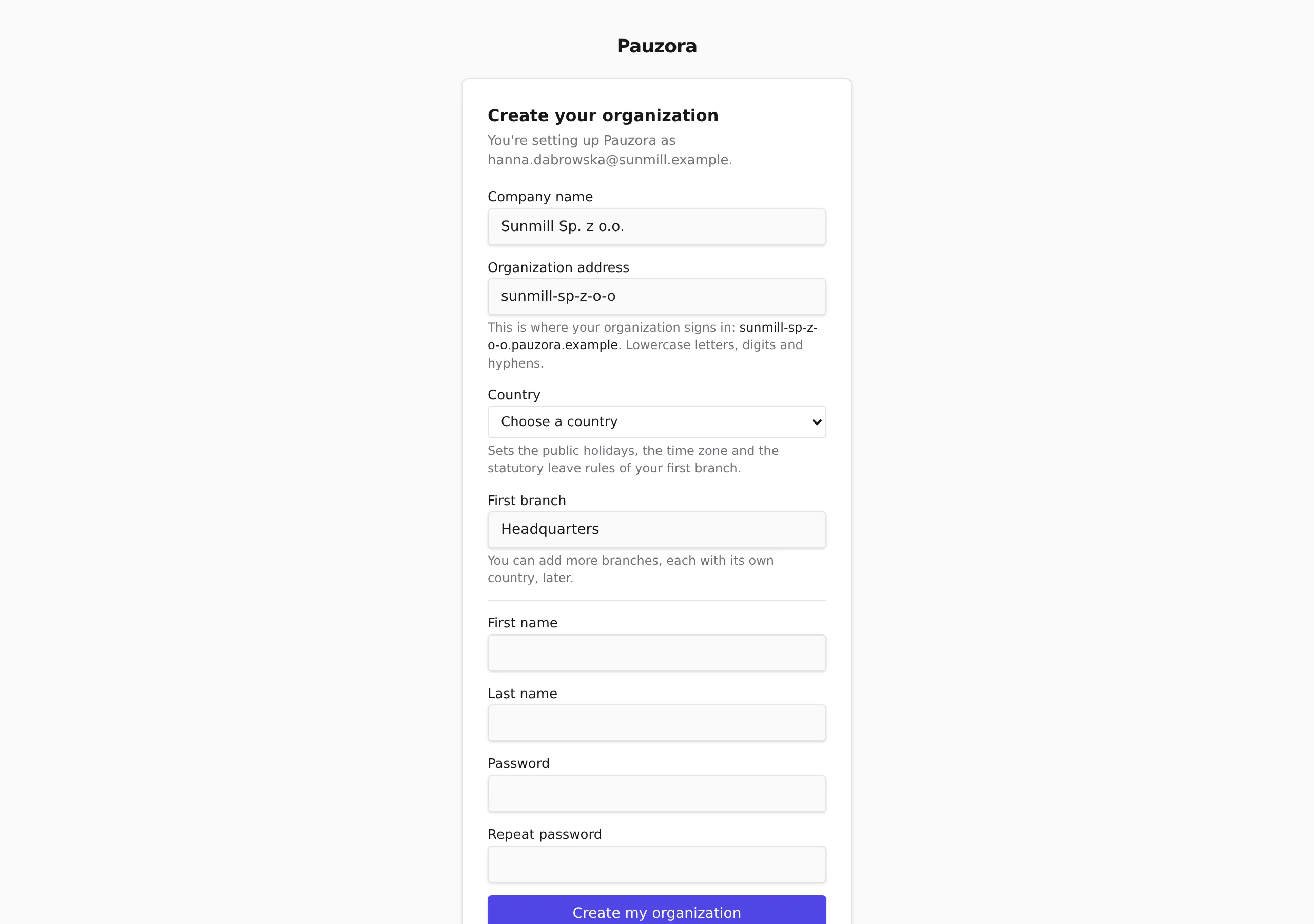
- Fill in the form that opens:
- Company name — the canonical name; it names your organization.
- Organization address — Pauzora suggests one from the company name, and you can overtype it. Lowercase letters, digits and hyphens only. The line under the field shows exactly what your sign-in address becomes. If the address is already taken, the field says so and you pick another.
- Country — it sets the public holidays, the time zone and the statutory leave rules of your first branch. Nothing is preselected: the field starts on Choose a country, so the choice is always yours. It is also the setting that is most work to change afterwards, which is why the form asks you to make it rather than guessing.
- First branch — the location your first people work at; it starts as Headquarters and you can rename it. More branches, each with its own country, come later.
- First name, Last name and a Password, typed twice.
- Choose Create my organization.
What happens next
Pauzora creates everything your organization needs in one step: the organization itself, your first branch with its public holidays, a statutory leave policy you can adjust, and your administrator account.
You are not signed in automatically. Your organization lives at its own web address, so choose Go to your organization and sign in there with the email and password you just set — that is where you work from now on.
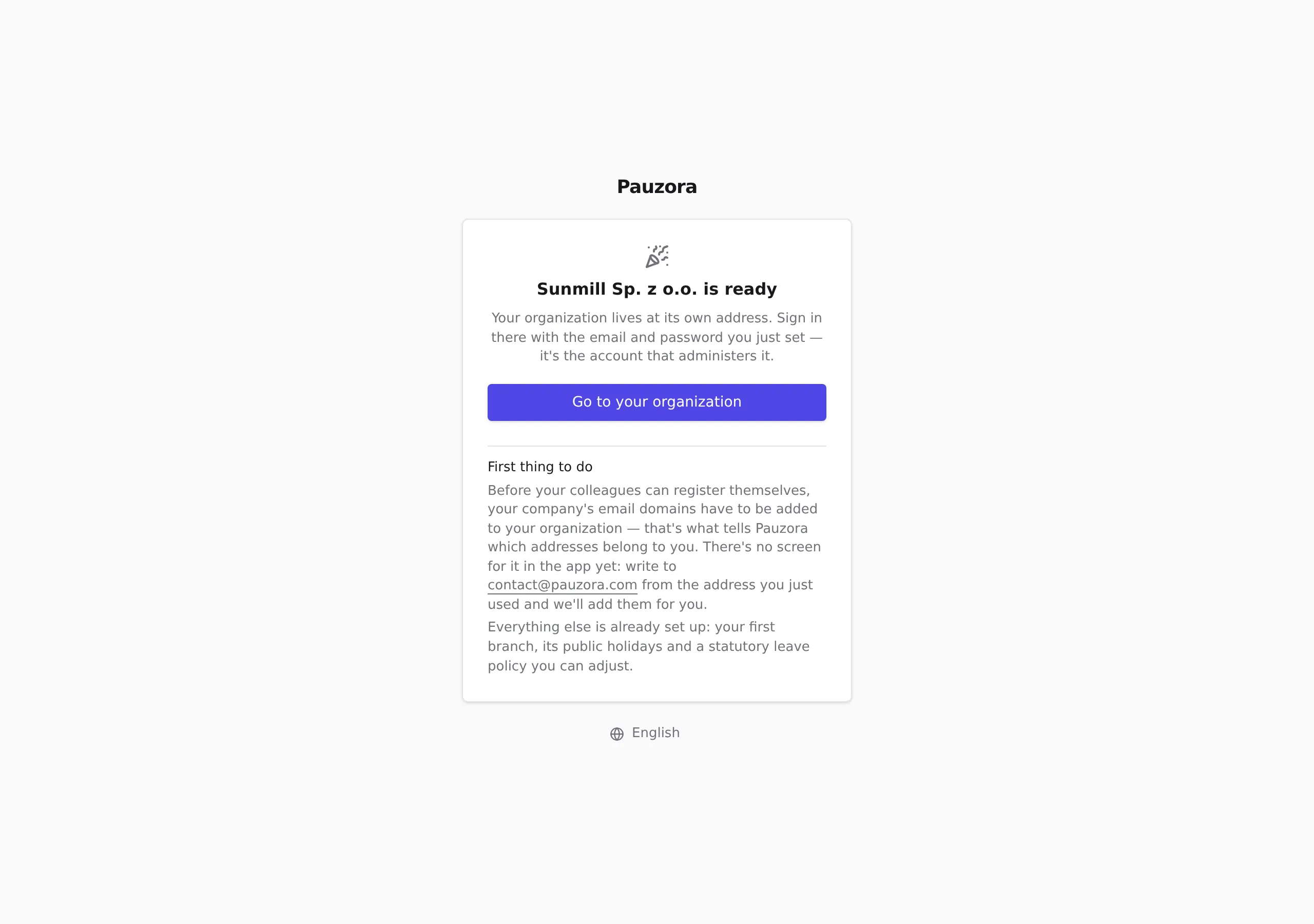
The first thing to do is to have your company’s email domains added
(for example yourcompany.com). They are what tells Pauzora which
addresses belong to you, and until they are in place nobody from your team
can register themselves. There is no screen for this in the app yet: write
to contact@pauzora.com from your
administrator address and we will add them for you.
After that, your colleagues can register themselves and you approve them — see Approve new registrations.
If something does not work
- No email arrived — check spam first. If there is still nothing, the address may be mistyped; start again from the signup page. Asking for a second link within a few minutes is silently ignored, and the first link stays valid.
- The link says it does not work anymore — it has expired or was never valid. Choose Start again and request a fresh one.
- The link opens “your organization is ready” — the signup is already complete (you may have opened the link twice). Nothing was created twice; sign in at the address shown.
- “This address is already taken” — the organization address you asked for is in use. Pick another one; only the address changes, not your company name.
Related
- Create your account — for employees joining a company that already uses Pauzora
- Approve new registrations — the queue you will use once your team starts registering
- Sign in and account access