Sign in and account access
Sign in to Pauzora, verify your email address, recover a forgotten password, and change the app’s language.
Before you start
- Your account is created by your company’s HR admin, or — when your company has enabled self-registration — by you, with your work email: see Create your account. If you don’t have an account and cannot register, contact your HR admin.
- Your account belongs to one company. If you work with two companies that both use Pauzora, you have a separate account at each — with its own password, even when both use the same email address. Password changes and email verification at one company never affect the other.
Sign in
- Open the app — you land on the sign-in page.
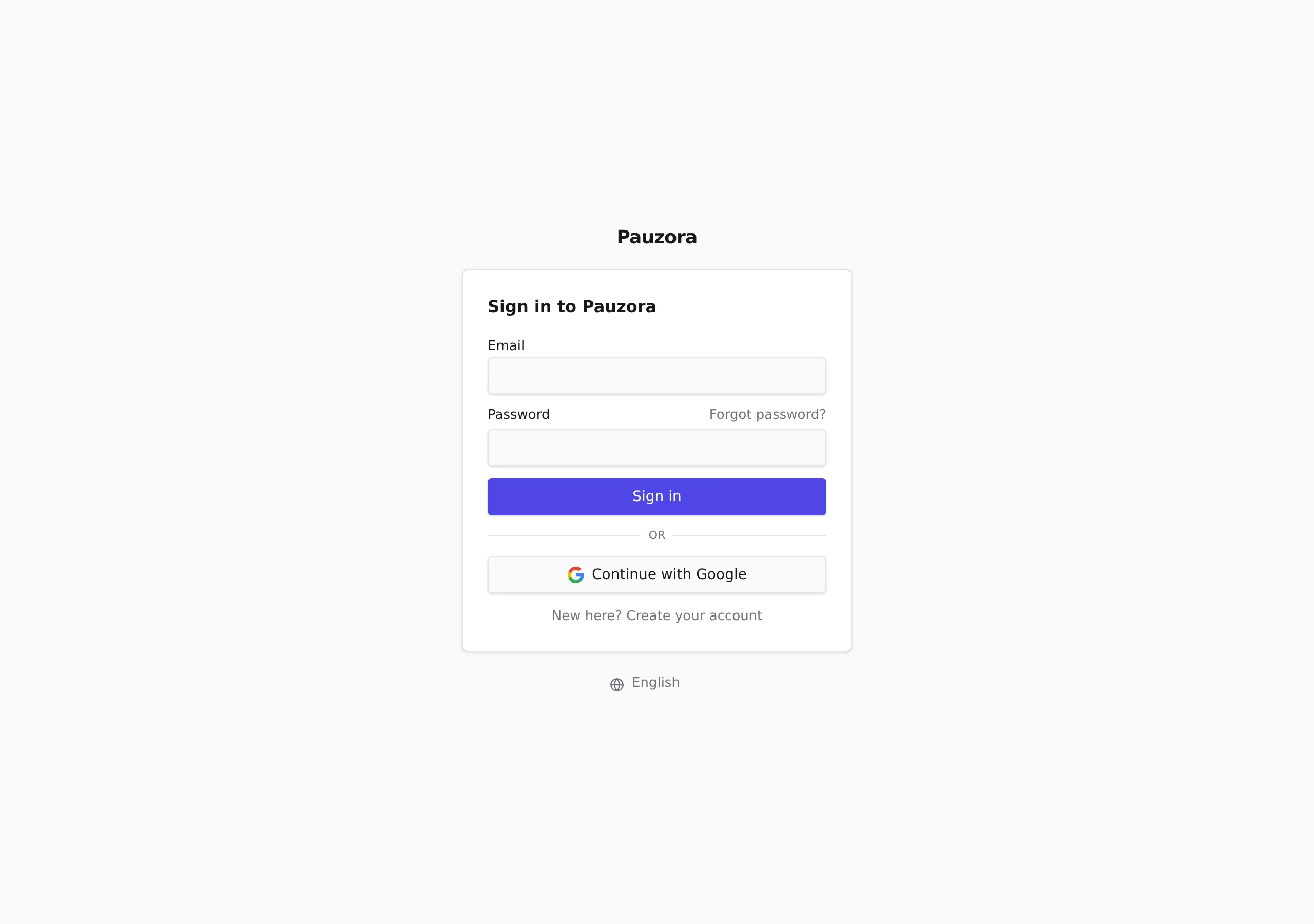
- Enter your Email and Password, then click Sign in.
- Or click Continue with Google to sign in with your company Google account (the address must match the one on your Pauzora account). Google is a way to sign in to an account that already exists — it never creates one. If you have no account yet, use New here? Create your account below the buttons and register with your work email: Create your account.
If the password is wrong, the message stays on the form — check the details and try again. Use Forgot password? if you can’t remember it.
A refused sign-in always reads the same — “We couldn’t sign you in with this account” — whether the password was wrong, the Google address has no account here, or the account is not active yet. That is deliberate: the sign-in page never reveals which addresses have accounts. If it keeps happening, ask your HR admin rather than guessing.
Verify your email address
The first sign-in may answer “Check your inbox”: your address needs verification before you can use the app.
- Open the verification email and click its link.
- The page confirms “Email address verified”.
- Click Go to sign in and sign in with your password — verifying alone doesn’t sign you in.
If the page says “This verification link doesn’t work”, the link expired or was already used. Sign in again — a fresh link is sent automatically if your address still needs verification.
Reset a forgotten password
- On the sign-in page, click Forgot password?.
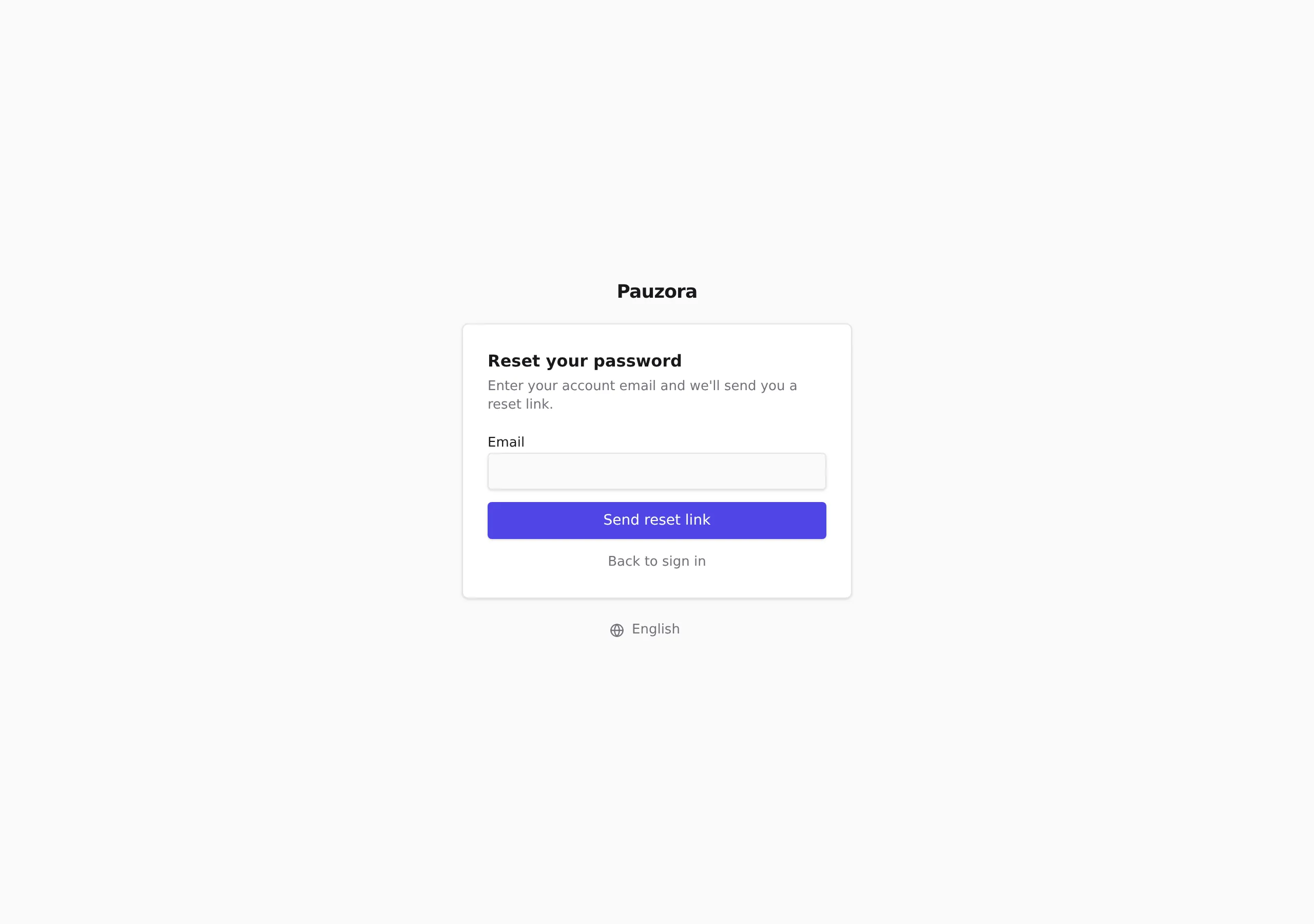
- Enter your account email and click Send reset link.
- Open the email link, enter a New password (twice), and click Set new password.
- Click Go to sign in and sign in with the new password.
Reset links stay valid for a limited time. An expired link shows “This reset link doesn’t work” — click Request a new link.
Change the language
- Before signing in: use the Language picker under the sign-in card. The choice applies immediately and is saved to your account when you sign in.
- After signing in: open your user menu (bottom of the sidebar) and pick a language. The choice follows your account on every device.
Sign out
Open your user menu at the bottom of the sidebar and click Sign out.