Review and decide requests
Open a pending request from your queue, check its context, and approve or decline it — with a full timeline of everything that has happened to it.
Before you start
- Requests reach you when you are their current approver: you are the requester’s manager, a workflow step names you, or you stand in as a substitute while the usual approver is away. HR and Admin roles can also decide requests within their scope.
- There is nothing to configure — the Waiting for you card appears on your dashboard whenever something awaits your decision.
Steps
- On your dashboard, find the Waiting for you card. Each row shows who asks, the absence type and the dates — and the coverage person, if one was designated.
- Click a row (or its quick actions) to open Request details.
- Review the context: the dates and how many working days are deducted, the requester’s comment, the coverage person, and the Timeline — who submitted the request, which approvals already happened, and who reviews it after you.
- To approve, click Approve. To decline, first write a note in Comment (required to decline), then click Decline — the requester sees your comment.
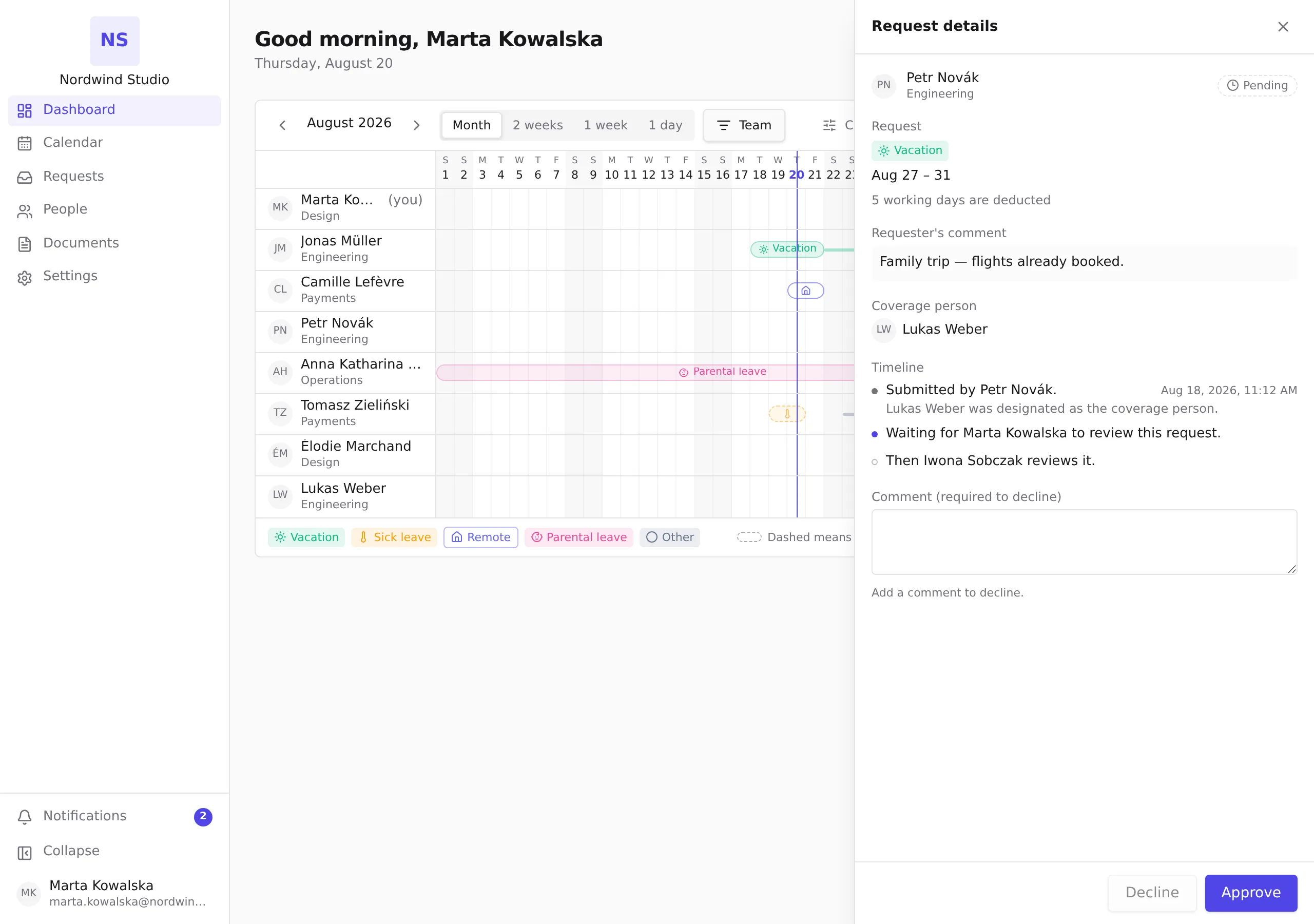
Warnings and blocked approvals
- An amber warning (for example, a limit overrun or a thin team coverage) never blocks you. If you approve despite it, the warning is shown to you and recorded in the request’s timeline — decisions stay accountable.
- A red message means a hard limit is set to block for this absence type: the approval is refused and the request stays pending. The requester needs to adjust the dates, or an HR admin the limit.
What happens next
- If you are one step of a longer chain, the request stays Pending and moves to the next approver — the timeline shows who that is.
- Your approval of the final (or only) step sets the request to Approved and deducts the days from the requester’s balance.
- Declining rejects the request as a whole; later steps are never asked.
- Requests can also leave your queue on their own: the requester may withdraw a pending request, and some requests are approved automatically by a rule — the timeline says so.
Decide from Slack
If your organization has connected Slack, the message that tells you a request awaits you also arrives as a Slack direct message from Pauzora, with two buttons: Approve and Decline.
- Read the message: who asks, the absence type and the dates. It is the same request you see under Waiting for you.
- Choose Approve or Decline. The buttons disappear and the message tells you what happened — for a longer chain, that the request now awaits the next approver.
- If the message says the request can no longer be decided from Slack, open Pauzora: it was decided already (by you from Pauzora, by somebody else, or by a rule), or it needs a decision only Pauzora can take.
What Slack does not do:
- No comment. A decision from Slack carries no note. Pauzora asks you for a comment before you decline; Slack does not, so the requester sees the decision without a reason. To decline with a reason, open Request details in Pauzora instead.
- No context beyond the message. The balance, the timeline and any warning live in Request details. A warning that Pauzora would show in amber is recorded in the timeline just the same; a hard limit that blocks the approval leaves the request pending, and the message tells you to open Pauzora.
The same two buttons sit on the Pauzora app’s Home tab in Slack, under Waiting for you with the number of requests awaiting you: open Pauzora under Apps, then Home. Choose Approve or Decline on a request and the tab refreshes without it; a request that can no longer be decided simply no longer appears. The list is the same as your Waiting for you card here, and when more requests wait than the tab can show, its last line links to your Approval queue — see Request leave from Slack.
A decision from Slack is recorded exactly like a decision in Pauzora: the same timeline entry, the same deduction, the same approver.
Where else you meet requests
- On Who’s out, the row menu’s View request opens the same Request details view for any request you may see. Reported entries (such as recorded sick leave) show their recording and any date amendments instead of an approval chain — there is nothing to decide.
Related
- Configure approval workflows
- Request time off
- Record sick leave for an employee
- Notifications you receive — the message the buttons sit on