Reading and accepting a document sent to you
When your organization sends you a handbook, a policy or a notice, it arrives here. This is where you read it, and where you say you have.
Before you start
- Open Documents from the main navigation. On a phone the navigation is in the More drawer.
- If you also manage documents for your organization, the screen opens on the Library tab. Press Sent to me for your own documents.
- If Documents is not in your navigation, your organization has not turned this on.
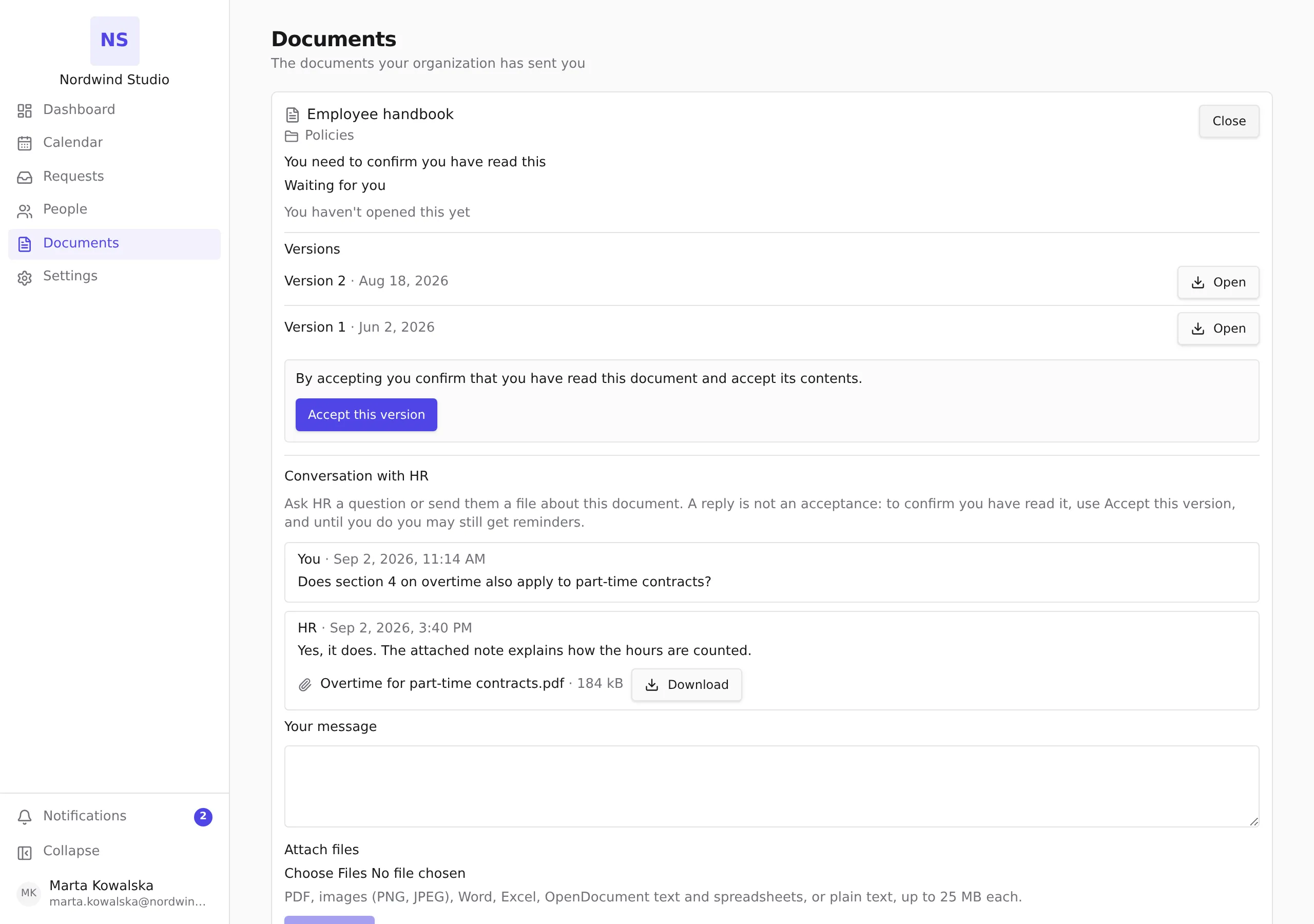
What you see
Everything sent to you is in one list. There are no folders to open — each document shows the folder name your organization chose for you to see beside it, and you only ever see folders you have something in.
Under each document is what it asks of you:
You need to confirm you have read this — read it, then accept it. Your organization is waiting for this.
You need to confirm you have read this and return a signed copy — the same, and your organization also expects a signed copy back. Send it as a reply with the file attached — see Replying to HR about a document sent to you. Sending it does not accept the document; accept it as well.
Nothing to do — this is here for you to read — reference material. No button, nothing owed.
A document you still owe something on is marked Waiting for you.
Read a document
- Press Open on the document.
- Under Versions you see every version, newest first.
- Press Open beside the version you want. It downloads to your device and opens in whatever your computer or phone uses for that kind of file.
The date you first opened a document is recorded and shown on the card as First opened. It is not the same as accepting — see below.
If you see This document can’t be opened right now, the file is not available to you at this moment. Wait a little and try again. If it stays that way, ask whoever sent it to you.
Accept a document
Accepting is a statement: I have read this and I accept its contents. It is deliberately a separate step from opening the file, because opening something is not the same as agreeing to it.
- Press Open on the document.
- Read the sentence above the button, then press Accept this version.
- The card then shows You accepted version 2 on 18 August 2026 — the version number and the date.
Three things are worth knowing:
- An acceptance is about one version. If your organization publishes a new version and decides that people must accept again, the document comes back to the top of your list and asks for the new one.
- An acceptance cannot be undone or edited. If you accepted something by mistake, tell whoever sent it to you — they can see what happened.
- You cannot accept a document you were not able to open. If the file is unavailable, the button is not offered.
First opened is not accepted
Two different dates appear on a card and they mean different things:
First opened is the moment you downloaded the file. It happens automatically, it says nothing about whether you agree, and it is never shown as an acceptance.
You accepted version N on… is the record of you pressing the button. It is the only thing that counts as your agreement.
They are shown separately, and always will be.
Documents you have already dealt with
Under Already dealt with are the documents that no longer need anything from you. Two kinds end up there:
- Documents you have accepted, where your organization chose to move them out of your active list once accepted.
- Documents your organization has withdrawn — pulled back, because they are out of date or were sent by mistake.
Nothing here is taken away from you. You can still open these cards and see what you accepted and when. That is true of withdrawn documents too: your organization can stop sending you a document, and it cannot remove your record of what you agreed to. The file itself may no longer open once a document has been withdrawn, but the record stays.
Ask HR a question, or send a file back
Every opened document has a Conversation with HR below its versions, where you can write to HR and attach files. See Replying to HR about a document sent to you.
If something does not work
Your documents couldn’t load — a connection problem. Press Try again.
This document’s details couldn’t load — the same, for one document. Close the card and open it again.
The download didn’t finish — the file started arriving and stopped. Press Open again.