Choose your home view
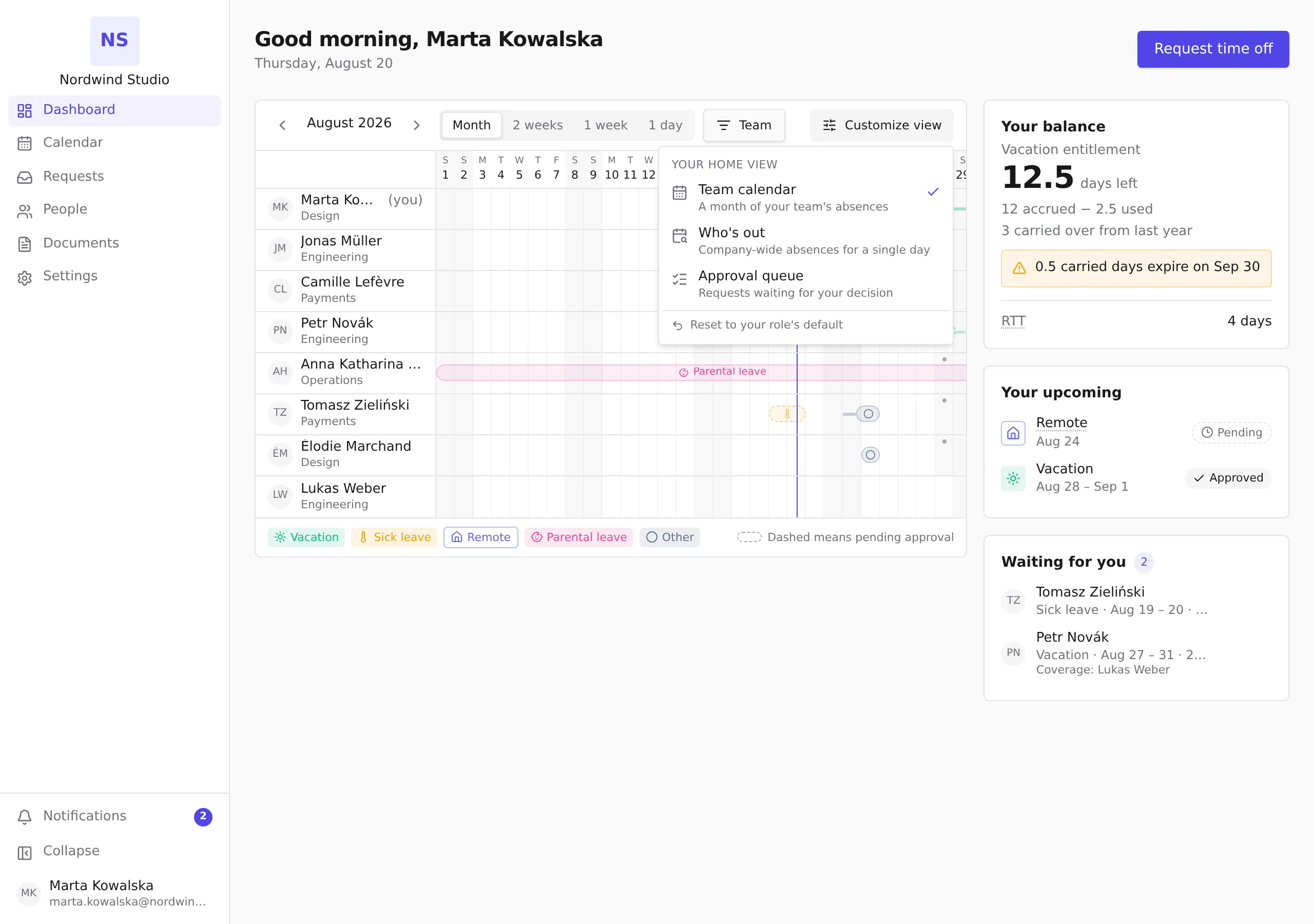
Pick which screen opens when you land on the dashboard: your team’s calendar, the company-wide day overview, or the queue of requests waiting for your decision. Your choice is saved to your account and follows you across devices.
Before you start
- You need an active employee profile. The chooser lives on the home screen (Dashboard in the sidebar), whichever view it currently shows.
The three home views
- Team calendar — a month of your team’s absences, with your balance and upcoming time off beside it. The usual starting point for employees.
- Who’s out — company-wide absences for a single day, with stats and filters. HR teams usually start here; it is also always available as Calendar in the sidebar.
- Approval queue — requests waiting for your decision, each with the requester, the dates, who covers for them, and how long ago the request was made. Managers usually start here. Selecting Review on a row opens the request so you can approve or decline it with full context.
Switch your home view
- On the home screen, select Customize view.
- Under Your home view, pick Team calendar, Who’s out or Approval queue. The screen switches immediately, and the same view opens the next time you sign in.
Your role’s default and resetting
Until you pick a view yourself, Pauzora chooses one from your role — employees start on Team calendar, managers on Approval queue, and HR administrators on Who’s out. The chooser shows Default for your role under the options when that is where your current view comes from.
After you make your own choice, the chooser offers Reset to your role’s default instead. Resetting forgets your choice: your home view follows your role again, including any future role changes.
Good to know
- The other screens never go away: the sidebar still opens each of them directly — your home view only decides what you land on first.
- The choice is per company. If your role differs elsewhere, the default there may differ too.