Send notifications to Slack
Post absence announcements to a Slack channel, so the people who need to plan around someone’s time off see it where they already work — without anyone forwarding an email.
Before you start
- You need the Settings → Organization → Notifications section. It appears for administrators and HR; if you cannot see the Organization group in Settings, you do not have this permission.
- You need permission to create an incoming webhook in your Slack workspace. In many workspaces that means asking a Slack admin — the steps below are the ones they will follow.
- Decide which channel the announcements go to before you start. One
address means one channel, and everyone who can read that channel will
see what is posted there. If some kinds of notification belong in a
different channel — birthdays in
#general, absences in#team-ops— you can give those kinds a channel of their own once the first address is saved; see Send some kinds of notification to a different channel.
Step 1 — create the webhook in Slack
- In Slack, open https://api.slack.com/apps and create an app for your workspace (or open an existing one).
- Turn on Incoming Webhooks.
- Choose Add New Webhook to Workspace, pick the channel you decided on, and confirm.
- Slack shows you a webhook URL that starts with
https://hooks.slack.com/services/. Copy it.
That address is a key to the channel: anyone who has it can post there. Treat it the way you would treat a password — do not paste it into a chat message, a ticket or a document.
Step 2 — paste it into Pauzora
- Open Settings.
- Under Organization, open Notifications.
- Paste the address into Webhook address and choose Save.
Announcements start going out straight away. If the address is not a Slack
incoming webhook, Pauzora says so instead of saving it — check that you
copied the whole address, and that it starts with
https://hooks.slack.com/services/.
After it is saved, the address is hidden
Once saved, the screen shows the address masked:
https://hooks.slack.com/services/T0A1B2C3D4/<redacted>. The part that is
still visible identifies which webhook is configured; the rest is never
shown again, by anyone, anywhere in Pauzora.
This is deliberate. The address is a key, and a screen that displays it is a screen that leaks it during a screen share.
If you need the full address again, create a new webhook in Slack and Replace the one stored here.
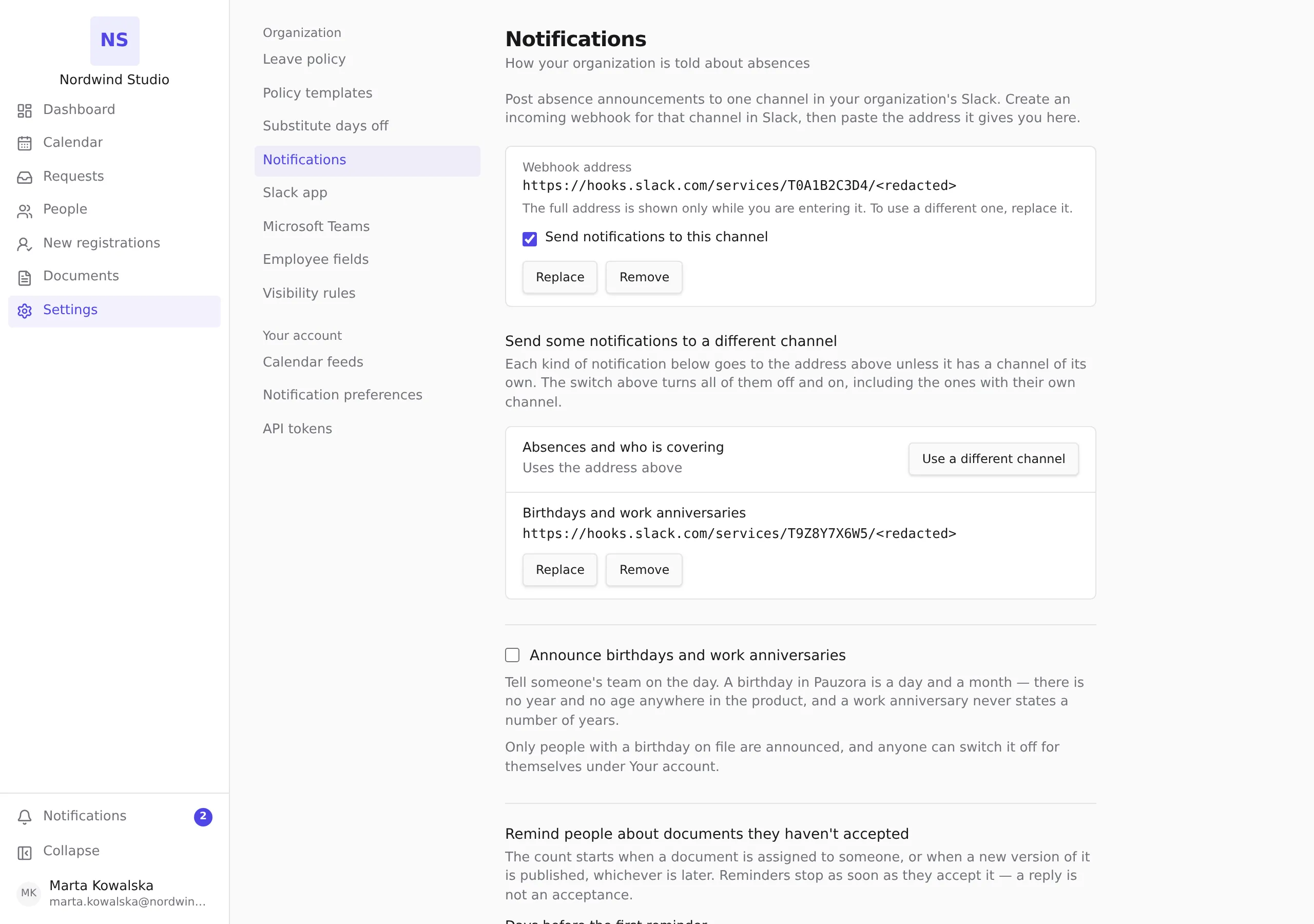
Two controls sit next to it:
- Send notifications to this channel — turn posting off and on without removing the address. Use this to pause a channel. It pauses everything Pauzora posts to Slack, including any kind of notification you have given a channel of its own.
- Remove — delete the address and stop posting. Nothing else is removed: emails carry on exactly as before, and a kind of notification with a channel of its own keeps posting there.
Send some kinds of notification to a different channel
One address is enough for most organizations. If you want, say, birthdays in a social channel and absence announcements in the team’s working channel, give a kind of notification a channel of its own.
Under the address, Send some notifications to a different channel lists every kind of notification that can be posted to a channel:
- Absences and who is covering
- Birthdays and work anniversaries
Each kind says Uses the address above until you give it a channel of its own. To do that:
- In Slack, create an incoming webhook for the other channel — the same steps as in Step 1.
- Next to the kind, choose Use a different channel.
- Paste the new address into Webhook address for that kind, and choose Save.
The row now shows the new address masked, exactly as the first one is. Everything else keeps going to the address above. To point the kind at yet another channel, choose Replace on its row; to send it to the address above again, choose Remove on its row — the row’s own address is deleted and the kind follows the address above from then on.
Two things to know:
- The switch above is the only switch. Send notifications to this channel turns all posting off and on, including the kinds with a channel of their own. There is no separate switch per kind: a kind with a channel of its own posts there for as long as the address is on its row, and Remove is how it stops.
- You can route without a first address. If you remove the address above (or never save one) while a kind has a channel of its own, that kind keeps posting, and the other kinds say Not posted. In that state the switch appears under the list instead, as Send notifications to these channels — it is the same switch, shown where there is something for it to switch.
A kind cannot go to two channels at once, and a kind that is never posted to a channel — sign-in messages, anything addressed to one person — is not listed, because there is nothing to route.
What gets posted, and what does not
A Slack channel is a place, not a person. Anyone who can read the channel reads everything in it, so Pauzora deliberately posts less to a channel than it emails to an individual.
Posted to the channel:
- Someone is away for a period, and who is covering their duties.
- That an announced absence was confirmed, or called off.
Never posted to the channel:
- The absence type. The channel is told that somebody is away — never whether it is holiday, sick leave or anything else. A manager who is entitled to know the type still receives it by email; the channel does not, whatever your visibility settings say.
- Account and sign-in messages. Someone’s account being activated is personal news and is emailed to them only.
- Anything addressed to one person. If a message is written to somebody, it goes to their mailbox, not to a channel.
Email is unchanged by any of this. Turning Slack on adds a channel; it removes nothing, and a problem posting to Slack never holds up an email.
Troubleshooting
Nothing appears in the channel. Check, in this order:
- Settings → Organization → Notifications — is an address saved, and is Send notifications to this channel ticked? Those are two separate facts — and the switch pauses every kind of notification, including the ones with a channel of their own.
- Is the webhook still valid in Slack? A webhook stops working if the app is removed from the workspace or the channel is archived. Create a new one and Replace the stored address.
- Are the emails arriving? If they are not either, the problem is not Slack.
Posts go to the wrong channel. A webhook address is tied to the channel it was created for. Create a new webhook for the right channel and Replace the stored address — on the kind’s own row if that kind has a channel of its own, otherwise above.
Only some kinds arrive in the channel. Look under Send some notifications to a different channel: a kind showing a masked address of its own is posting to that other channel, not to the address above. Choose Remove on its row to send it to the address above again.
You want more than one channel. Give a kind of notification a channel of its own — see Send some kinds of notification to a different channel. Each kind can go to one channel.
Related
- Notifications you receive — what the product emails people.
- Subscribe to your calendar — the other place absence information leaves the product.