Define custom employee fields
Track company-specific details on employee profiles — for example T-shirt size, office desk number, or a medical-check date. Fields are defined once for the whole company; the values are then filled in per person on their profile.
Before you start
- You need the HR or Admin role — the section is part of your organization’s settings.
- Open Settings → Employee fields. The screen lists the fields your company already has — each with its Edit and Deactivate buttons — and carries the form that defines a new one.
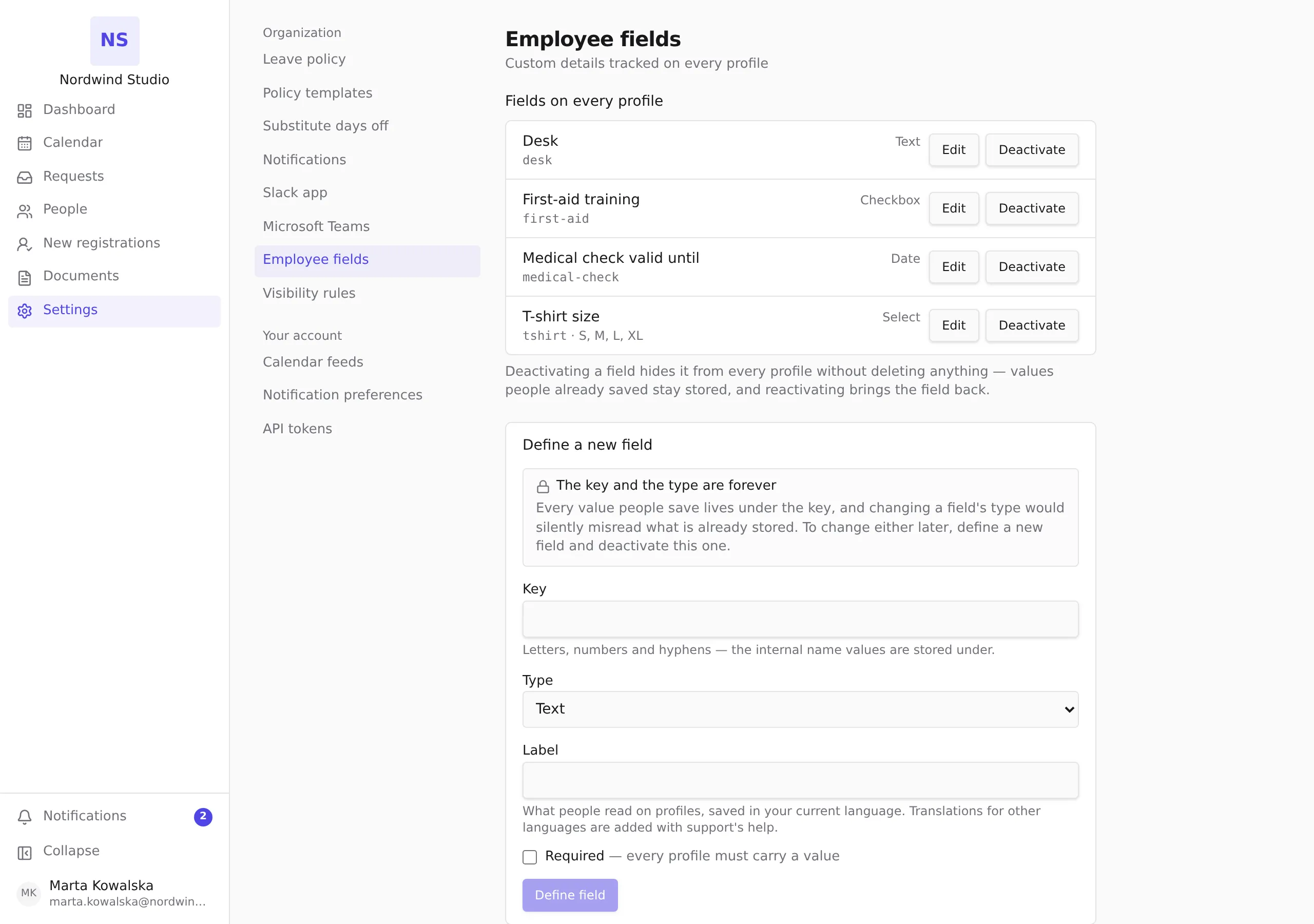
Define a new field
Scroll to Define a new field and fill in:
- Key — the short internal name values are stored under. Letters, numbers and hyphens. Each key can exist only once; if it is taken, the form tells you.
- Type — one of Text, Date, Select or Checkbox. A Select field also takes Options, one per line.
- Label — what people read on profiles, saved in the language you are using right now.
- Required — whether every profile must carry a value.
Press Define field. The new field appears in the list above and on every employee profile immediately.
Choose the key and the type carefully
The key and the type are forever. Every value people save lives under the key, and changing a field’s type would silently misread what is already stored — a text value read back as a date. The screen says this above the form, and the product refuses both changes everywhere. If you need a different key or type later, define a new field and deactivate the old one.
Edit a field
Press Edit on the field’s row. The editor opens under the row with:
- Label — saved in the language you are using right now; translations in other languages are kept as they are.
- Options — for Select fields, one option per line. Renaming a line makes it a new option: values people saved under the old name keep it until they pick again.
- Required — whether every profile must carry a value.
Press Save to apply the change, or Cancel to close the editor without saving. The updated field shows on every profile immediately.
Deactivate or reactivate a field
Press Deactivate on the field’s row when the field should no longer appear on profiles. Deactivating never deletes anything: values people already saved stay stored, and the field stays in the list — marked Deactivated — so you can bring it back. Press Reactivate on a deactivated row to make the field live again, with every stored value still in place.
There is deliberately no delete button: deactivation is how a field is retired, because deleting one would orphan every value saved under it.
What is not self-service yet
- Label translations for languages other than the one you typed the label in — send them to support, and mention the field’s key.
Filling values in
The values live on each person’s profile: HR and admins edit them through Edit profile on the person’s page, in the same panel as the rest of the employment record. Values are validated as they are written — dates must be valid dates, select values must be one of the defined options, and required fields cannot be left empty.