Your dashboard calendar
Read your team’s calendar and your personal balance panel on the dashboard — who is away and when, and how many days you have left.
Before you start
- You need an active employee profile. The dashboard is the first screen after signing in (Dashboard in the sidebar).
The team calendar
- The grid shows one row per person. Your own row is marked (you) and sorts first. Click a name to open that person’s profile — see Your profile & work with me.
- Switch the zoom with Month, 2 weeks, 1 week or 1 day, and move between periods with the arrows. Click the period label to jump back to today. (On a phone, 2 weeks is not offered — see On your phone.)
- Use Team to narrow the rows to selected teams.
- Each bar is one absence. The color and label show the type — for example Vacation or Sick leave. A dashed bar is still pending approval (the legend under the calendar repeats this).
- An outlined bar means the person is working elsewhere (for example remote work) — they are away from the office but still working, so the time is not absence.
- Some bars only say Absent with no type. That is intentional: you can see who is away and when, but the kind of absence is private unless your role may see it.
- Grey-shaded columns are non-working days — each row uses that person’s own branch calendar, so rows from other countries can shade different days. A small dot marks a public holiday; hover it for the holiday’s name.
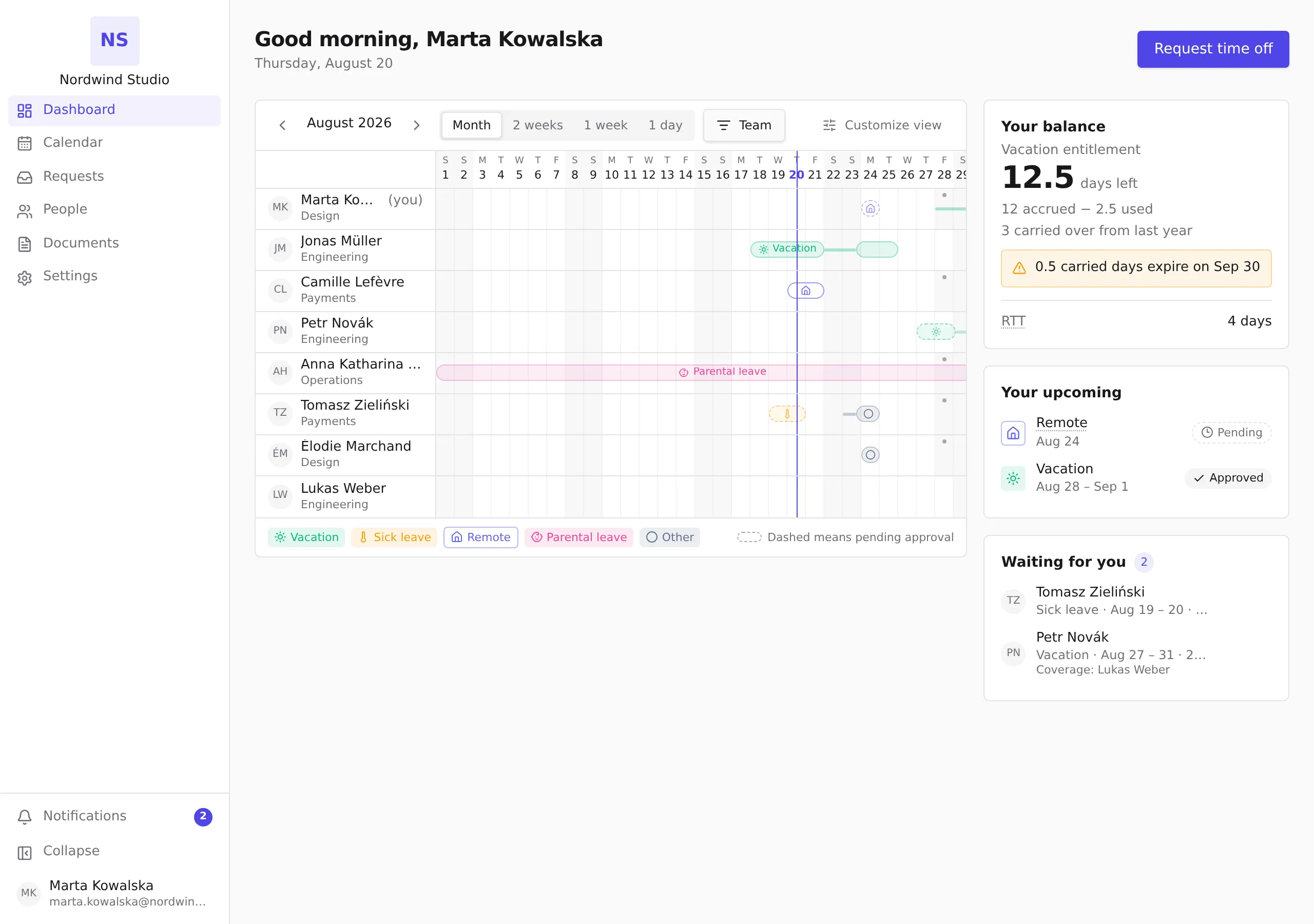
On your phone
- Your balance panel appears above the calendar, so your remaining days are the first thing on screen.
- The calendar opens in the 1 week view. Swipe it left or right to move between weeks — the arrows work too.
- Month shows a list instead of a grid: days with absences, each absence listed once on the day it starts, with its full date range and a small bar in the absence’s color. A dashed bar is still pending, an outlined bar means working elsewhere — same meanings as on the grid.
- 2 weeks is only available on wider screens.
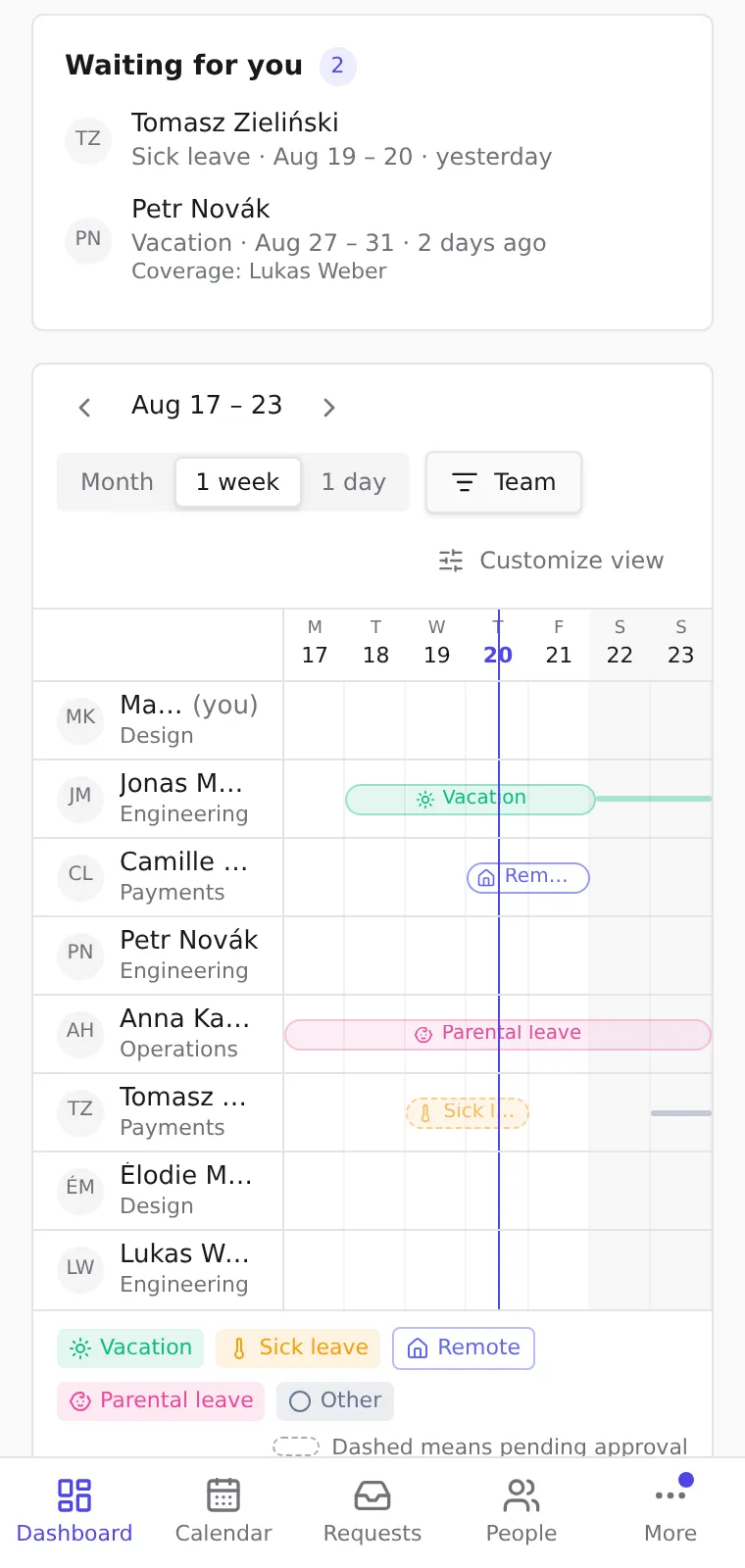
Your balance
- The big number under Your balance is what you have left in your main allowance. It already accounts for everything on your ledger — accrual, usage, carry-over and corrections — so it is not simply “accrued minus used”.
- The lines below break it down: days accrued, days used, and days carried over from last year.
- An amber notice like carried days expire on… warns you that unused carry-over lapses on that date — plan those days first.
- Further allowances (for example RTT) are listed below with their own remaining days.
- A name with a dotted underline hides an explanation of the term — put the pointer on it, or tap it on a phone, to read what the allowance means. Not every name has one; only the ones your company explained.
- If you see No leave policy is assigned to you yet, there is nothing wrong with your account — your HR team simply hasn’t assigned a leave policy to you.
Your upcoming
Your upcoming lists your own absences that haven’t ended yet, each with its dates and an Approved or Pending badge. It is the quickest place to check whether your request has been decided.
What happens next
- Requesting time off starts with the Request time off button — see Request time off.
- If you approve requests for others, a Waiting for you card lists requests waiting for your decision — see Review and decide requests.