Configure absence types
Decide, per absence type, whether requesters name a coverage person and what explanatory hint appears next to the type’s name across the app. These are company-wide settings: they apply to every policy at once.
Before you start
- You need the HR or Admin role. Everyone has a Settings entry, but only these roles see the Organization group in it — the one that holds Leave policy.
- Every change here is written to the audit log with who changed it and when — the note under the list, Changes here are recorded in the audit log., is literal.
Where to find it
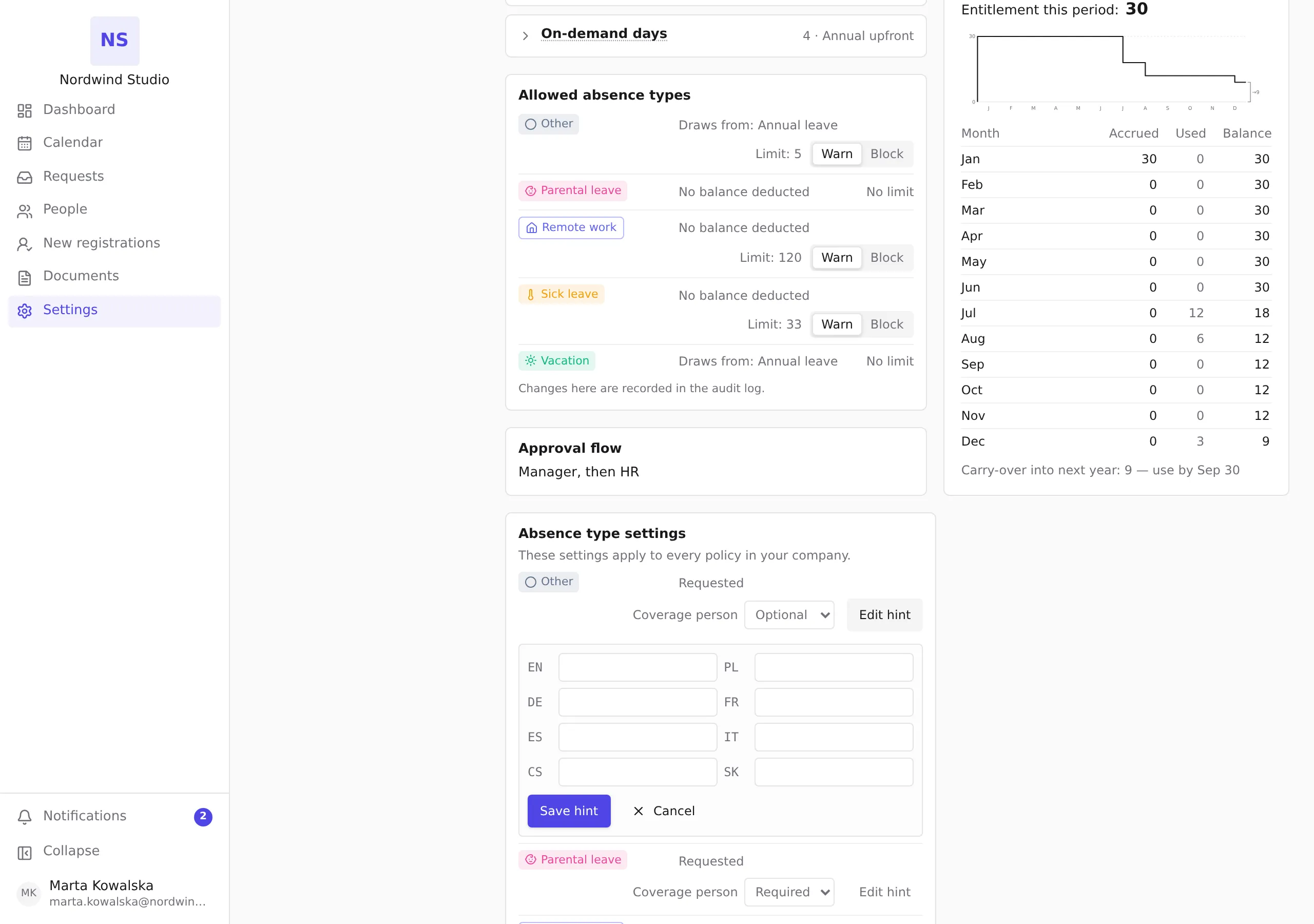
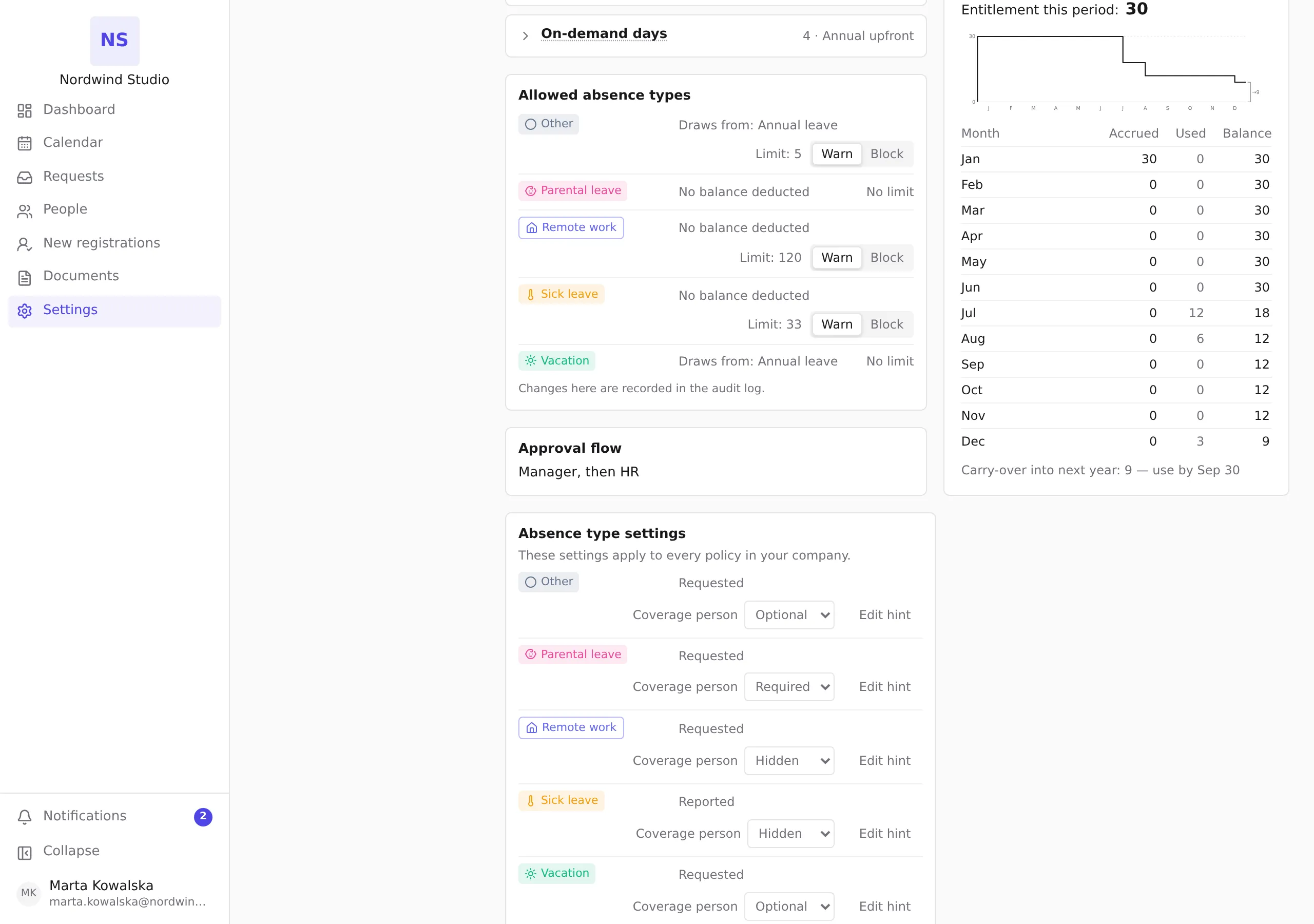
Open Settings in the sidebar, choose Leave policy under Organization, and scroll to Absence type settings. On a phone, tap More, then Settings, then Leave policy. Each row shows the type, its reporting mode — Requested (goes through approval) or Reported (recorded as a fact) — and the two settings you control.
Coverage person
The Coverage person setting controls whether someone submitting a request of this type names a colleague who covers their duties while they are away:
- Hidden — the request form shows no coverage field.
- Optional — the form offers a coverage picker; naming someone is up to the requester.
- Required — the request cannot be submitted without a coverage person.
Pick the mode from the row’s Coverage person dropdown; it saves immediately. Reported types (such as sick leave) never offer Required — there is no request form to hold back, so the strictest available mode is Optional.
A coverage person covers duties only. They are never an approver and never see why a colleague is away.
Explanatory hints
A hint expands a type’s name where it appears in the app — useful for company-specific vocabulary (say, expanding an “RTT” type for new joiners). People see the hint by hovering or tapping the dotted underline under the type’s name.
- Click Edit hint on the type’s row.
- Fill the text per language — one field per interface language, labelled with the language code. Languages you leave blank simply show no hint; there is no automatic translation.
- Click Save hint. Clearing every field and saving removes the hint.
Hints are limited to 500 characters per language.