Control who sees absence details
Decide who in your company can see that someone is absent, and who can see what kind of absence it is — company-wide or per team, from Settings → Visibility rules.
Before you start
- You need the HR or Admin role — the section is part of your organization’s settings.
- By default, everyone in your company sees that a colleague is absent, but only people with a reason to know see the absence type: HR and admins within their scope, the person’s direct manager, and the person themselves. The defaults are deliberately the discreet ones — sick leave stays discreet out of the box.
How visibility rules work
A visibility rule sets two things, each to Everyone or Restricted:
- Absence shown to — who sees the absence at all. Everyone (default) shows it to the whole company; Restricted limits it to the people with a reason to know.
- Type shown to — who sees which kind of absence it is (for example “Sick leave” vs just absent). Restricted (default) limits it as above; Everyone shows the kind to the whole company.
A rule can cover the whole company, one team, one absence type, or a team and a type together. When several rules could apply, the most specific one wins: team and type beats team, team beats type, and any rule beats the built-in defaults.
Two guarantees always hold, whatever the rules say:
- People who may act on an absence keep seeing its type: HR and admins within their scope, the direct manager, and the person themselves. Approvers always see the type of requests routed to them.
- Visibility rules only change what is displayed. They never grant anyone the right to view, approve, or edit requests.
Read the list the way it is applied
The screen lists your rules under Rules, in the order they are applied — most specific first, the same order the product resolves them in. When a more specific rule above overlaps one of your rules, the overlapped rule carries a warning saying so: where both apply, the more specific rule decides. That warning is how you spot a rule you created that a narrower rule already overrides.
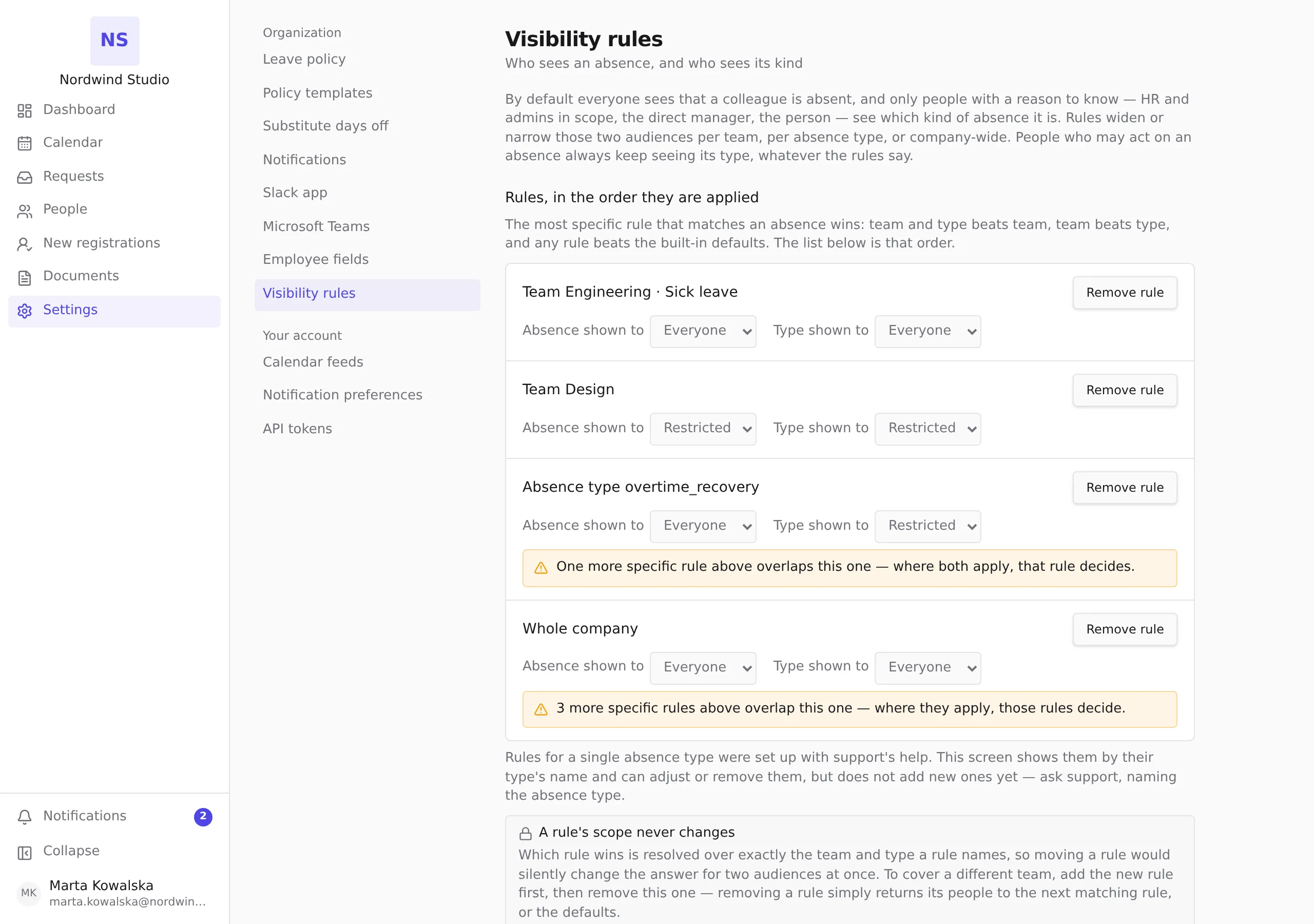
Add a rule
Under Add a rule, choose what it Applies to — The whole company or One team (picked from your team list) — set the two levels, and press Add rule. New rules take effect immediately.
If another admin created a rule for the same scope moments before you, the form tells you a rule for that team and absence type already exists — there can be only one rule per scope.
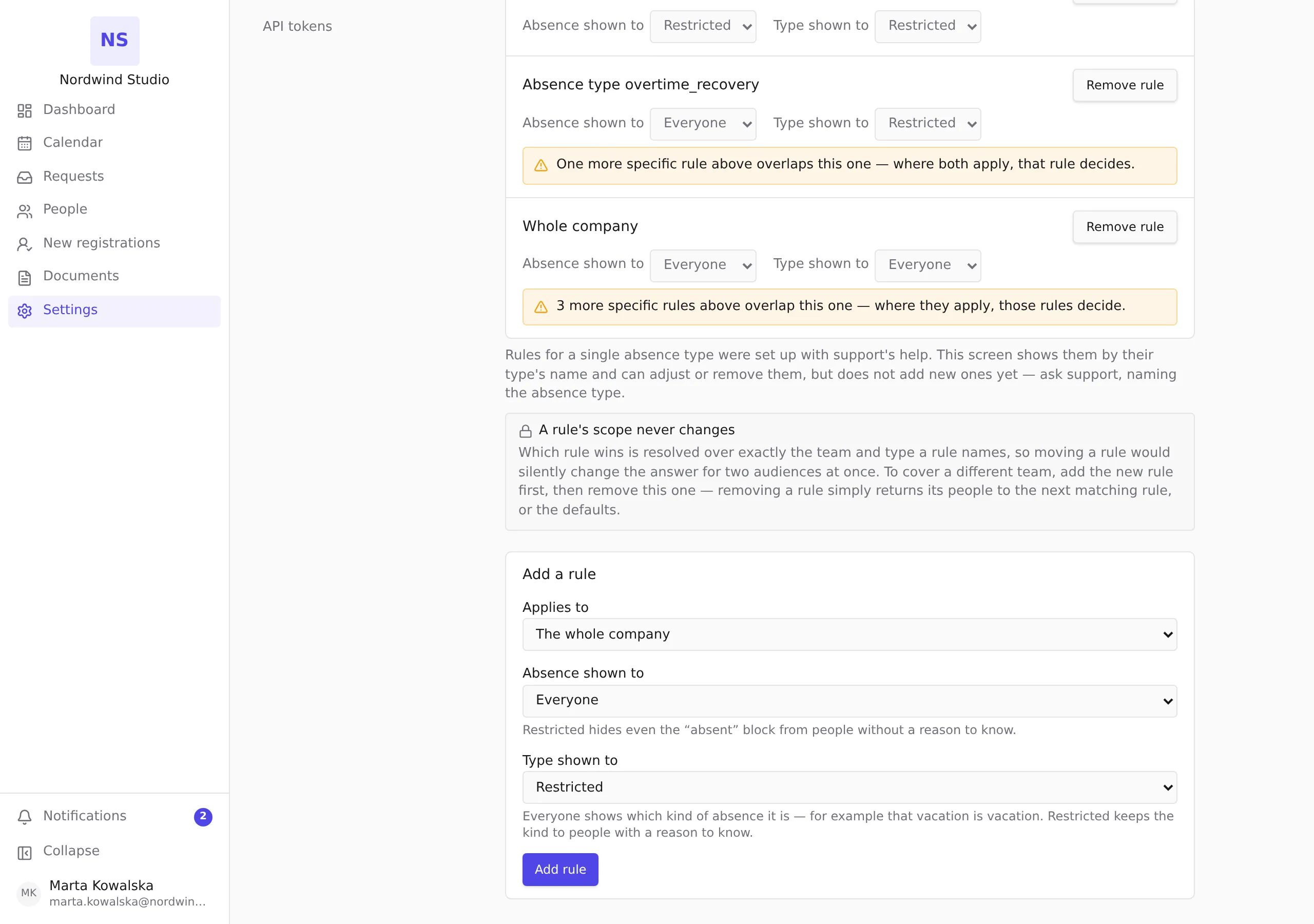
Change or remove a rule
- The two levels are edited right on the rule’s row.
- A rule’s scope never changes. Which rule wins is resolved over exactly the team and type a rule names, so moving a rule would silently change the answer for two audiences at once. To cover a different team, add the new rule first, then press Remove rule on the old one.
- Removing a rule is how you go back to the defaults: the affected people simply fall to the next matching rule, or to the built-in defaults. Nothing else needs cleaning up.
Rules for a single absence type
Rules scoped to one absence type (for example an “open vacation culture” rule that shows everyone that vacation is vacation) are configured with support’s help for now. The screen shows them by their type’s name and can adjust or remove them, but does not add new ones yet — ask support and name the absence type you mean. A rule whose type was deactivated later keeps working and is listed by the type’s internal key.
Typical setups
- Default (no rules): everyone sees the absence; only HR/admins, the manager, and the person see the kind. Sick leave stays discreet.
- Open vacation culture: a rule on the Vacation absence type with Type shown to: Everyone — ask support for this one until the type axis is self-service.
- Sensitive team: a rule on that team with Absence shown to: Restricted — outside the people with a reason to know, the team’s absences are not shown at all. You can add this one yourself.