Create your account
Register yourself with your work email — HR only reviews and approves.
Before you start
- Your company uses Pauzora and has enabled self-registration for its
work email domain (for example
@yourcompany.com). If you are not sure, ask your HR admin. - You need access to your work mailbox — the registration is confirmed by an email link.
- Registration with a private address (Gmail and similar) is not possible; use your work email.
Steps
- Open your company’s Pauzora address and choose New here? Create your account on the sign-in screen.
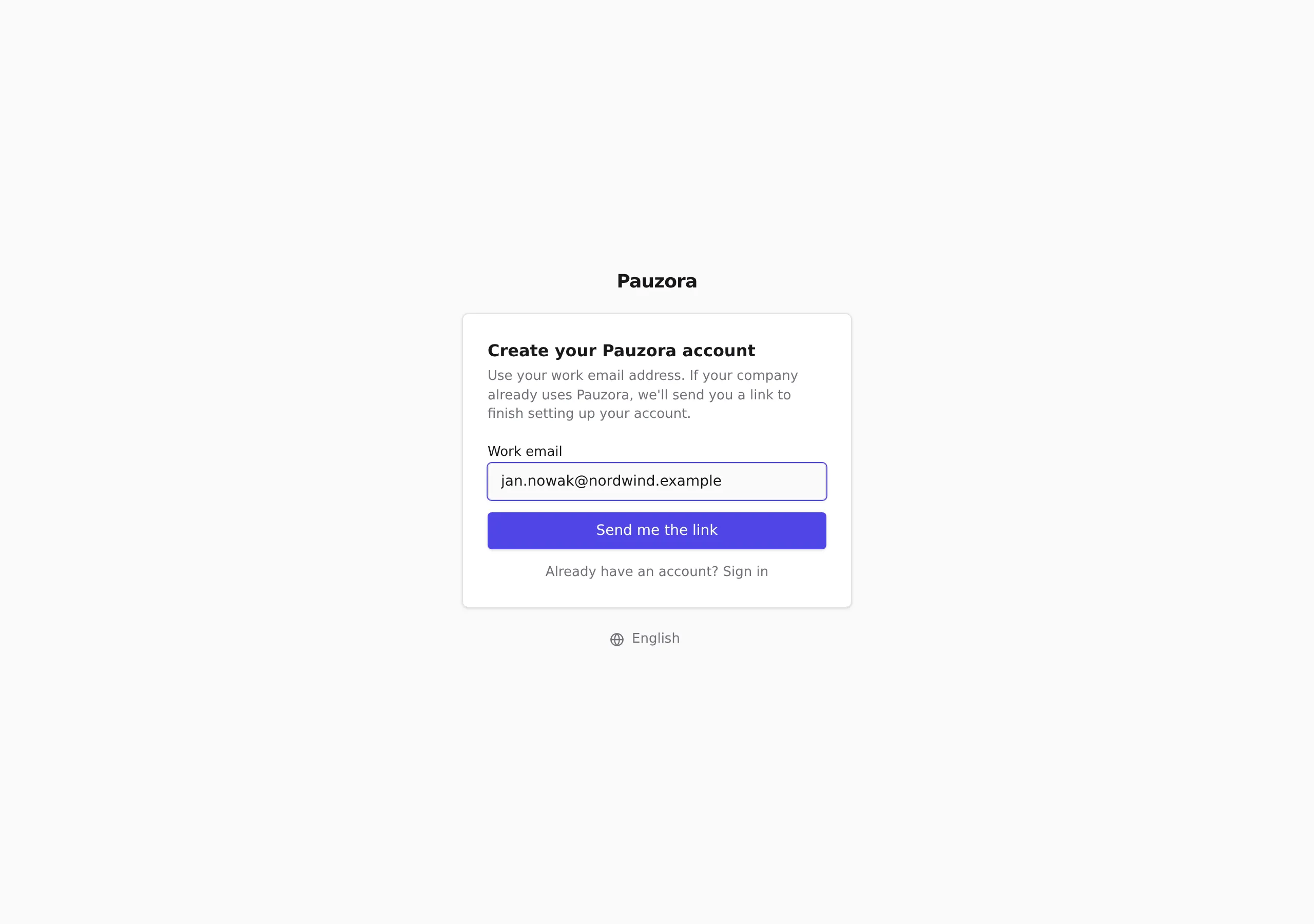
- Enter your Work email and choose Send me the link. Pauzora confirms with Check your inbox — the same message appears for every address, so it is never a hint about who does or does not have an account. If the address can be used to join your company, the email arrives within a few minutes.
- Open the email and click the confirmation link.
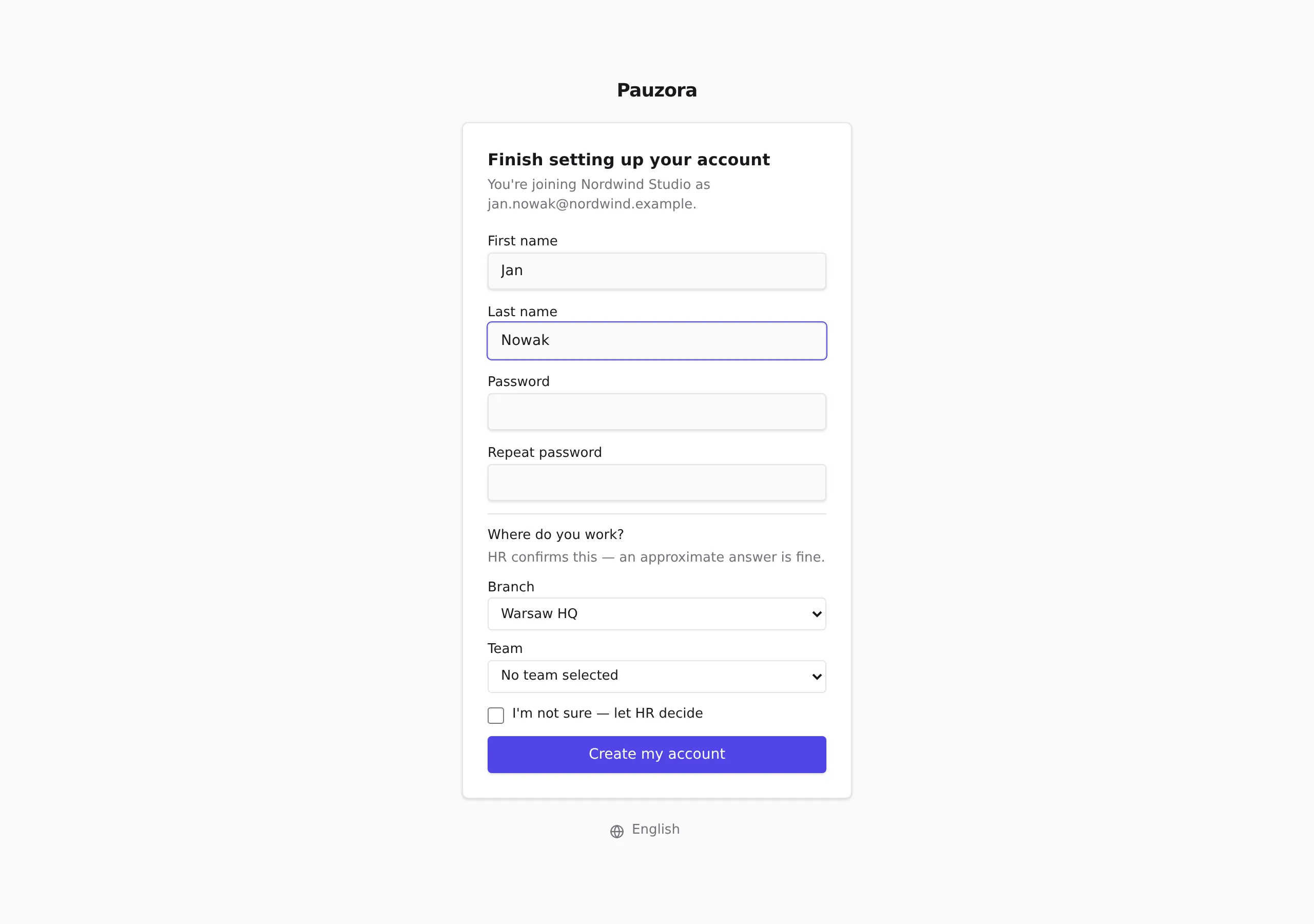
- Fill in your profile:
- your First name and Last name;
- a Password, typed twice (Repeat password);
- the Branch and Team you work in — this is a proposal, HR confirms or corrects it during approval. If you are not sure, tick I’m not sure — let HR decide and leave the placement empty.
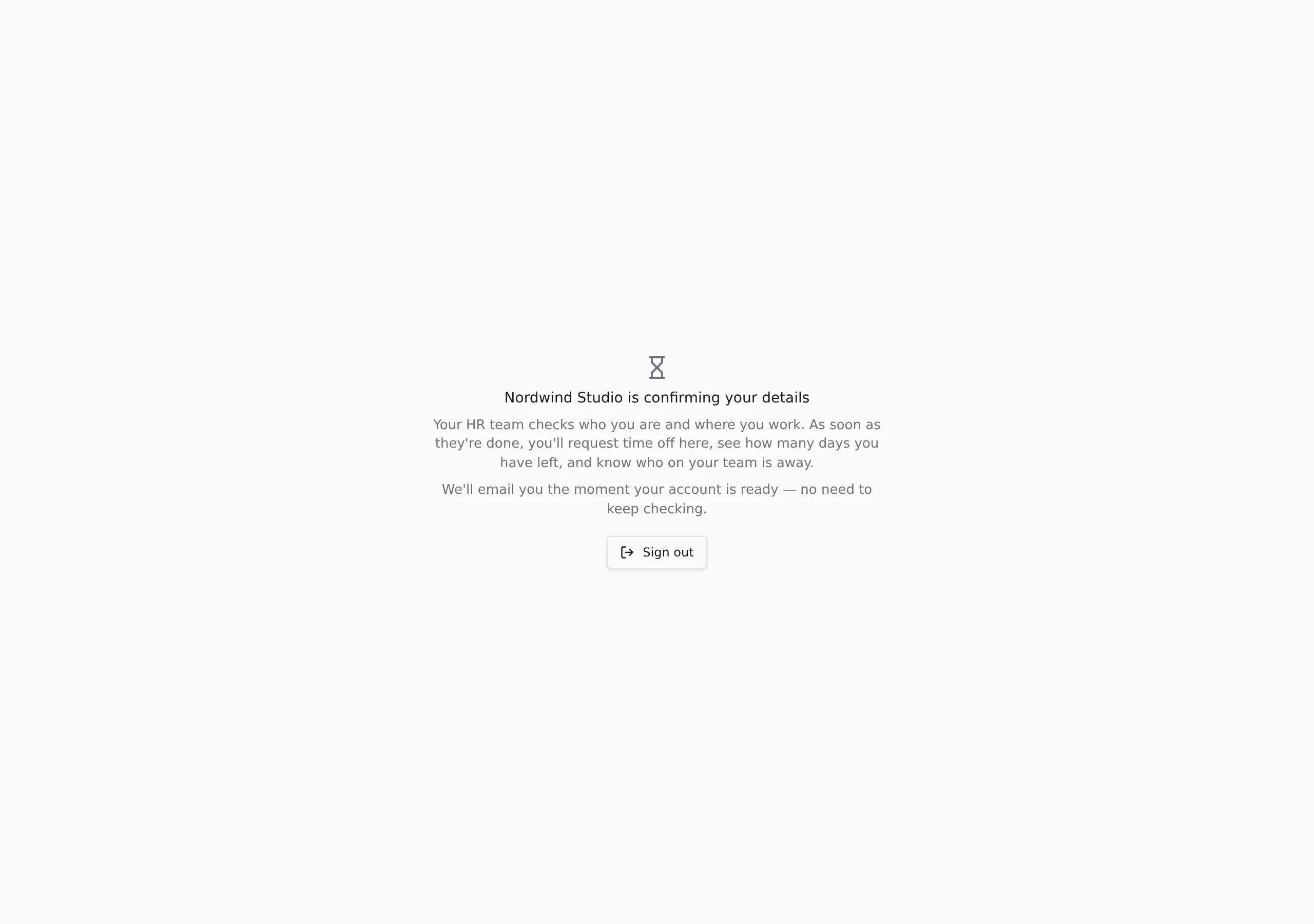
- Choose Create my account. Your details go to HR — you can sign in already, and Pauzora shows the waiting screen.
What happens next
- Your HR admin reviews the registration: they confirm or correct your branch and team and fill in the employment details only HR can set.
- Once HR activates the account, everything opens up — the first thing most people do is request their first time off.
- Until then the waiting screen is all you see; no company data is visible before activation.
If something does not work
- No email arrived — check spam first. If there is still nothing, the address may not be a company address enabled for registration: check the spelling and ask your HR admin.
- The link has expired — enter your work email on the registration page again; a fresh link is sent to the same address.
- You cannot sign in after registering — before the profile step is completed the account has no password yet; finish the profile first via the emailed link.
Related
- Sign in and account access
- Request time off
- Approve new registrations — the HR side
- Set up your company — if your company does not use Pauzora yet