Notifications you receive
Understand every message Pauzora sends you, when it arrives, where it turns up, and what the product deliberately never does.
Before you start
- There is nothing to set up. Notifications go to the email address you sign in with, and they are written in your account language — not in the language of whoever triggered them.
- If your organization has connected Slack, the same messages can also reach you as a Slack direct message. You do not switch that on yourself and there is nothing to configure — see Where your notifications arrive below.
- To change that language, use the Language picker (in the sidebar, or in the More panel on a phone). The next notification uses the new one.
- Everything below also appears inside Pauzora, under the bell — see See your notifications in Pauzora.
See your notifications in Pauzora
You do not have to keep an eye on your inbox. Every message Pauzora sends you is also listed inside the product:
- On a computer, choose Notifications at the bottom of the sidebar. The number next to it is how many you have not looked at yet.
- On a phone, open More in the bar at the bottom, then choose Notifications. A dot on More means something is waiting.
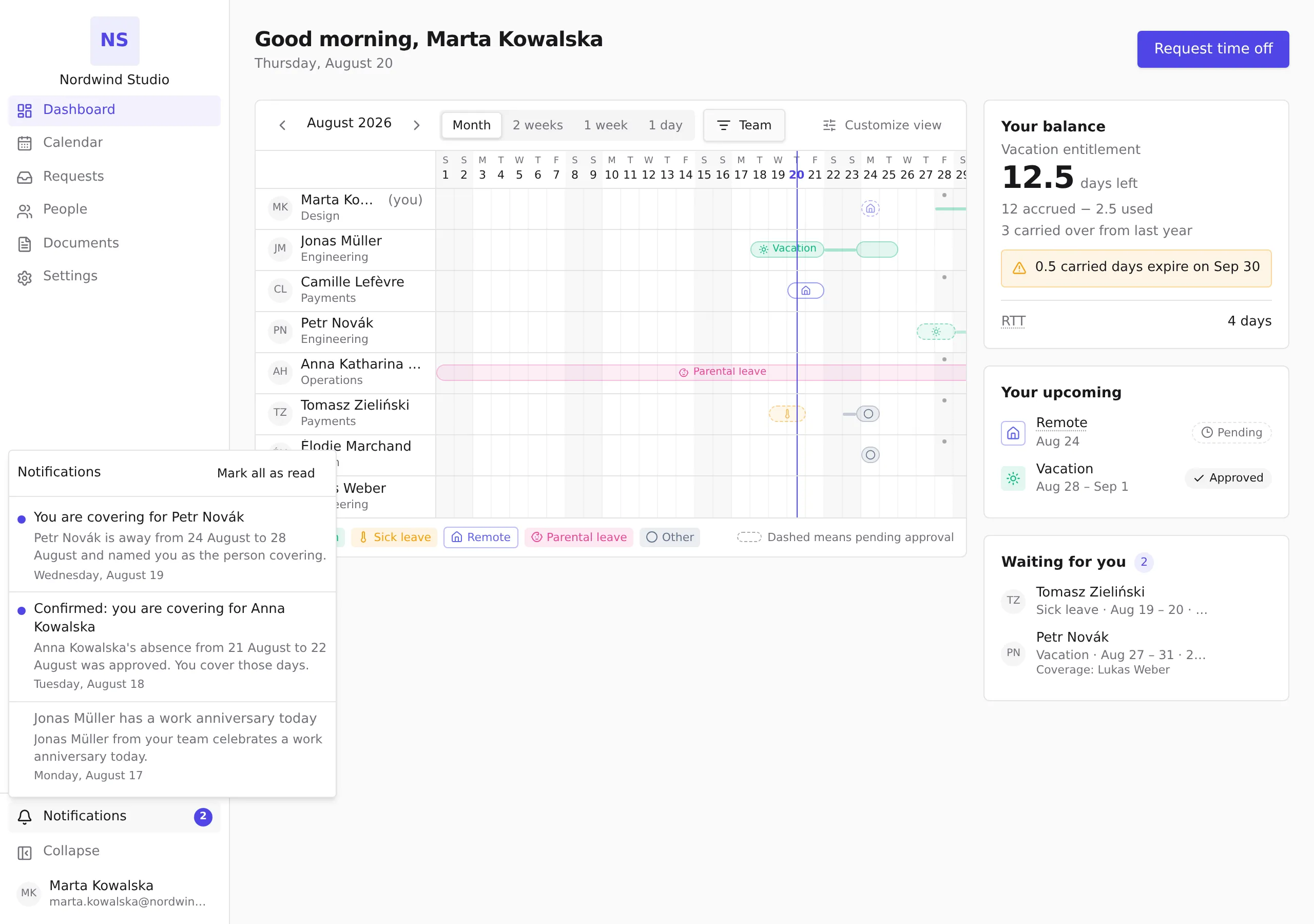
The panel lists your notifications newest first. Each one shows the same subject and text as the email. Choosing one marks it as read; Mark all as read clears the number in one go. Read notifications stay in the list, just quieter — the panel is a record of what happened, not a list of chores.
Three things worth knowing:
- One entry per event. If a message reached you by email and as a Slack direct message, it appears here once, not twice.
- It is the same message, not a different one. Nothing is listed here that was not also sent to you, and nothing you switched off (see A colleague’s birthday or work anniversary) reappears here.
- There is nothing to set up. The bell shows what was sent to you; it is not a place to choose what you receive.
What Pauzora sends you
Your account is ready
Arrives once, when HR activates your registration.
- Subject: Your Pauzora account is ready
- It confirms which organization your account belongs to and links straight to your dashboard, where Request time off is the first thing you can do.
You were named as a coverage person
Arrives when a colleague submits an absence request and names you as the person who takes over their duties while they are away.
- Subject: You are covering for (name)
- It gives you the colleague’s name and the dates you are covering.
- It names the absence type only if you are allowed to see it. Colleagues see that someone is away; managers, approvers in the chain and HR see the type. The email follows exactly the same rule as the calendar — see Control who sees absence details.
- Being named as a coverage person is not an approval task. You never approve or decline anything from this email.
The absence you cover is settled
Arrives when a request you were named on reaches its final state, so you know whether the handover is real.
- Subject: Confirmed: you are covering for (name) — the absence was approved, and you cover those dates.
- Subject: No longer needed: covering for (name) — the request was not approved, so you are not covering after all.
- Subject: Cancelled: covering for (name) — the absence was cancelled, so you are not covering after all.
A request awaits your approval
Arrives when a colleague’s absence request comes to wait on your decision: they submitted it and you are their approver, an earlier approver in the chain passed it on to you, or an approval rule moved it to your step.
- Subject: Awaiting your approval: an absence request from (name)
- It names the colleague, the absence type and the dates, and links to your dashboard, where the Waiting for you card opens the request — see Review and decide requests.
- In Slack, the same message carries two buttons, Approve and Decline, so you can decide without leaving Slack — see Review and decide requests.
- You are told once per step you hold. A request that an automatic rule approves outright never waits on anybody, so nobody is told.
- Requests that leave your queue on their own — withdrawn by the requester, or approved by a rule — are not announced; the timeline in Request details says what happened.
A colleague’s birthday or work anniversary
Arrives on the day, if your organization has turned celebrations on — they are off until an administrator does. You hear about people in your own team, or in your branch if you are not in a team; never the whole company.
- Subject: (name) has a birthday today
- Subject: (name) has a work anniversary today
- A birthday in Pauzora is a day and a month. There is no year anywhere in the product, so no message states an age — and an anniversary message never states a number of years either.
- You are never sent your own.
This is the one kind of message you can switch off, for yourself: Settings → Your account → Notification preferences → Birthdays and work anniversaries. Turning it off also stops your birthday and work anniversary being announced to anybody. See Celebrate birthdays and work anniversaries.
Billing notices (administrators and HR)
Only the organization’s administrators and HR with company-wide scope receive these. They are about the organization’s subscription, not about any one person, and they arrive by email only — never as a Slack direct message.
- Subject: Your Pauzora trial ends on (date) — sent about a week before a free trial without a payment method ends.
- Subject: A payment for Pauzora failed — the latest payment could not be collected. It is retried automatically, and nothing changes for anybody in the meantime.
- Subject: (organization)‘s Pauzora access is now read-only — the trial ended without a payment method, or the payment retries failed. Everyone can still sign in, view and export data; changes are disabled until a payment succeeds.
These are the only messages that still arrive while the organization’s access is read-only — every other notification stops until full access returns. An organization on promotional access is never told it became read-only, because it did not.
There is no billing page in Pauzora yet, so these messages carry no link: adding a payment method arrives with the organization’s billing screen.
Where your notifications arrive
Always: your email inbox. Every message below is sent to the address you sign in with. That never changes and never stops.
Sometimes as well: a Slack direct message from Pauzora. If your organization has connected its Slack workspace to Pauzora, the messages above also arrive as a direct message from the Pauzora app — a private one-to-one conversation, not a post in a channel your colleagues can read.
- You do not need to do anything, and there is no setting for it. Whether Slack is connected is decided for the whole organization by an administrator.
- It is the same message, not an extra one. What the email calls a subject is simply the first line of the direct message.
- It only reaches you if Pauzora can recognise you in Slack. The match is made on your email address, and only after Pauzora has confirmed that address is yours. If your Slack account uses a different address, the direct message simply does not arrive — your email still does.
- It is private. A direct message goes to you alone. This is different from the channel announcements an administrator may also have set up, which are posted to a Slack channel and say less about each absence precisely because more people can read them.
A note on what your colleagues see. Nothing here changes who is allowed to know what. A direct message tells you exactly what the email tells you, under the same visibility rules — see Control who sees absence details.
What Pauzora never does
- No marketing email, ever. Everything above is triggered by something that happened to you or to a colleague.
- No Slack message about somebody you could not already see. The direct message follows the same visibility rules as the email; being connected to Slack never widens what you are told.
- No reason for an absence. The product stores no free-text reason — only the absence type — so no email can reveal one.
- No email to people who only joined a waiting list. Only accounts receive notifications.
- No request to reply. These messages are one-way; act in the product, not in your mailbox.
Turning them off
Birthdays and work anniversaries can be switched off for yourself, in Settings → Your account → Notification preferences. Nothing else can: the remaining messages either tell you your account is usable, that a colleague’s duties are now yours, or that your organization’s access is at stake, and those are things you need to know.
That switch covers every way the message could reach you — the email and the Slack direct message together. Turning celebrations off does not leave them arriving in Slack.
The messages above are the complete set; the bell inside Pauzora lists the same messages and adds none — see See your notifications in Pauzora.