Navigate on your phone
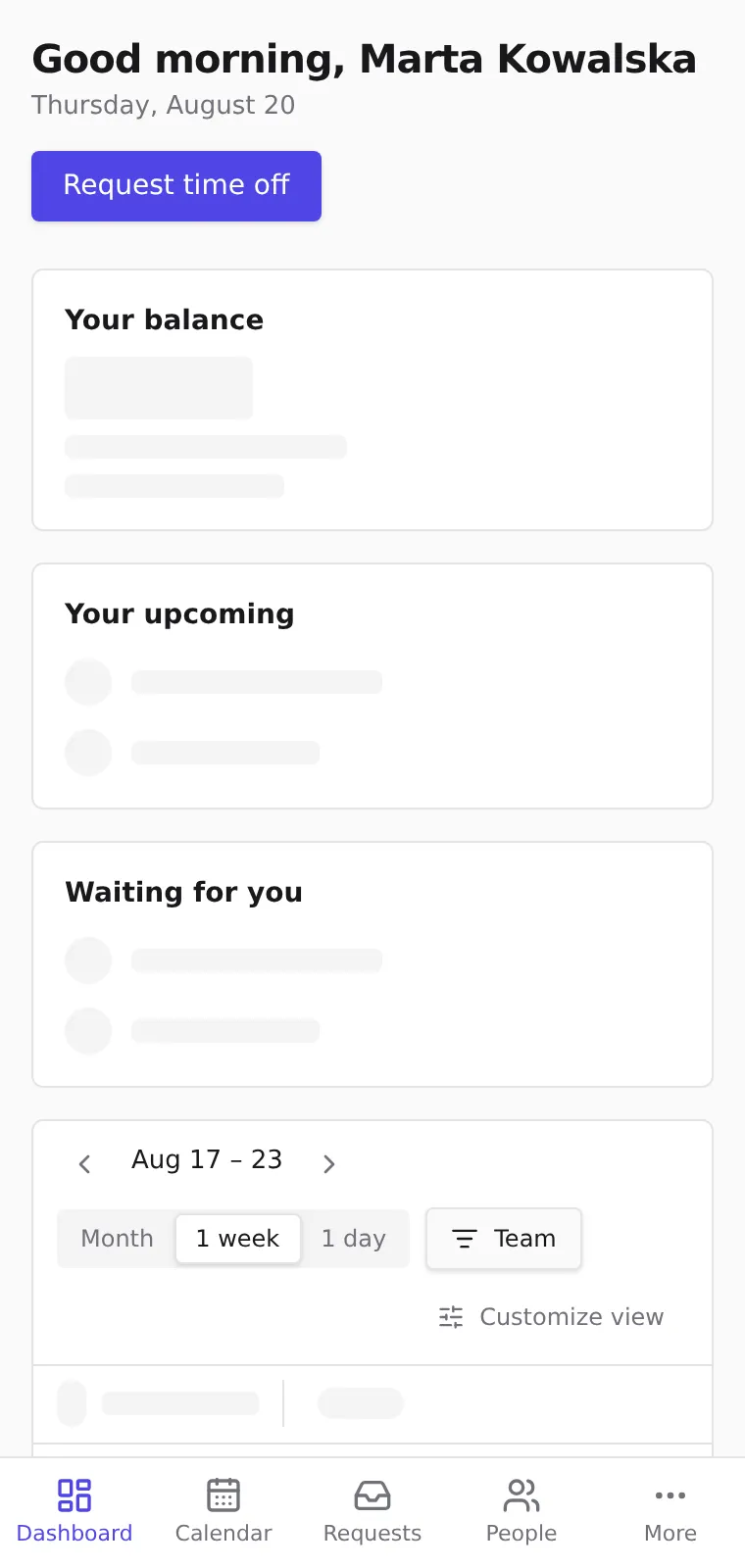
Find everything on a phone that the sidebar offers on a desktop: the app switches to a bottom tab bar below tablet width.
Before you start
- No setup needed — the layout follows your screen size automatically. The same account sees the same screens on both.
The tab bar
- The bar at the bottom holds your first four screens: Dashboard, Calendar, Requests and People. The highlighted tab is the screen you are on. You see the same entries the sidebar shows on a desktop — no more, no fewer.
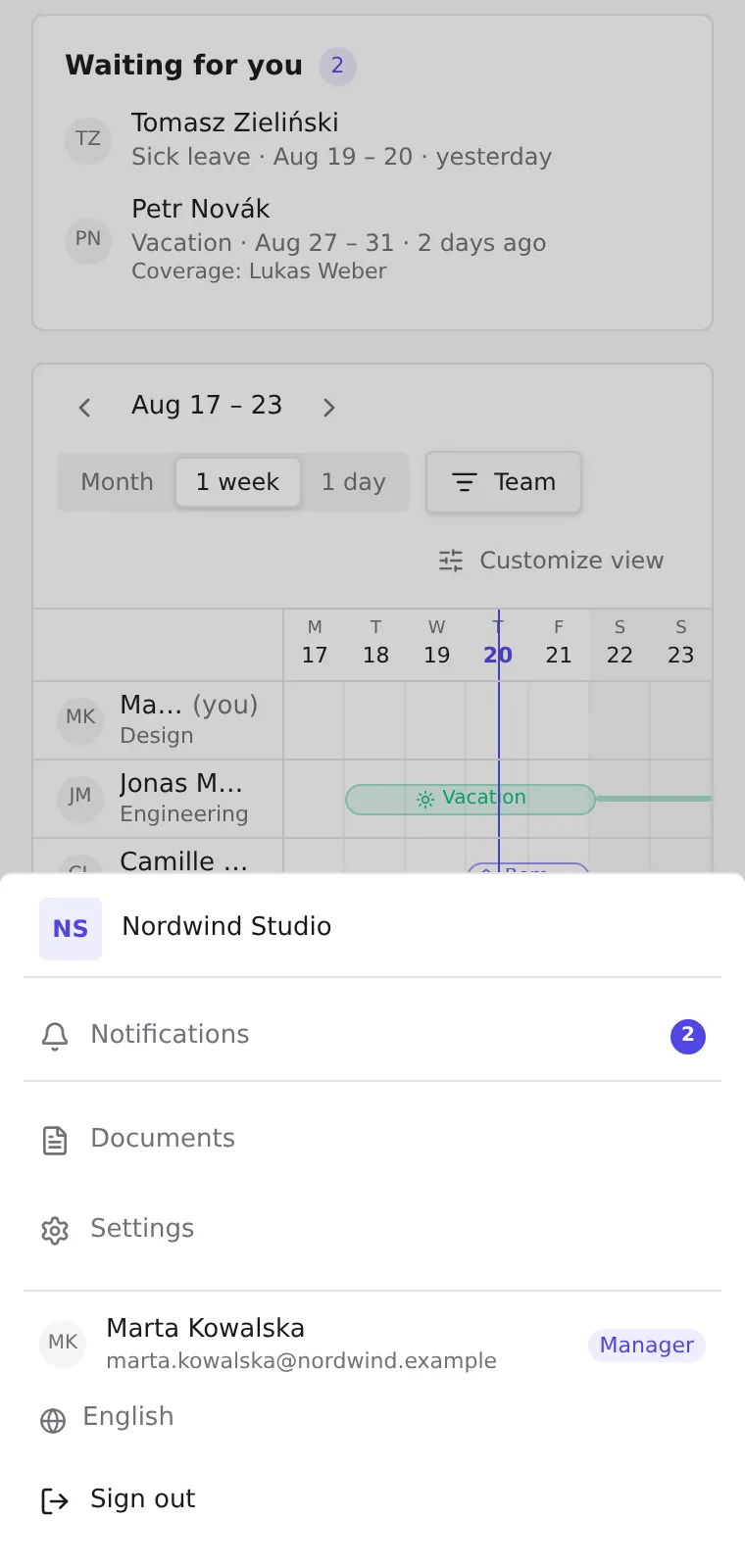
- More opens a panel with your name and company, the language picker and Sign out. The bar holds four tabs at most, so any further screens are listed at the top of this panel — and More stays highlighted while you are on one of them. Settings is always there; with an HR or admin role, New registrations is too.
- Where this help says “in the sidebar”, use the matching tab — or More — on a phone. The entries and permissions are the same.
Tips
- A long screen name is shortened with ”…” so it stays inside its own tab. The full name is always in More, and on the screen itself.
- Sheets and dialogs open over the tab bar; closing them brings it back.
- Your remaining balance is the first card on the phone dashboard — see Your dashboard calendar for the phone calendar views.