Subscribe to your calendar
Add your time off — your team’s, your whole organization’s, and your branch’s public holidays — to Google Calendar, Outlook, Apple Calendar or any other calendar app, so it appears next to your meetings without you copying anything across.
Before you start
- Every employee can do this. There is no permission to request.
- You need a calendar app that can subscribe to a calendar by URL. Every common one can; the menu item is usually called “Add by URL”, “Subscribe to calendar” or “From internet”.
- Read The link is the key below before you share your screen or paste the link anywhere. It matters more than the rest of this article.
The four calendars you can subscribe to
Your absences — your own time off, and nothing else. Nobody else appears in it. It covers a year back and two years ahead.
Team absences — the people you work with. If you are on a team, that is your team; if you are not on one, it is everyone at your branch. It covers three months back and a year ahead, because a team calendar is for planning rather than for keeping records.
Organization absences — everyone in your organization, across every branch and team. Each person appears with exactly as much detail as you can see about them in Pauzora — the same rule as the team calendar, over a wider circle. It covers the same three months back and a year ahead.
Public holidays — the holidays of your branch’s calendar, including any days your organization has added or removed for your branch. These are the same days your calendar screen shades. It covers a year back and two years ahead. Everyone at a branch gets the same holiday calendar — there is nothing personal in it.
You can subscribe to any of them, and each is a separate subscription with its own link.
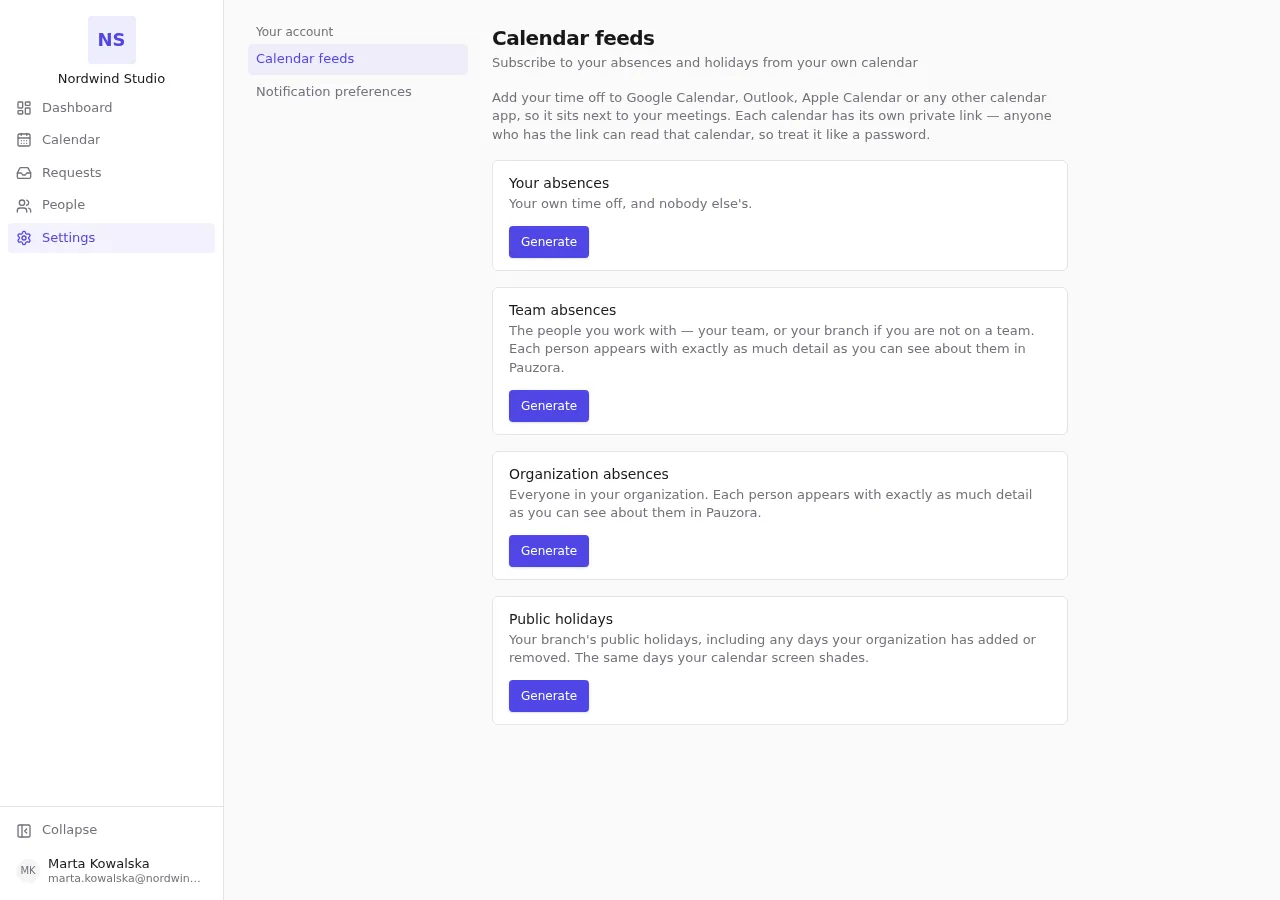
Steps
- Go to Settings.
- Open the Your account section, then Calendar feeds.
- Next to the calendar you want, choose Generate.
- Copy the link now, with Copy link. It is shown once, and it cannot be shown again. If you lose it, you make a new one (see If the link gets out). Done puts the link away when you have it.
- In your calendar app, add a calendar by URL and paste the link.
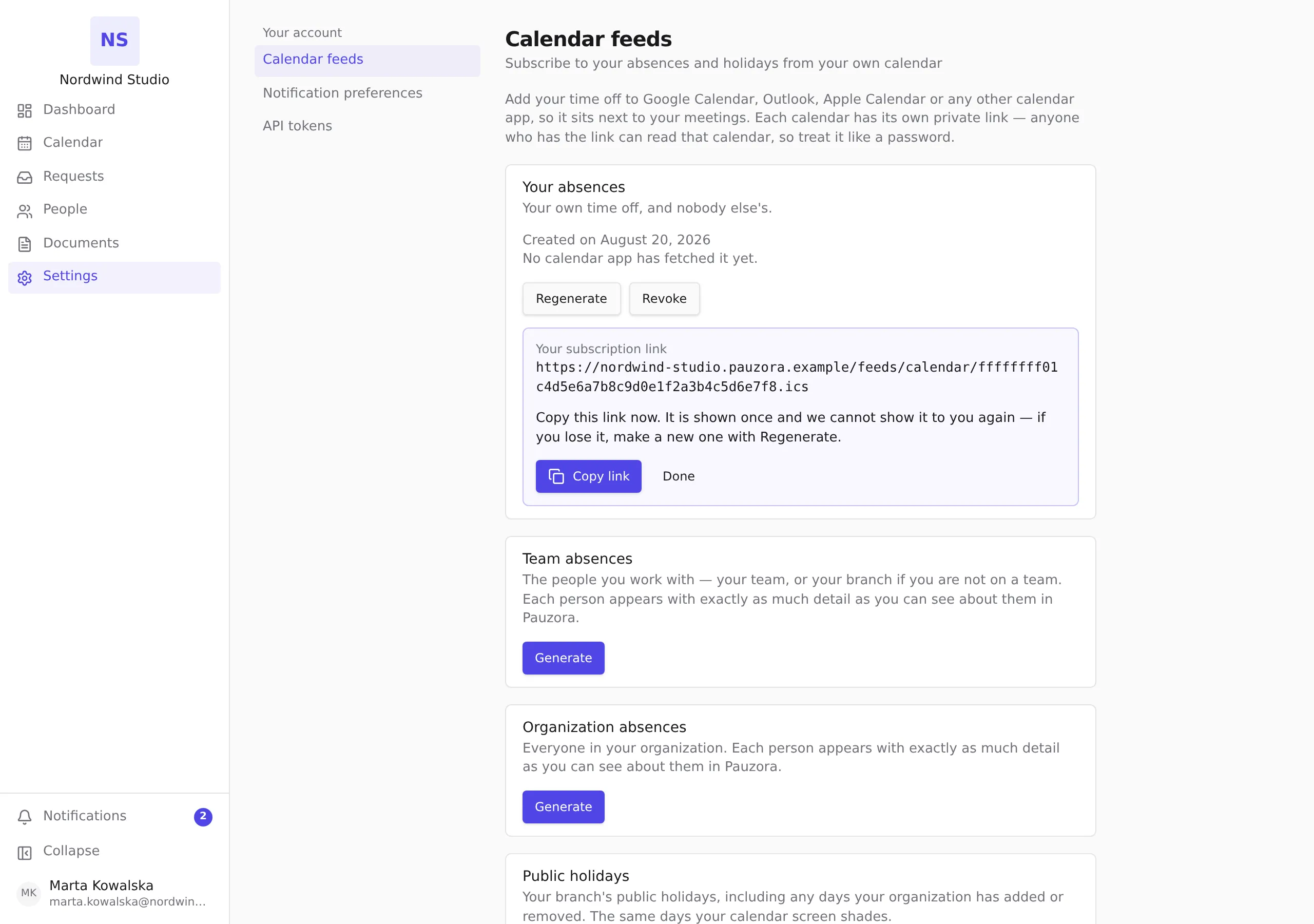
What lands in your calendar
Each absence appears as an all-day entry, in your account language, on the dates it actually covers.
- A half day is not rounded into a full one. The entry still covers the whole day, and its description says the absence starts or ends at midday.
- A request still waiting for a decision appears as tentative, so you can tell it apart from an approved one. In your team and organization calendars you see a waiting request only where you would see it in Pauzora — your own, your reports’, and anything routed to you for a decision.
- In your calendar, a request that was cancelled or refused is marked cancelled rather than removed, so your calendar app reliably takes it off your schedule. In the team and organization calendars it simply stops appearing.
- Public holidays are not mixed into the absence calendars. They have their own Public holidays calendar, so you can subscribe to them once instead of seeing the same holiday repeated on every colleague.
Calendar apps refresh subscribed calendars on their own schedule, and most of them are slow about it — a few hours is normal for Google Calendar. A change you make in Pauzora is not lost; it simply arrives when your calendar app next asks.
What a colleague sees, and what a manager sees
The team and organization calendars show each person exactly as much as you are allowed to see about them in Pauzora — the same rule as the calendar screen, not a looser one. The organization calendar covers more people, not more detail: someone at another branch appears with exactly the same discretion as the colleague at the next desk.
For most colleagues you see that they are away, not why:
Anna Kowalska — absent
If the absence type counts as being at work somewhere else, it says so, because “absent” would be wrong:
Anna Kowalska — working elsewhere
You see the absence type where you are entitled to it in the product anyway:
- your own absences;
- the absences of people who report to you;
- requests that are routed to you for a decision;
- everything, if you are HR or an administrator.
Anna Kowalska — Parental leave
Your organization can also choose to make absence types visible to everyone. If yours has, your team and organization calendars show them — see Control who sees absence details.
The Public holidays calendar has none of this to weigh: a holiday belongs to the branch, not to a person, so everyone at your branch sees the same days and no warning ever applies to it.
The link is the key
Anyone who has the link can read that calendar. There is no sign-in step: your calendar app is not logged in as you, so the link itself has to be the proof, and it works for whoever holds it.
That is normal for calendar subscriptions and it is why the link deserves more care than an ordinary page address:
- Do not paste it into a chat, a ticket, a shared document or an email. Those are all places links get forwarded and archived.
- Be careful when sharing your screen. A subscribed calendar’s settings screen shows the URL.
- Do not add it to a shared or team calendar account. Give people the team calendar of their own instead — theirs will show only what they are allowed to see, and yours may show more.
That last point is the one to weigh. If you manage people, or you are HR, your team and organization calendars contain other people’s absence types — the same detail you can see in the product. A leaked link from your account exposes more than a leaked link from a colleague’s, so Pauzora warns you about that when you generate one.
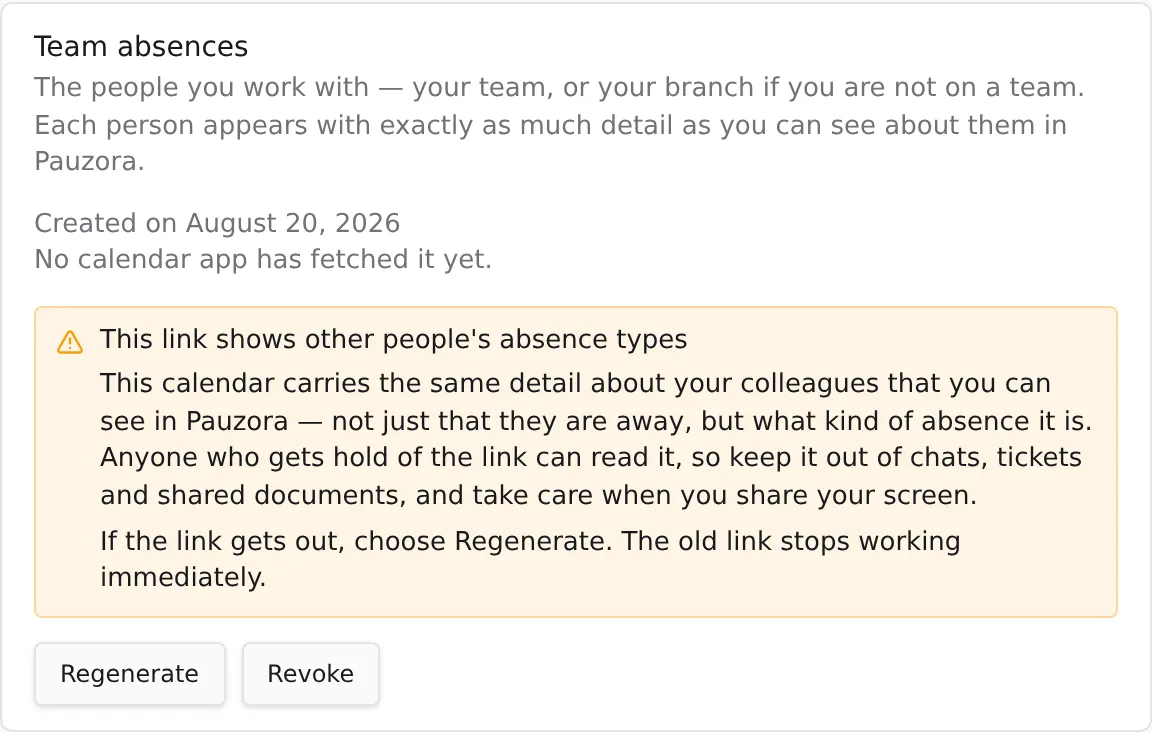
If the link gets out
Make a new one. It takes a moment and it is the complete fix.
- Go to Settings → Your account → Calendar feeds.
- Next to the calendar, choose Regenerate.
- The old link stops working immediately. Anyone holding it — including your own calendar app — sees nothing at all from that moment.
- Copy the new link and paste it into your calendar app, replacing the old subscription.
Use the same steps if you simply lost the link: there is no way to look up the old one, by design, and regenerating is the answer to both problems.
If you no longer want the calendar at all, choose Revoke instead. That stops the link without issuing a new one.