Your profile & work with me
Every name in Pauzora — on calendars, in approval timelines, in coverage notes — is a link to that person’s profile page. This article covers what a profile shows, and how to fill in your own How to work with me section.
Open a profile
- Click any person’s name anywhere in the app — the team calendar on your dashboard, the day view, an approval timeline, a coverage note. Names are links throughout Pauzora, and every one of them opens the same profile page.
- Your own profile is marked (you) next to your name.
What a profile shows
What you see on someone’s profile depends on your role — the page simply shows more or fewer sections:
- Everyone sees the person’s name, branch and team, whether they are currently away (Away until …), and their How to work with me section.
- Their manager additionally sees the person’s Absence history and Balance.
- HR and admins additionally see Details (email, hire date, contract, any fields your company tracks) and Org placement (branch, team, and who the person reports to).
You always see every section on your own profile.
Some names in a profile’s history can appear without a type — that is the same privacy rule as everywhere else: you may see that someone was away without seeing why.
Share how you work
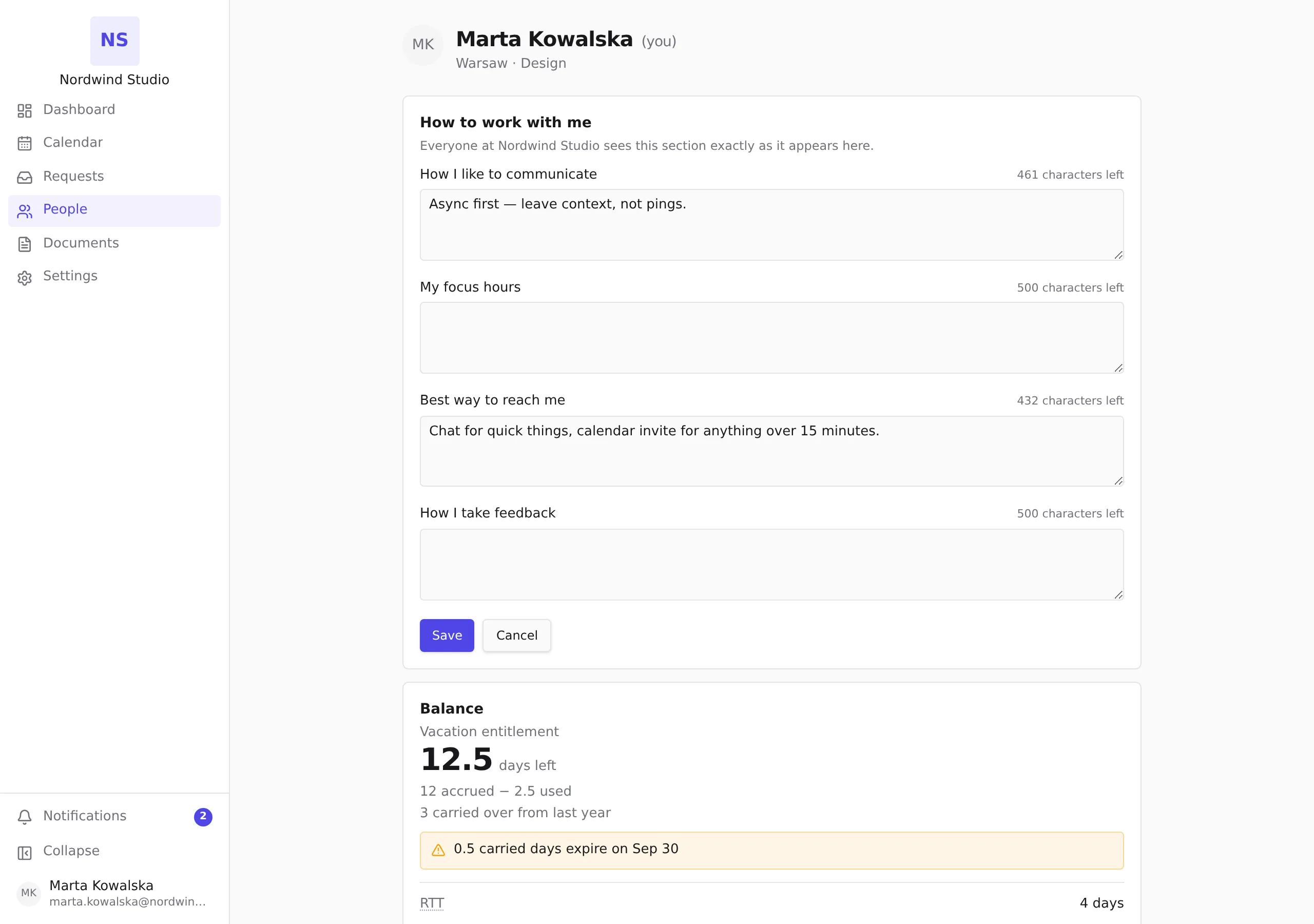
How to work with me is a short, self-written section — a few notes on how you like to communicate, when you focus, how to reach you. Your company defines the prompts; you decide what to share. Whatever you write here is shown to everyone in your company, exactly as it appears on your own page — there is no separate preview, because what you see is what they see.
- Open your own profile — click your own name anywhere it appears, for example on your dashboard’s team calendar, where it is marked (you).
- In How to work with me, select Edit — or Share yours if the section is still empty.
- Answer any prompts you like — each answer can be up to 500 characters, and the counter shows what’s left. Prompts you leave blank are simply not shown to others.
- Select Save. To remove an answer later, edit it to empty and save.
If saving fails, your changes are not published — the page says so and keeps the editor open so you can try again.