Edit an employee's profile
Keep a person’s employment record current — their contract type, birthday, custom fields and working time — directly from their profile page.
Before you start
- You need the HR or Admin role. Managers and employees do not see the editing controls — not even on their own profile: your own record is yours to read, but changes to it go through HR.
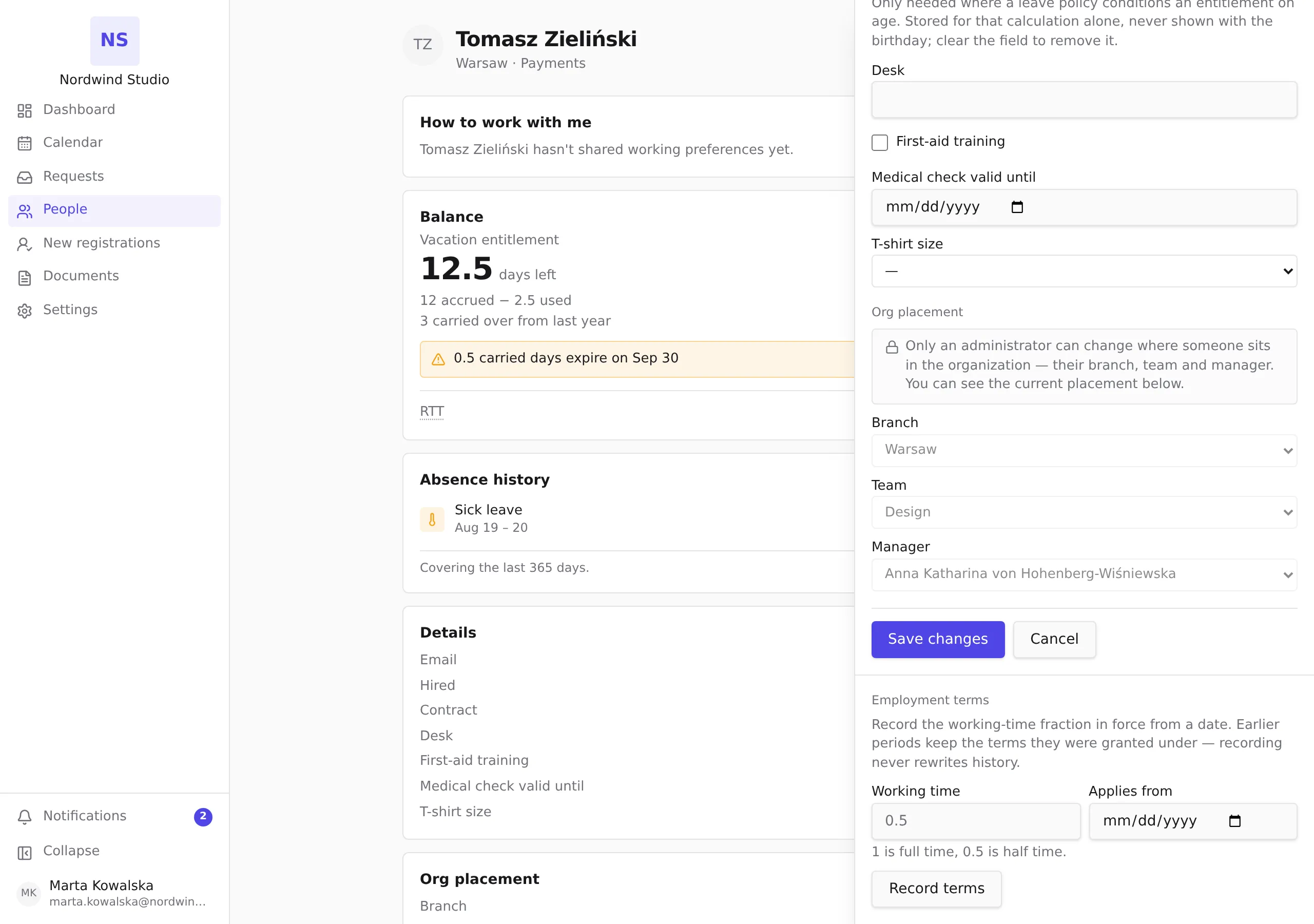
- Three placement fields — Branch, Team and Manager — can be changed only by an Admin. If you are HR, you will see them in the panel with the current values, marked as an administrator’s to change.
Steps
- Open People in the sidebar (or the People tab on a phone) and click the person’s name.
- Click Edit profile at the top of their profile.
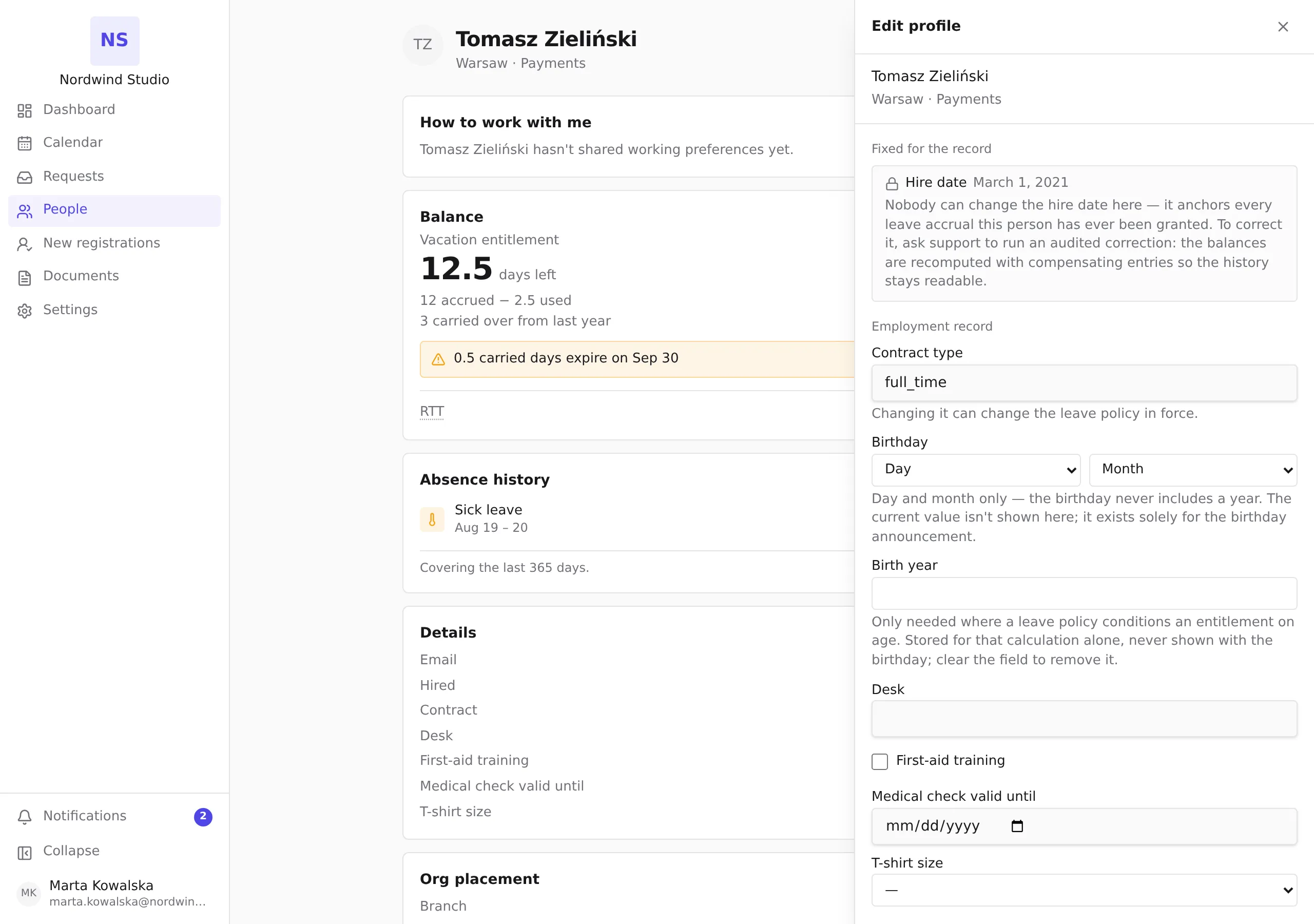
- Change what you need in the Employment record section:
- Contract type — the value your organization uses (for example
full_time). Changing it can change the leave policy in force for this person, and the change is recorded in the audit trail. - Birthday — the day and the month, together. The birthday never includes a year, and the current value is not displayed: it exists solely for the birthday announcement, so the field is always blank when you open it and typing replaces whatever is stored.
- Birth year — only needed where a leave policy conditions an entitlement on age (a statutory age step). The current value is shown, so you can see what you are about to replace: this is the one birth field that is read back, because getting it wrong changes how much leave someone is entitled to. Clear the field to remove the year. It is stored for the entitlement calculation alone and is never shown with the birthday or anywhere else on the profile — only people who can edit this person’s record can see it. The audit trail records that it changed, never the value.
- Any custom fields your organization has defined.
- Contract type — the value your organization uses (for example
- Click Save changes. The profile refreshes with the new values, and every change lands in the record’s audit trail.
Record a change of working time
An employee’s working time (their FTE — 1 is full time, 0.5 is half time) is not edited like a plain field. It is recorded from a date, because leave entitlement is priced by the terms in force across each period. When the date falls inside the current leave year, that year’s entitlement is recalculated as a blend: the months before the date count at the old working time and the months from it at the new one, so the balance adjusts from the change date. Earlier, completed years keep the terms they were granted under, and recording a change never rewrites history — corrections are added to the record, not written over it.
- In the Employment terms section at the bottom of the panel, enter the new fraction under Working time and the first day it applies under Applies from.
- Click Record terms.
The date may be in the past — a backdated change is legal and the balances are recomputed from that point with compensating entries, never by rewriting what was already granted. It cannot be earlier than the hire date, and only one entry can exist per date.
The panel does not display the currently recorded working time yet — if you are unsure what is in force, record the correct value from the date it should apply; an identical value simply changes nothing.
What you cannot change here, and what to do instead
- Hire date. Nobody can change it through the product — it anchors every leave accrual this person has ever been granted, so moving it would restate balances that absences were already approved against. To correct a wrong hire date, ask support to run an audited correction: the balances are recomputed with compensating entries so the history stays readable.
- Branch, Team and Manager. These change who sees this person’s absences and where their requests are routed, so they stay with the Admin role. If you are HR and a person needs to move, ask an administrator in your organization — they open the same Edit profile panel on the same page, where these three fields are editable for them.
After moving someone
A move takes effect immediately for new requests, and a request that was already waiting for the previous manager’s approval moves to the new manager automatically: both managers are notified by email, and the hand-off is recorded in the request’s history. Nobody needs to cancel or resubmit anything.
Two cases keep their current approver, by design:
- A request waiting with someone other than the person’s manager (for example an HR approval step) stays where it is — that approval was never routed by the manager relationship.
- A request that cannot be routed to the new manager (for example, it is the new manager’s own request) stays with its current approver rather than being left with nobody.