Replying to HR about a document sent to you
Dieser Inhalt ist noch nicht in deiner Sprache verfügbar.
Every document your organization sends you has its own conversation with HR. You can use it to ask a question about the document, or to send a file back, such as a signed copy.
Before you start
- Open Documents from the main navigation. On a phone the navigation is in the More drawer.
- If you also manage documents for your organization, the screen opens on the Library tab. Press Sent to me for your own documents.
Write to HR
- Find the document in your list and press Open.
- Below the versions, find Conversation with HR.
- Type in Your message.
- To send files, use Attach files. You can choose several, and you can remove one before sending with the × beside its name.
- Press Send reply. Reply sent. appears, and your message appears in the conversation with the date and time.
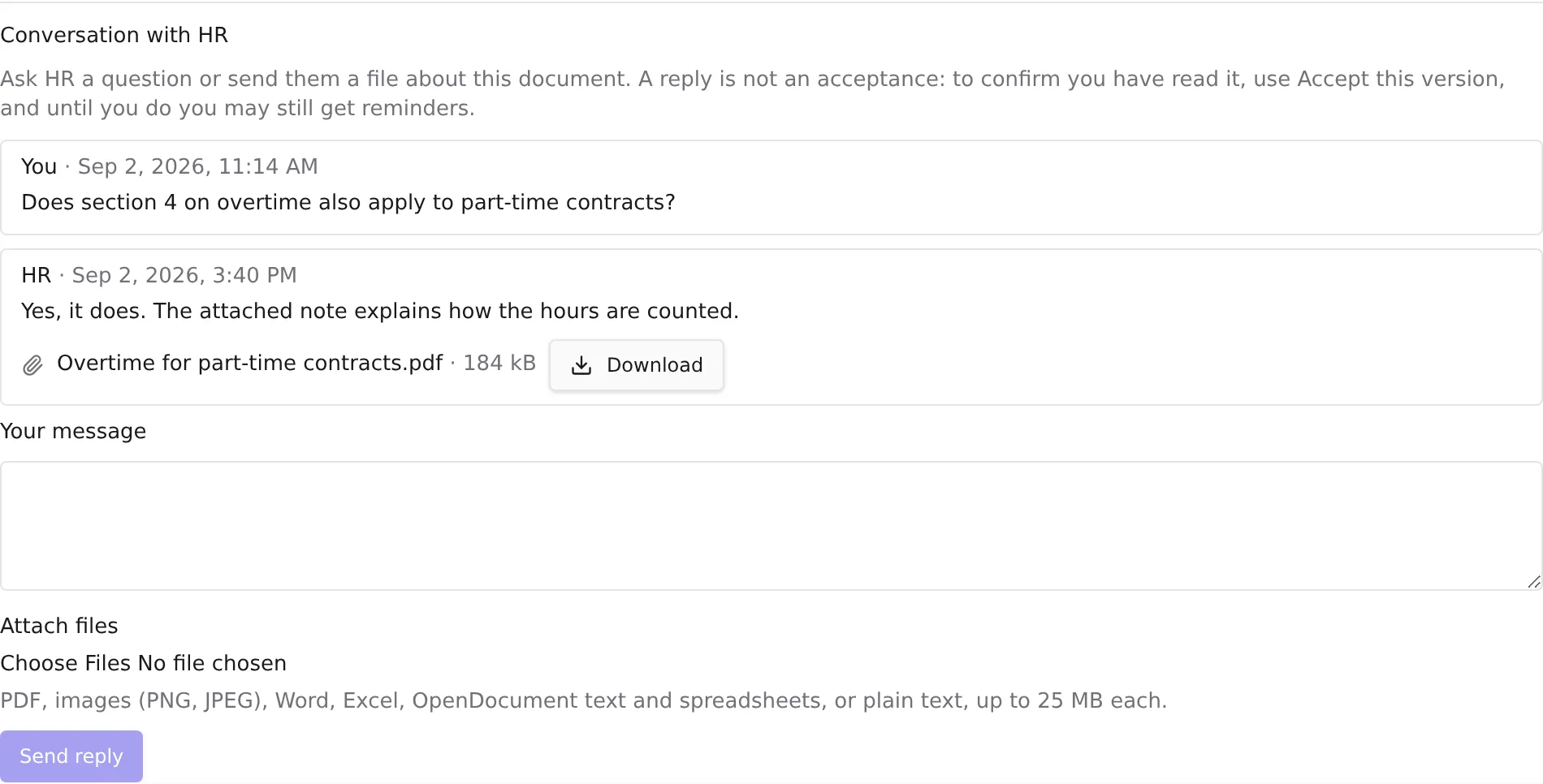
You can send a message, files, or both — but not neither, so Send reply stays greyed out until there is something to send.
Your messages are marked You, and messages from your organization are marked HR. Besides you, this conversation can be read only by the people your organization allows to see this document’s records — usually HR. Nobody else who was sent the same document can see it.
A reply is not an acceptance
Writing to HR does not accept the document, even if you send back a signed copy. To confirm you have read it, press Accept this version as well — see Reading and accepting a document sent to you.
Until you accept, you may keep getting reminders about the document, even after you have replied. See Reminders about a document waiting for you.
Which files you can send
PDF, images (PNG, JPEG), Word, Excel, OpenDocument text and spreadsheets, or plain text, up to 25 MB each. The same list is shown under Attach files.
If a file is refused, the reason appears above Send reply, and nothing is sent — your message and your other files stay in the form. Remove the refused file with its × and press Send reply again.
Opening a file in the conversation
Press Download beside a file’s name.
If you see This file can’t be opened right now, try again later — a file you have just sent is not always available straight away. If it stays that way, ask HR.
When the conversation is closed
If HR withdraws a document, you can still read everything that was said, but you can no longer write: the conversation shows This document was withdrawn, so the conversation is closed.
If something does not work
The conversation couldn’t load — a connection problem. Close the document and open it again.
Your reply couldn’t be sent — press Send reply again in a moment. Your message and files are still in the form.
You can’t reply here any more — the document was withdrawn while you were writing. Your message was not sent.