Connect your AI assistant
Dieser Inhalt ist noch nicht in deiner Sprache verfügbar.
Let your own AI assistant check your leave balance, request time off, see which requests are waiting on you and decide them, and see who in your team is out — from the chat you already use, with a personal token that acts as you.
Before you start
- Every employee can do this. There is no permission to request.
- Your assistant must speak MCP over HTTP and be able to send an Authorization header with a token. Claude Code can; some assistants can only connect through a sign-in flow and cannot send a token — see Which assistants can connect.
- Read A token is you below before you paste the token anywhere. It matters more than the rest of this article.
Steps
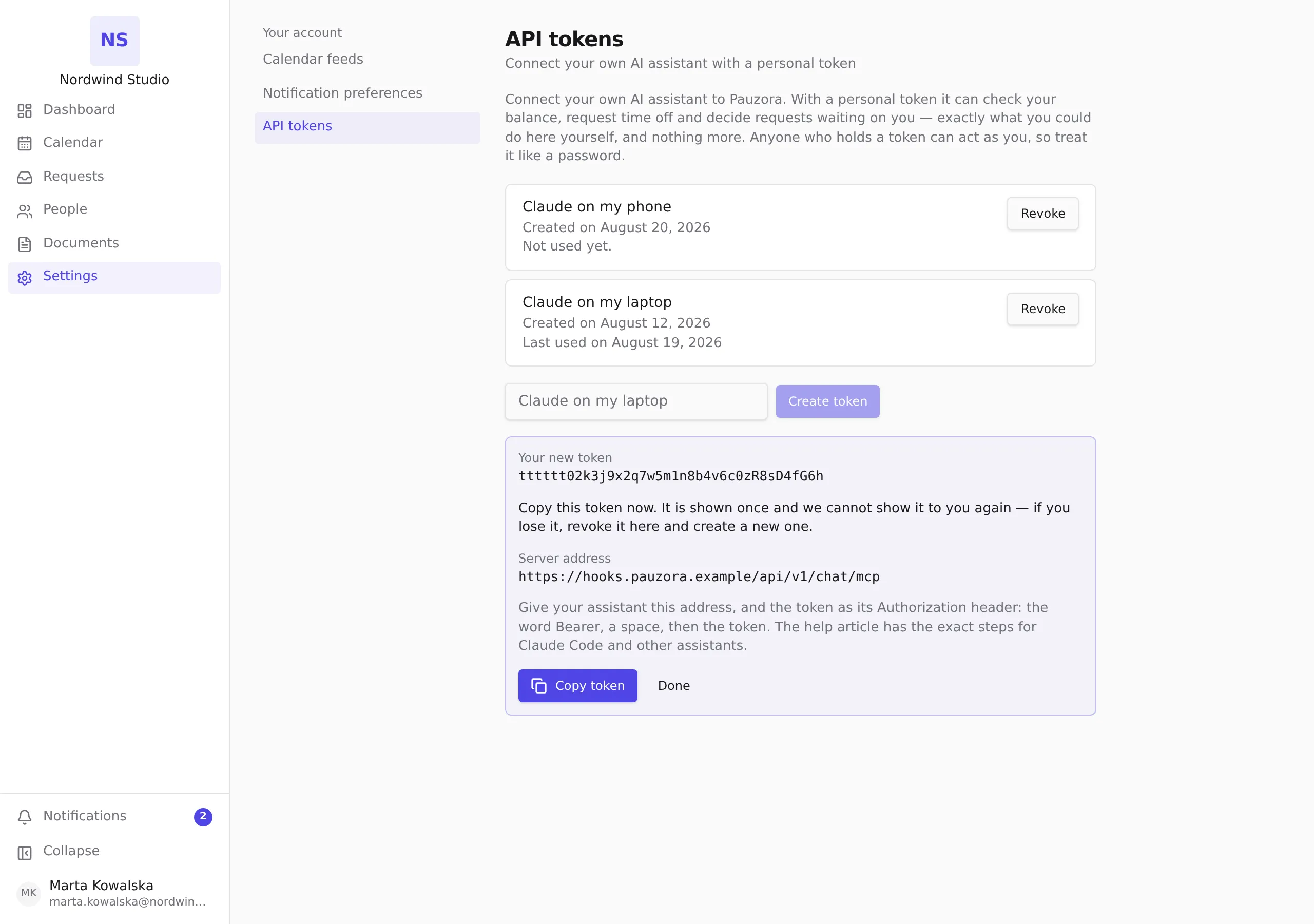
- Open Settings → Your account → API tokens.
- Under the list, type a name for the token in Token name — something that says where it lives, such as “Claude on my laptop” — and choose Create token.
- The token appears once, with the Server address beneath it. Choose Copy token and paste the token straight into your assistant (the next section shows where). Copy the server address too.
- Choose Done. The token disappears from the screen and cannot be shown again. Its row stays in the list, with the day it was made and the day it was last used.
Which assistants can connect
Claude Code (the command-line assistant). In a terminal, run the
following, with the server address and the token you just copied — the
command is Claude Code’s own, from its claude mcp add --help:
claude mcp add --transport http pauzora <server address> --header "Authorization: Bearer <your token>"Then start Claude Code and ask it something like “How much leave do I have
left?”. The /mcp command inside Claude Code shows whether the connection
is up.
Claude’s custom connectors (the desktop and web apps). As documented at the time of writing, the Add custom connector dialog asks for a server address and, optionally, sign-in (OAuth) details — it has no place to put a token header. Pauzora authenticates assistants with a token, not with a sign-in flow, so a custom connector cannot connect today. If that changes, this article will say so.
Any other assistant. It needs the server address and the token sent as
the Authorization header: the word Bearer, a space, then the token —
nothing else. Where to enter that depends on the assistant.
What your assistant can do
Exactly what you can do in Pauzora, and nothing more. It gets five tools:
- Check leave balance — your remaining allowance per pool, as of a date. If you may view a colleague’s requests, it can read that colleague’s balance too.
- Submit a leave request — creates a request for you and submits it for
approval, or saves it as a draft. It goes through the same validation,
approval chain and ledger as a request you make here. Your assistant
needs the absence type’s key (for example
vacation); if it does not know the right one, it will ask you — your HR admin can tell you the keys your organization uses. - List pending approvals — the requests waiting for your decision: the same list as the Waiting for you card on your home screen and the Approval queue, with each request’s id, who asked, the absence type and the dates. Ask something like “What is waiting for my approval?”.
- Decide a pending leave request — approves or rejects a request that is waiting on you, if you are its approver or your role lets you decide it. Your assistant needs the request’s id, which it gets from List pending approvals — or from a request it submitted in the same conversation.
- List team absences — who in your team is out today and who will be away in the coming days (today plus the next two weeks unless you ask for other dates), exactly as the team calendar in Pauzora shows them to you: a colleague’s absence you may not see the reason for shows as away. “Your team” is the team you belong to in Pauzora — not the people who report to you: a manager whose reports sit in other teams does not see them here, and widening that is a product decision, not a mistake.
Everything your assistant does is recorded under your name, exactly as if you had done it in the app.
A token is you
A token carries all of your permissions — there is no way to make a token that can do less than you can. Anyone who holds it can read what you can read and act as you, until you revoke it. So:
- Paste it only into an assistant you run yourself. Never into a chat, a ticket or a shared document.
- Make one token per place you use it, and name it after that place, so a token you no longer recognise is one you can revoke without guessing.
- Look at Last used on now and then. A token you have not used in a long time is a token you can revoke.
If a token gets out
Open Settings → Your account → API tokens and choose Revoke on the token’s row. It stops working immediately — the next thing the assistant tries is refused, exactly as an unknown token would be. Create a new one if you still need it.
Related
- Subscribe to your calendar — the other personal link that acts as you, and the same rule about keeping it safe
- Request leave from Slack — checking your balance, requesting leave and deciding requests from Slack instead of an assistant