Connect Slack so people can request leave from it
Dieser Inhalt ist noch nicht in deiner Sprache verfügbar.
Connect the Pauzora app to your Slack workspace, so that everyone in it can see their remaining allowance and submit a leave request without leaving Slack.
This is different from Send notifications to Slack. That article posts announcements to a channel; this one lets each person act from Slack, and a request made there is exactly the same request as one made in Pauzora — same approver, same balance, same history.
Before you start
-
You need the Settings → Organization → Slack app section. It appears for administrators and HR; if you cannot see the Organization group in Settings, you do not have this permission.
-
You need permission to install apps in your Slack workspace. In many workspaces that means asking a Slack admin — connecting takes you to Slack’s own approval screen, and that is where the permission is checked.
-
People are matched to their Pauzora accounts by email address, in two directions, and the two use different addresses:
- From Slack into Pauzora (the Home tab, a request, a decision): the address on the person’s Slack profile must be one of the addresses they have verified in Pauzora — any verified address, not only the one they sign in with.
- From Pauzora into Slack (a direct message telling somebody a request awaits them): Pauzora looks the person up in Slack by their Pauzora account email — the address they sign in with. A person whose Slack profile carries a different address is matched from Slack but receives no direct messages until the two agree.
Someone who is not matched sees Not connected on the app’s Home tab, in their own Slack language, and is told to ask you to check their Pauzora email address.
Step 1 — connect the workspace
- Open Settings.
- Under Organization, open Slack app.
- Choose Connect Slack.
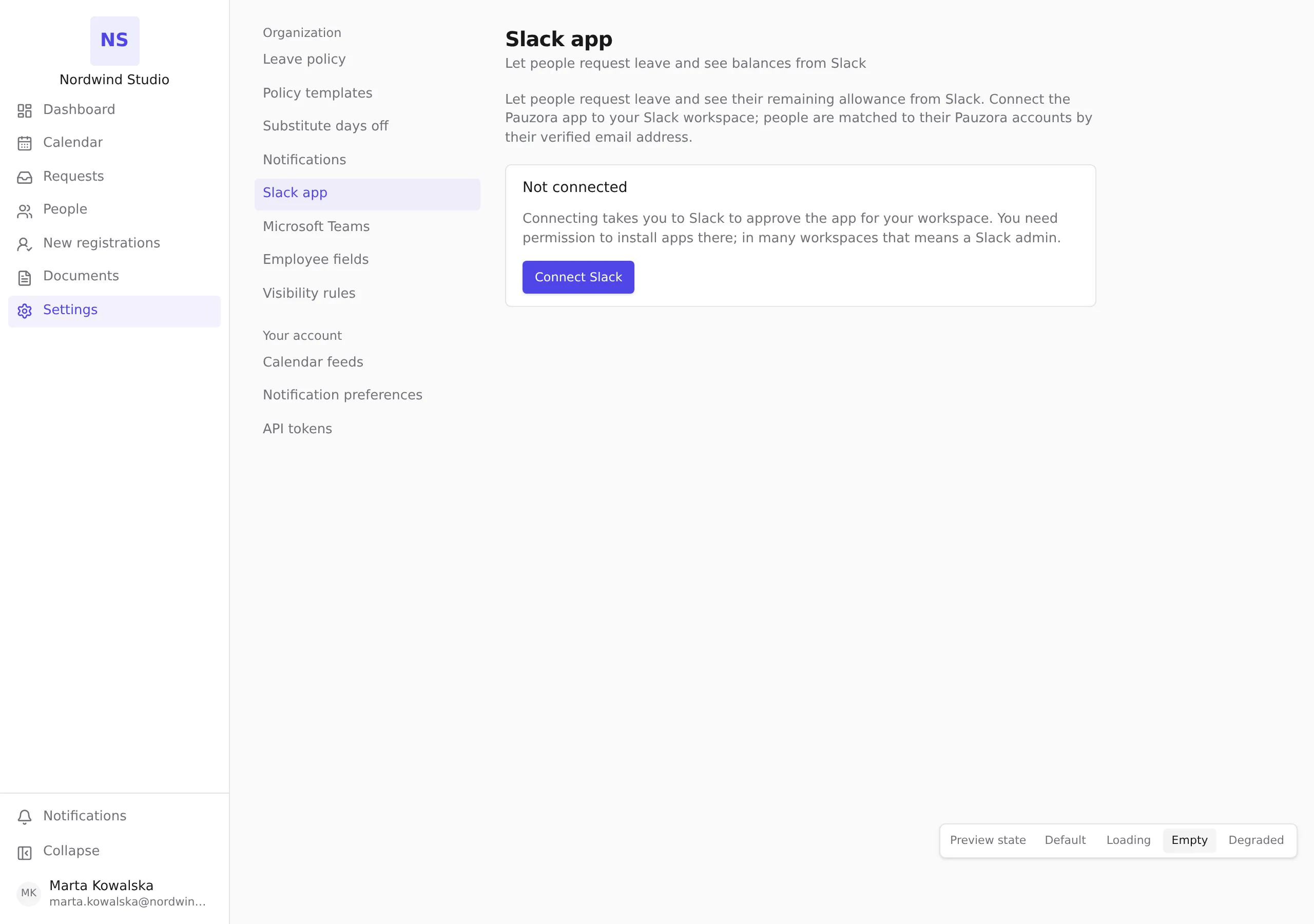
- Slack opens its approval screen for the Pauzora app. Review the permissions it asks for and choose Allow. Accept all of them — the app cannot match people to their accounts without permission to read member email addresses.
- When Slack is done, it shows a short confirmation page from Pauzora. Close it and return to Settings → Organization → Slack app.
The section now names the workspace and the date it was connected.
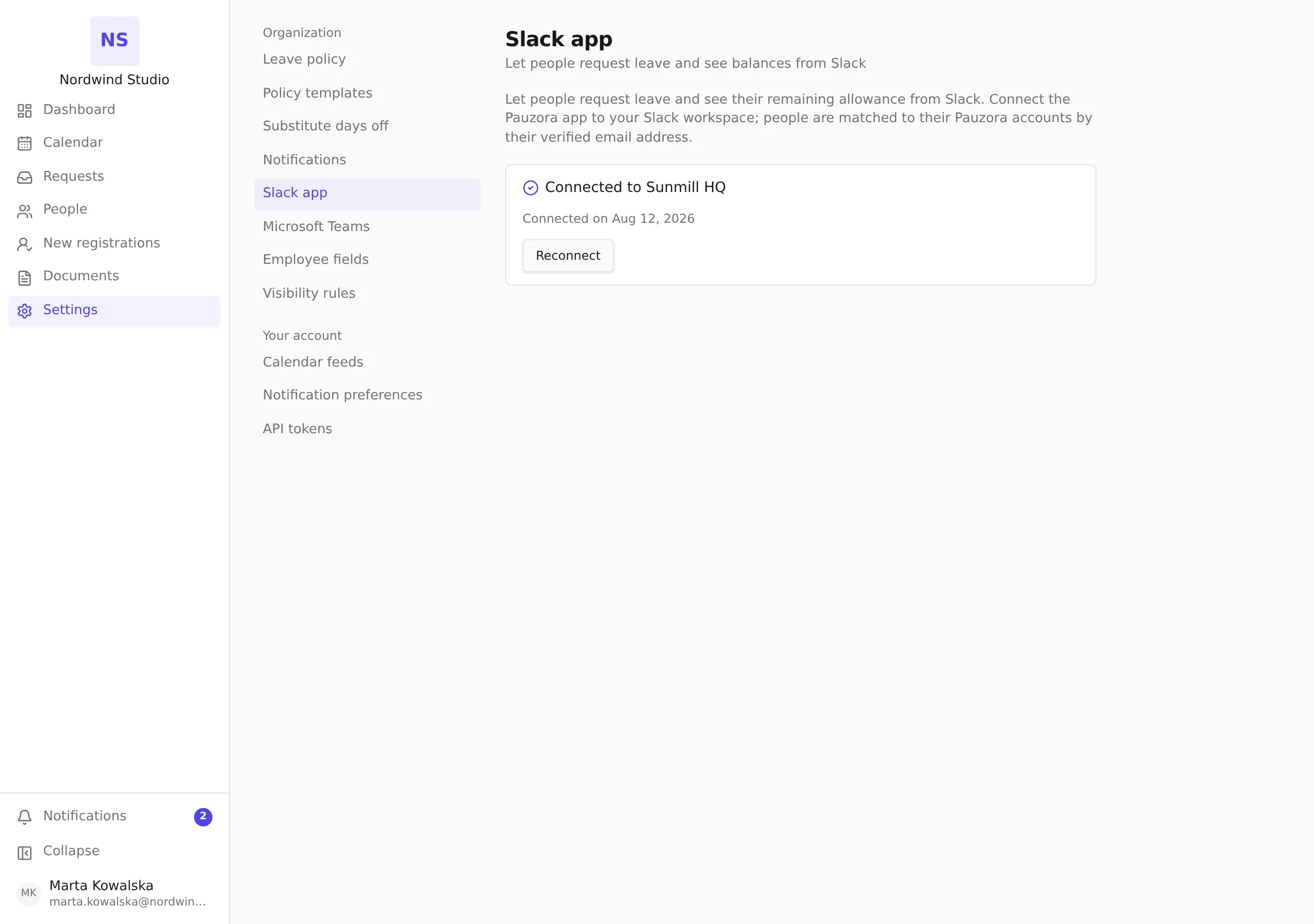
If the section warns about permissions
If the approval was narrower than the app asked for, the section says so: The install did not allow reading member email addresses, so people cannot be matched to their accounts. Choose Reconnect, and this time accept every permission Slack lists.
Reconnect is also how you renew the connection after Slack revokes it, or after the app is removed from the workspace on Slack’s side.
What people can do once it is connected
Everyone in the workspace who has a matching Pauzora account can open the Pauzora app in Slack and:
- see their remaining allowance, per pool, as of today;
- choose Request leave and submit a request from a short form.
The request follows the same approval as one made in Pauzora and appears in the same places — in Requests, in the approver’s queue, in the notifications you have configured. The approver’s own notification arrives in Slack too, with Approve and Decline buttons, so a manager can decide there or in Pauzora as before — the decision is the same either way.
See Request leave from Slack for what the person sees, and Review and decide requests for what the approver sees.