Clock in and out on the web
Record when you start and stop working, and when you take a break, from your browser, and see your week against the time expected of you.
Before you start
- Your organization uses time tracking. If the page says “This feature is not enabled for your organization.”, ask an administrator.
- You have an employee record in your organization. The clock records time for you, so it needs one.
Open the clock
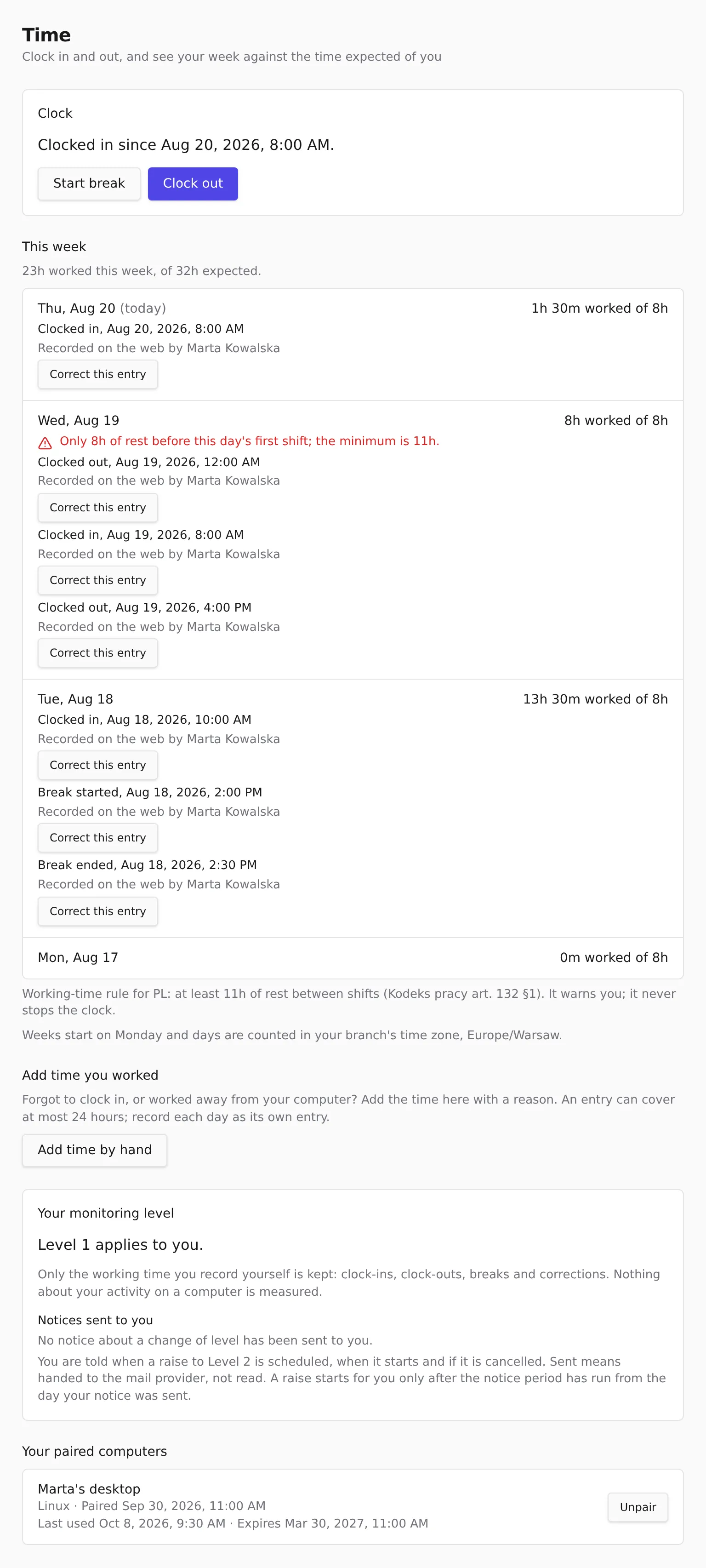
Open Time in the menu. On a phone it is under More. The page has a Clock panel and, below it, This week.
Clock in, take a break, clock out
- Under Clock, click Clock in when you start. The panel then says “Clocked in since …” with the day and time.
- When you stop for a break, click Start break. The panel says “You are on a break.”, and the break is not counted as work. Click End break when you are back.
- When you finish, click Clock out. If you are on a break, clocking out ends it first.
Each click is recorded at the moment the server receives it. You cannot enter a past or future time here. To fix a mistake or add time you worked without the clock, see Correct your time or add time you worked.
Dates and times on this page use your branch’s time zone, which the page names under the week, and weeks start on Monday.
If your shift runs long
If you are still clocked in 10 hours after you clocked in, you get an email, “Did you forget to clock out?”, with the day and time you clocked in. Breaks count toward the 10 hours. You get it once per shift.
- If you are still working, you do not need to do anything.
- If you have finished, click Clock out. If you finished earlier, clock out now and correct the end time as described in Correct your time or add time you worked.
If you forgot to clock out yesterday
If your shift was started on an earlier day and never clocked out, the page tells you so and offers two buttons:
- Clock out ends that shift now. Use it if you really did work through, for example on a night shift.
- Clock in again starts a new shift today. The earlier one is then flagged as missing its clock-out and counts as no time until it is corrected.
You are never locked out of the clock the next morning. After more than 24 hours without a clock-out, the page no longer shows you as clocked in and flags the day “No clock-out was recorded, so this shift counts as no time until it is corrected.” Correct it as described in Correct your time or add time you worked.
What each day shows
Under This week, newest day first, every day shows what you worked, such as “7h 30m worked of 8h”. If no expected time is set for a day, the page says “no expected time set” and never counts it as a zero. The line above the list gives the week’s total.
Under each day the page also lists its entries and who recorded each one. See Correct your time or add time you worked.
If a click is refused
- “You are already clocked in.”, “You are not clocked in.”, “You are already on a break.” and “You are not on a break.” mean the clock was already in that state, for example because you used it in another tab. The panel then shows where it stands now.
- “Your organization is read-only, so the clock can’t be changed right now.”: the buttons are off until full access returns. See When your organization is read-only.