Pair the desktop app with your account
Link the Pauzora desktop app on your own computer to your account, so it can record your working time as you, and unpair it again whenever you like.
Before you start
- Your organization uses time tracking. If the page says “This feature is not enabled for your organization.”, ask an administrator.
- You have the Pauzora desktop app on the computer you are pairing.
- You are signed in to Pauzora in your browser. If you are not, you are asked to sign in and brought back to this page.
Pair a computer
- In the desktop app, start pairing. The app shows a code such as ABCD-EFGH and opens this page in your browser. If the page did not open, open it yourself: add /agent/pair to your organization’s Pauzora address in the browser (for example
sunmill.pauzora.com/agent/pair), type the code under Code shown in the app and click Check code. - Compare what the page shows with the app on your own computer: the Computer name, the System, when pairing Started, and the Code. They must match.
- Click Confirm pairing. To stop, click Cancel: nothing is paired, and the code expires on its own after a few minutes.
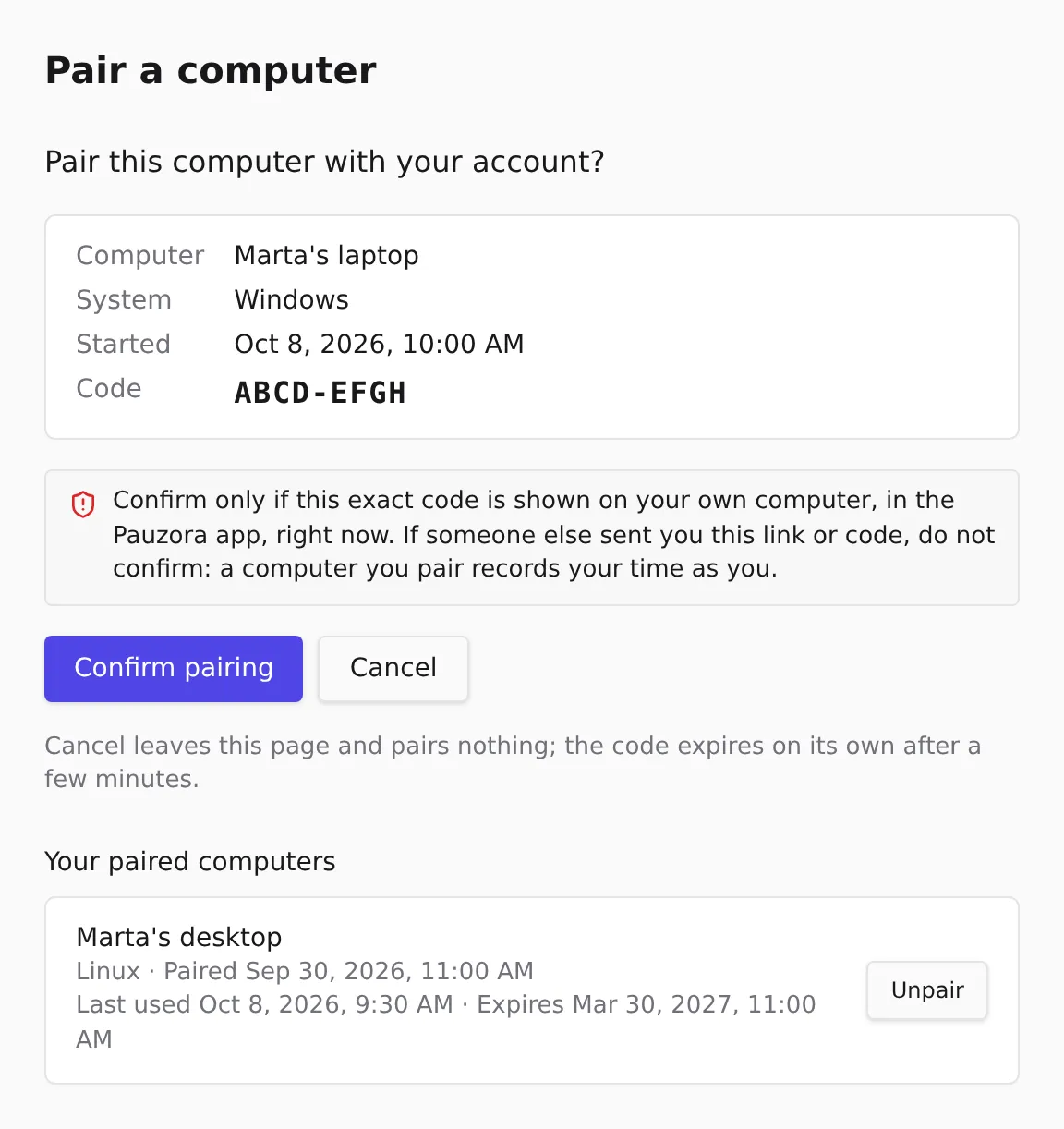
Confirm only a code shown on your own computer, in the app, right now. A computer you pair records your time as you. If someone else sent you the link or the code, do not confirm it.
If the page says the code is not valid
“This code isn’t valid any more” means the code is unknown, has expired, or was already used. The page does not say which. Start pairing again in the app and open the new link.
Other messages you may see:
- “Too many attempts”: wait a little and try again.
- “Your account has no employee record in this organization”: ask an administrator to add you; a computer cannot record time for an account that has no employee record.
- “Your organization is read-only”: a new computer cannot be paired until full access returns. See When your organization is read-only.
See and unpair your computers
The list is on the pairing page: open /agent/pair after your organization’s Pauzora address, as in step 1, without a code. Under Your paired computers the page lists each computer with when it was paired, when it was last used and when its pairing expires. To end one, click Unpair and then Confirm unpair. It stops recording your time at once, and you can pair it again from the app. Unpairing still works while your organization is read-only. The same list is under Your paired computers at the bottom of the Time page.
You can also unpair from the desktop app: in its window, open Unpair this computer and click Unpair. If entries have not been sent yet, the app asks first, and Discard and unpair discards them. The app then removes the computer from your account as well, and the window says so. If the server cannot be reached, for example because you are offline, the app forgets the pairing on this computer only, and the window says that too. It then stays under Your paired computers until you remove it there with Unpair and Confirm unpair, or until its pairing expires.
What happens next
The desktop app records working time for you, and everything it records is visible to you in Pauzora in the same form as to your employer. See Assessing Level 2 time tracking under the GDPR for what each monitoring level captures.