Set up time tracking for your organization
Switch the module on, choose how it measures, and raise it to Level 2 with the notice period Pauzora requires, from Settings → Time tracking.
Before you start
- You need the Admin role for the whole company. HR cannot change these settings.
- Read the compliance toolkit first: Assessing Level 2 time tracking under the GDPR, Employee notice template for time tracking, Works councils and employee representatives before Level 2 and Sources and limits of the compliance toolkit.
Switch time tracking on
Open Settings and choose Time tracking. If your organization does not have the module yet, the page says so. Click Enable time tracking. You can do this yourself only while your organization is on its trial; after that, or if it is not on sale for your plan, the page says “Time tracking can be switched on here only during your trial. Contact support to add it to your subscription.”
Acknowledge the toolkit
Under Compliance toolkit the page names the current version of the toolkit. After you have read it, click Acknowledge the toolkit. You cannot raise the level until you have. When Pauzora publishes a new version of the toolkit, the page asks you again before your next raise; a raise that is already scheduled is not affected.
Set the notice period and the idle threshold
- Under Idle threshold and notice period, set Notice period (days): how long people are told before Level 2 starts for them. It is at least 14 days and at most 90. A raise needs one.
- Set Idle threshold (minutes), between 1 and 60: after that many minutes without keyboard or mouse use, the desktop app stops counting the stretch as active.
- Click Save settings.
Raise to Level 2
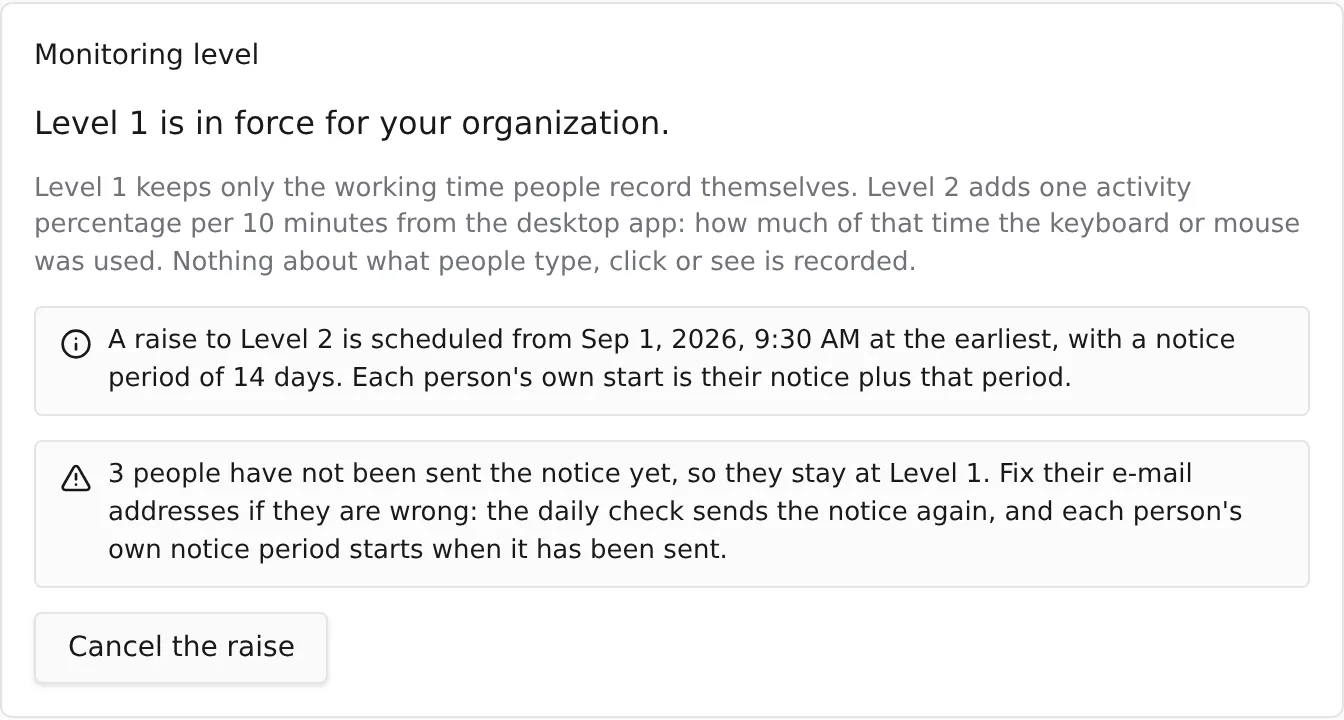
Under Monitoring level the page lists what the raise still waits on: the acknowledged toolkit and the notice period. When both are in, you can click Schedule the raise to Level 2.
You may give a Start date (optional). Without one, Level 2 starts as soon as the notice period allows. Pauzora then e-mails every person; each person’s own start is that e-mail plus the notice period, so the date you see is the earliest one.
People who have not been told yet
While a raise is scheduled or in force, the page says how many people have not been sent the notice yet. They stay at Level 1: nothing is measured for them until it has been sent and their own notice period has run. If someone’s e-mail address in Pauzora is wrong, fix it; the daily check sends the notice again, and their own notice period starts when it has been sent. When everyone has it, the page says “Everyone has been sent the notice of the raise.”
Cancel a raise or lower the level
Click Cancel the raise (while a raise is waiting) or Lower to Level 1 (once Level 2 is in force), then Confirm: cancel the raise or Confirm: lower to Level 1. It takes effect at once, and everyone who was told about the raise is told it will not start. Data already recorded stays until its retention period ends; see How long time data is kept.
If something is refused
- “Acknowledge the current compliance toolkit before raising the level.”
- “Set the notice period before raising the level.”
- “This notice period is shorter than the allowed minimum.”
- “That date is sooner than the notice period allows. Pick a later one.”
- “A raise is already scheduled. Lower the level to cancel it first.”
- “Your organization is read-only, so settings can’t be changed right now.” See When your organization is read-only.