Read, correct and export your team's time
See the days and weeks of the people you manage, open one person’s timesheet, correct a time that is wrong, and export a group’s hours as a spreadsheet file.
Before you start
- Your organization uses time tracking. If the page says “This feature is not enabled for your organization.”, ask an administrator.
- You see Team time in the menu only if your role reads other people’s time: a manager reads the time of direct reports, HR and Admins read the people in their scope. On a phone it is under More.
Read a group’s days and weeks
- Open Team time.
- A manager sees Your direct reports. HR and Admins choose a Group: My direct reports, a branch under Branches, or a team under Teams.
- Choose the Period: This week, Last week or Last four weeks. The first two show one cell per day; Last four weeks shows one cell per week.
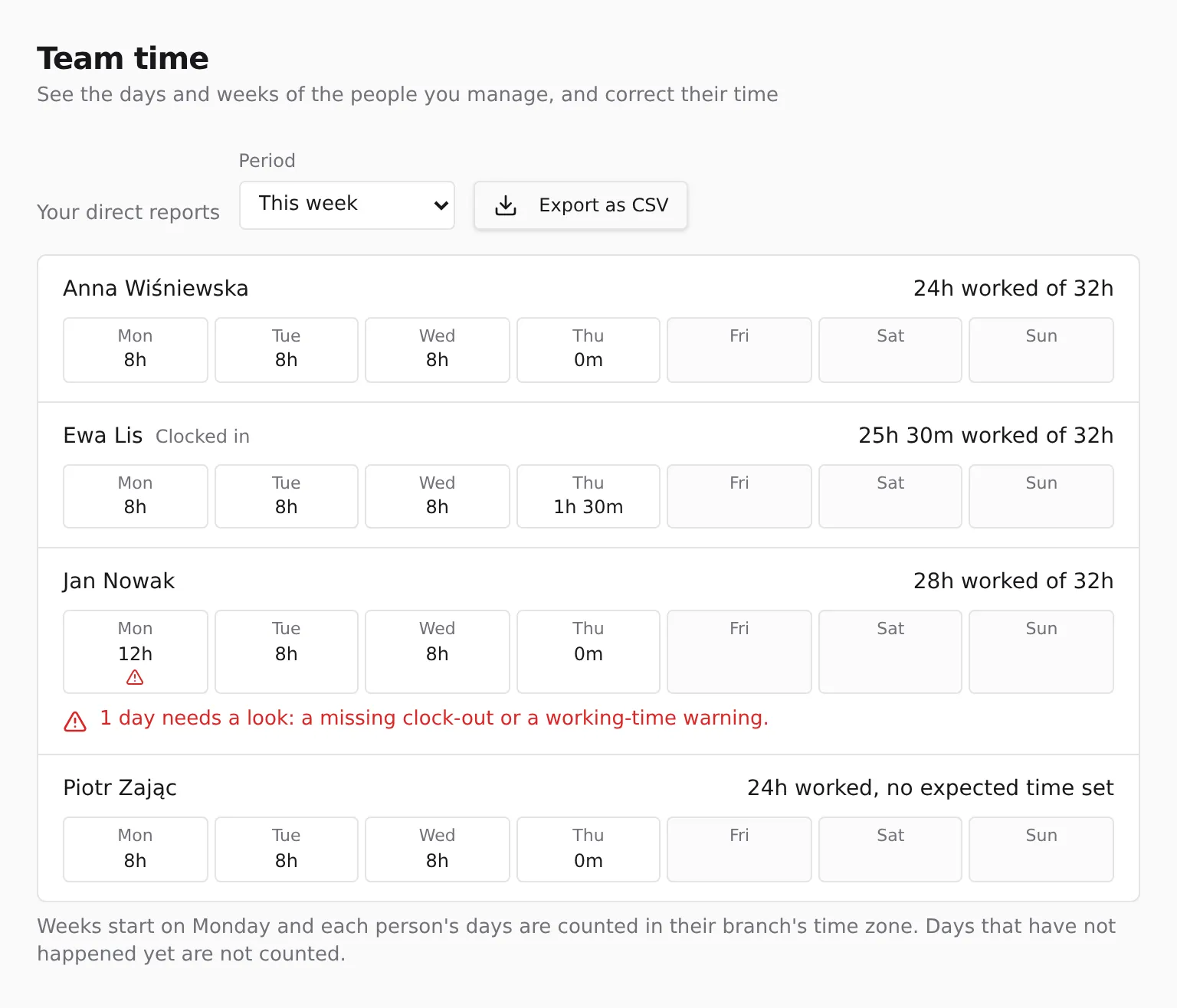
Each person shows the time worked against the time expected, such as “7h 30m worked of 8h”. If no expected time is set for a day, the page says “no expected time set” and never counts it as zero. A person who is clocked in now is marked Clocked in or On a break. A warning triangle and a line such as “2 days need a look: missing clock-outs or working-time warnings.” point at days to open.
Weeks start on Monday and each person’s days are counted in their branch’s time zone. Days that have not happened yet are not counted. If a group is long, click Show more people. The page shows only people you may read; someone outside your reach is not listed, and “No one to show here. Nobody in this group is in your reach.” means just that.
Open a person’s timesheet
Click a person’s name. The timesheet is the same record the person sees about themselves, for the Period you choose. It opens on Last four weeks, so earlier days are there to correct; change Period to see this week or last week only. Your view and theirs cannot differ.
Correct a time
A correction never edits what was recorded. The entries you choose are marked as corrected, a new entry is added if you add one, and your name, the time and your reason are kept. There is no approval step: it takes effect at once. The person is told about it by e-mail.
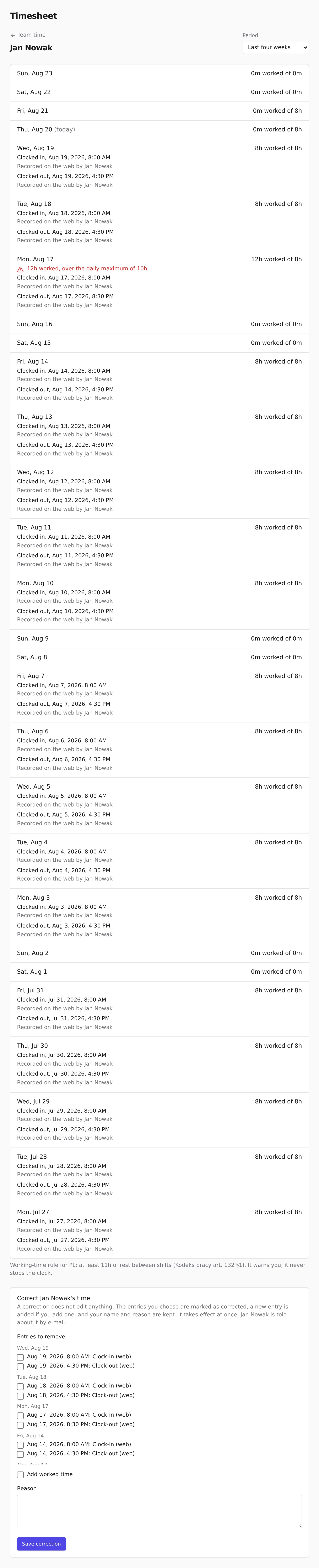
- In the correction form headed by the person’s name, tick the entries under Entries to remove.
- To add the time that should have been recorded, tick Add worked time and fill Day, From, Ends on (if a later day) and To. Times are in the branch’s time zone.
- Give a Reason. It is required, and the person can read it.
- Click Save correction.
One entry is at most 24 hours. A longer entry is refused with “An entry cannot be longer than 24 hours. Record each day as its own entry.” Record a long stretch as one entry per day.
A manager’s correction stands: the person cannot undo it and is asked to turn to their manager. You can only correct people you manage, or, as HR or Admin, within your scope. While your organization is read-only, Save correction is off.
Export a group’s hours as CSV
Click Export as CSV to download the hours of the people and the Period on screen. The file has one row per person and day, with durations in whole seconds and a header row, and opens in a spreadsheet. It holds exactly what the page shows for the same group and period, and nothing about what a person did in between. Each export is recorded: who exported what, for whom.
A group of more than 200 people, or a period longer than the page allows, is refused with “That export is too big. Choose a smaller group or a shorter period.”; choose a smaller group or a shorter period.