Set the expected working time of a branch
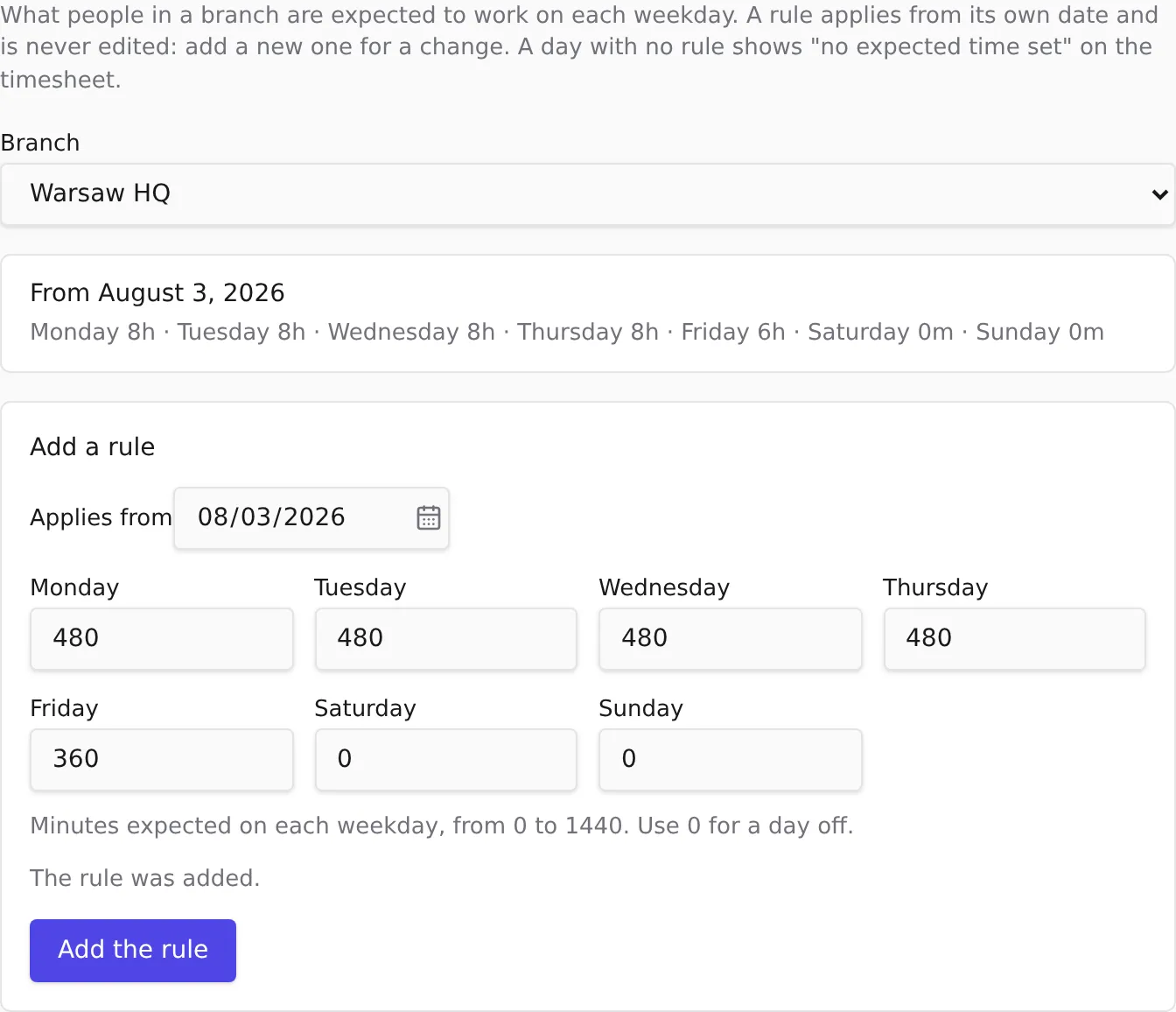
Say how many minutes people in a branch are expected to work on each weekday, so timesheets can show worked time against it, from Settings → Expected working time.
Before you start
- You need the Admin or HR role. You can set rules for the branches your role covers.
Add a rule
- Open Settings and choose Expected working time. If your organization has more than one branch, pick it under Branch.
- Under Add a rule, choose the date under Applies from.
- Type the minutes expected on each weekday, from 0 to 1440. Use 0 for a day off. Monday to Friday start at 480, which is 8 hours.
- Click Add the rule.
How rules work
A rule applies from its own date and is never edited: for a change, add a new rule from the date it starts. Rules are listed newest first with the seven values. A day for which no rule exists shows “no expected time set” on the timesheet and is never counted as a zero.
Withdraw a rule
A rule that has not started yet can be withdrawn with Withdraw this rule. A rule already in force cannot: the page says “A rule already in force can’t be withdrawn. Add a new rule from a later date instead.”
Rules for one person are set on that person’s timesheet, not here.
If something is refused
- “A rule for this date already exists.”
- “Give seven daily values between 0 and 1440 minutes.”